Windows 11 puts your screen's refresh-rate setting in Settings > System > Display > Advanced display. Select your screen, then set Choose a refresh rate. Higher rates smooth movement; lower rates can save laptop battery.
The rates depend on your selected display and its connection. A 144 Hz monitor won't necessarily offer 144 Hz through every cable, dock, or resolution. Try the normal setting first, then check the connection if the rate you want is missing.
In this guide
Select the screen before changing its rate
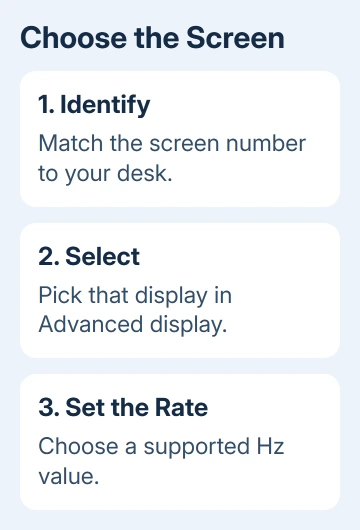
Open Start > Settings > System > Display. With several monitors attached, use Identify to match each numbered rectangle to the physical screen. This avoids changing your laptop panel when you meant to adjust the external monitor.
Select Advanced display and pick the intended screen from its selector. Check the display information before making a change. The resolution and refresh rate shown apply to this screen, not every display on your desk.
Refresh rate is measured in hertz, abbreviated Hz. A 60 Hz display refreshes its image 60 times each second. That number describes the display, while a game's frames per second describes how quickly the game produces new pictures.
Raising one doesn't automatically raise the other. For everyday use, compare scrolling in the same document after the change. That way, a slow-running game won't affect your comparison.
Choose a supported value and confirm the result
Find Choose a refresh rate and open its list. Pick the rate you want from the available choices. Accept the display confirmation after checking that the new picture looks normal.
The screen can briefly go black as it changes mode. If a confirmation appears but the picture is unreadable, let the confirmation expire rather than accepting a setting you can't use. Once the image returns, choose another listed rate.
Check the resolution as well as the hertz. Microsoft's refresh-rate instructions explain the asterisk: that rate requires a different resolution too.
A connection might offer its higher rate only at a lower resolution. Decide whether smoother movement or sharper text matters more. I'd keep the normal resolution for office work before chasing the largest number in the list.
Return to Advanced display after accepting the change. Confirm that the selected display still shows the rate you chose. Then open a familiar app and check that text, pointer movement, and window placement remain comfortable.
Use Dynamic Refresh Rate when battery life matters
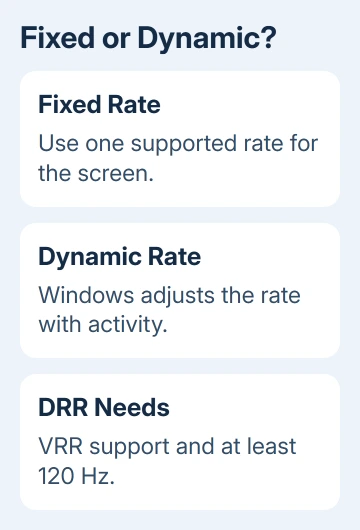
Dynamic Refresh Rate, or DRR, lets Windows adjust the rate to suit the activity. It can use a smoother mode during supported activity and a lower rate during quieter work, rather than holding the same setting all the time.
In Settings > System > Display > Advanced display, look for Dynamic refresh rate. Use its switch to enable or disable it. The control is available only when the hardware supports the feature.
DRR requires a display that supports variable refresh rate and at least 120 Hz. A missing DRR option on an ordinary 60 Hz screen doesn't mean the Windows installation needs repair. That screen doesn't meet the requirements.
DRR and a game's variable refresh rate aren't interchangeable settings. Variable refresh rate lets a compatible display adapt to a game's output. DRR lets Windows choose a rate for what you're doing, which can also affect power use.
Turn DRR off for comparison if enabling it leaves a particular game running at a lower refresh rate. Choose the better-performing setting for that game, then check ordinary desktop use separately. The menu alone can't show how it feels.
Recover a higher rate that's missing from the list
If the list offers only 60 Hz, the screen, resolution, or connection could be limiting it. Check its supported combinations in the monitor manual. The advertised maximum doesn't apply to every input and resolution.
For an external display, try connecting it directly to your computer. Remove the dock or adapter from that path and use a cable suited to the monitor's required mode. If the rate appears, check the original dock, adapter, or cable.
The HDMI settings guide helps with input and connection choices. Keep the same monitor and resolution during the comparison so the cable or dock is the part that changes.
If the rate remains absent with a supported direct connection, check the display driver. Use the Windows graphics-driver update steps for the adapter actually driving that screen, then inspect the list again.
Don't create a custom timing for a larger number. Use a supported mode. If it still isn't listed, ask the manufacturer whether your setup supports it. Include your model, how it's connected, the resolution, and the rate you want.
Follow the Windows 10 path on an older PC
Windows 10 uses Start > Settings > System > Display > Advanced display settings. With multiple monitors, select the intended screen under Choose Display, then choose the desired value under Refresh rate.
Windows 10 doesn't support DRR. A guide showing that Windows 11 switch therefore won't match the older system. Ordinary fixed rates remain limited by the hardware's supported modes.
If every rate change blanks the screen, restore its working mode and ask the manufacturer about that connection. Say which display fails and whether it's connected directly or through a dock.
The Short Version
Select your screen in Advanced display, choose a supported rate, and check its resolution before accepting. DRR needs compatible hardware. Check the connection and driver when a higher rate is missing.
Checked November 16, 2026.