

The amount of RAM installed in a Windows computer appears in Settings > System > About, under Device specifications. On a Mac, open Apple menu > About This Mac and read the memory amount.
That number is different from the memory currently available to apps. Check the installed total first when comparing your computer with an app's requirements, then open the memory-usage view if you're trying to explain slow performance.
In this guide
Read the installed total in Windows Settings
Right-click Start, select Settings, and open System > About. Under Device specifications, find Installed RAM. Write down the full line, including any usable-memory figure in parentheses.
Windows 10 has an About page as well as Windows 11. The visual layout differs, but the installed-memory field has the same purpose. It shows how much RAM Windows recognizes, rather than how much an app is using right now.
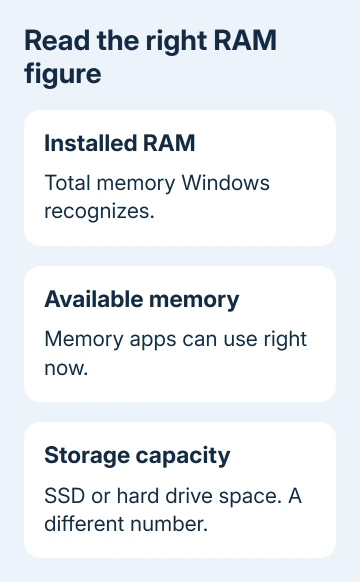
For example, an installed total of 16 GB is the number to compare with an app's published RAM requirement. A storage figure such as 512 GB describes the SSD or hard drive. It doesn't mean the computer has 512 GB of RAM.
Microsoft's device-information steps put installed RAM and processor details on this same page. Keep the computer's model name with your notes when asking a repair shop about an upgrade.
The System type field also matters on older Windows computers. It identifies a 32-bit or 64-bit installation and processor type. Don't mistake the processor's bit count for the amount of RAM installed.
Check current memory use in Task Manager
Press Ctrl + Shift + Esc to open Task Manager. In Windows 11, select Performance in the navigation area, then Memory. Expand the navigation area if only its icons are visible.
In Windows 10, expand Task Manager with More details when only the small app list appears. Then choose the Performance tab and Memory. This view shows memory use as it changes, while About shows the installed amount.
Read the total near the top, then look at In use and Available. Available memory can be used when an app needs it. That figure doesn't count empty hardware slots or storage for saved files.
Leave Task Manager open while using the program that slows down. Watch whether memory use rises during the actual task.
A reading taken immediately after startup can look very different from one taken with a game, video editor, and browser open.
To see how much each app uses, open Processes and select the Memory column heading. Sort with the largest users first. Save your work before closing an app, especially if it holds an unsaved document.
I'd check this during the slowdown before buying memory. An installed total alone can't show whether the program, the disk, or another part of the computer is holding up the task.
The high memory usage guide explains the usage figures in more detail.
Read speed and slot information carefully
The Memory panel may also show Speed, Slots used, and Form factor. Record those details if you're planning a hardware upgrade, but compare them with the service manual for your exact computer model.
Don't buy a memory module just because its capacity matches what you see in Slots used. Some computers have soldered memory, some use removable modules, and some combine both.
That field won't tell you how easy the memory is to reach inside the computer.
A laptop with memory attached directly to its board may have no supported RAM upgrade. Desktop motherboards also limit memory generation, capacity, and which module combinations work. Check those limits before ordering an extra stick.
Don't confuse the speed reading with capacity. A faster speed number doesn't mean more gigabytes, and a RAM kit's advertised speed setting may differ from the speed your computer is using.
Record both the installed capacity and the displayed speed.
If Task Manager leaves a field blank, use the PC maker's specifications for your model. Tell support your model or service tag. Ask if RAM is removable, which type works, and the maximum capacity. Don't guess from a similar-looking model.
Find the memory amount on a Mac
Open Apple menu > About This Mac. Read the Memory amount in the Mac's overview. On current macOS versions, System Settings > General > About also shows the computer's total memory.
An Apple silicon Mac may describe this as unified memory. That memory is shared by the chip's processing components, including graphics. It still gives you the total to compare with the application's published Mac requirements.
To see current use, open Applications > Utilities > Activity Monitor, then select Memory. Watch Memory Pressure while doing the task that feels slow. The graph helps show whether the Mac is struggling to meet its current memory needs.
On an older Intel Mac, the installed amount is still different from current app usage. Whether that model supports a physical upgrade depends on the exact Mac, not simply on whether it has an Intel processor.
Use the model information on the About screen to find the specifications for your exact Mac. Apple silicon Macs don't support adding ordinary removable RAM modules later.
Choose a supported capacity when buying the computer rather than planning a module upgrade.
Deal with a total that doesn't match the specification
A slightly smaller usable amount can reflect memory reserved for hardware. It doesn't automatically mean a module is missing. Compare Installed RAM with Hardware reserved in Task Manager before treating every difference as a hardware fault.
If the installed total itself is much smaller than expected, check the computer's purchase specification and firmware information with its maker. The hardware reserved RAM checks cover a large gap between installed and usable memory.
After a recent memory upgrade, report the old capacity, new kit details, recognized total, and any startup errors to the installer. Ask the installer to confirm that the kit is compatible and every module is detected.
Don't remove memory while the computer is powered.
For an app compatibility question, send support the installed RAM total, operating system, and exact app version. For a performance question, add what Task Manager or Activity Monitor shows during the slowdown.
That way, support has the details needed for the question you're asking.
The Short Version
Read Installed RAM in Windows System > About, or Memory in About This Mac. Use Task Manager or Activity Monitor for current usage.
Confirm the exact computer's upgrade support before treating a slot count or a speed reading as buying advice.
Checked November 15, 2026.
 If you have any business, I can build it online






