Chrome that won't accept keyboard input often needs a restart or an extension check. Save unfinished writing, quit Chrome, then reopen it. If only one website rejects typing, compare it with the address bar before resetting the browser.
These steps apply to Windows and Mac computers running Chrome. A missing phone keyboard, a broken laptop keyboard and a shortcut that does the wrong thing each need different checks from a browser field that won't accept text.
In this guide
1. Restart Chrome after protecting unfinished text
Copy any important text you can still select into a document before closing the browser. Reopening tabs doesn't reliably recover an unfinished form, email or application. Save a draft through the website when its controls still work.
On Windows, close every Chrome window and reopen the browser from Start. On Mac, use Chrome > Quit Google Chrome, then launch it again. On a Mac, closing a window alone may keep Chrome running.
Type a few letters into the address bar without pressing Enter. Then try a text field on the affected page. If both work now, watch whether the failure returns with a particular page or extension.
If Chrome won't respond to the mouse either, treat it as a frozen browser rather than a keyboard-only fault. Restart the computer after saving work in other apps. That closes the stuck browser when you can't quit it normally.
If letters work but a keyboard command doesn't, use the Chrome shortcut reference. Windows and Mac use different modifier keys, and a webpage can handle some keys differently from the browser itself.
2. Compare the address bar, another page and another app
Click directly inside the field where you expect text to appear. A highlighted button or an open menu doesn't mean you're ready to type in a field. Try the address bar too, using Ctrl + L on Windows or Command + L on Mac to select it.
If typing works in the address bar but not in one page, open another site with a text field. That tells you whether Chrome still accepts text on other sites while the original form or editor fails.
Try the same keys in Notepad on Windows or a TextEdit document on Mac. If they fail there too, the problem extends beyond Chrome. Check the keyboard's connection and the operating system's input settings before changing browser data.
For a Windows key that fails everywhere, the Windows-key troubleshooting steps cover that specific system-level fault. A browser reset won't repair a disconnected keyboard or a key blocked outside Chrome.
If only one site fails, save its draft and reload that page. Try its form in another browser if needed to finish the task. Tell the site's support team which field fails and whether Chrome's address bar still accepts typing.
3. Apply the available Chrome update
Open the three-dot menu and choose Help > About Google Chrome. Let the page check for an update. If Relaunch appears, use it after saving unfinished work so the installed update can take effect.
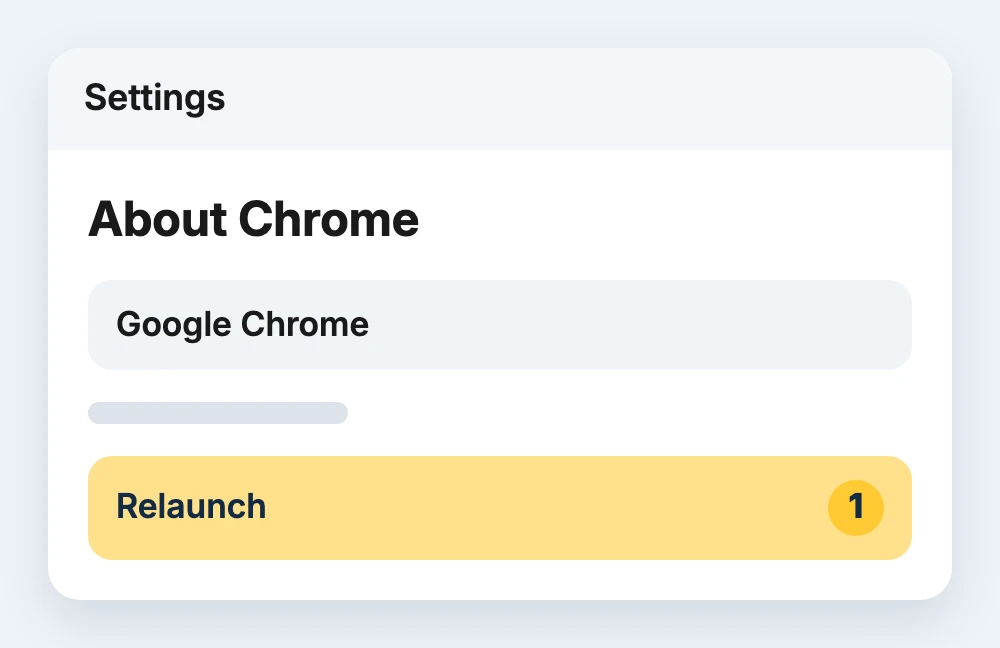
Google's Chrome update instructions explain that restarting applies an available update. A downloaded update waiting for relaunch isn't yet the version running in your open window.
On a Mac, the page is also available through the Chrome app menu's About Google Chrome command. Check the version after reopening, then repeat the address-bar and page-field comparison.
If an update fails, record its error for the administrator or Chrome support. On a managed work computer, the organization may control browser updates. Keep that error separate from the original typing failure in your report.
If Chrome is current and still won't accept input, check extensions next. An update can help with browser problems, but seeing the latest version there doesn't mean Chrome has a known fix for this typing failure.
4. Turn extensions off, then bring them back individually
Use the three-dot menu, open Extensions > Manage Extensions, and note which extensions are enabled. Turn them off for a comparison, then save the affected page's contents and reload that tab.
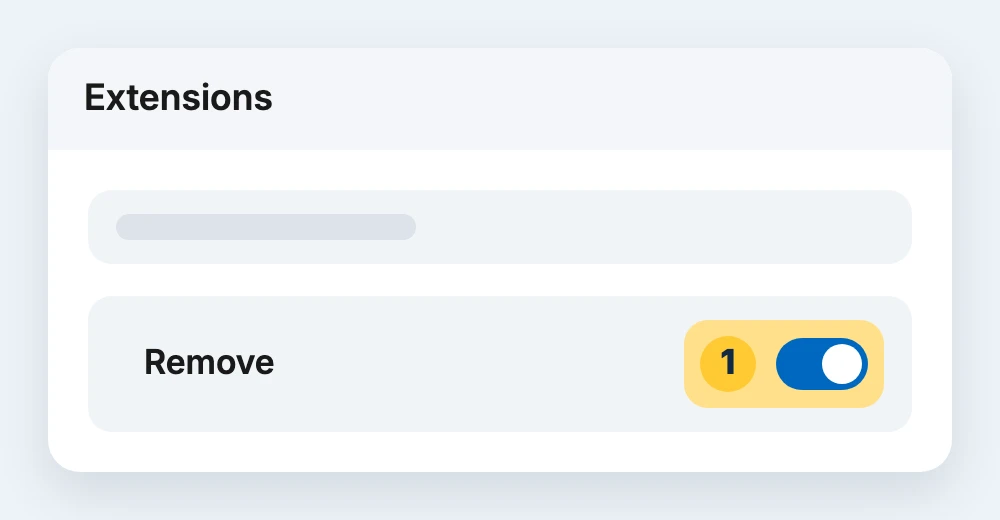
The extension controls let you disable an extension without removing it. You can keep it in the list while checking whether turning it off restores typing.
Try typing in that field again. If it works, turn on one extension, try the field, and work through the list. Leave an extension off if turning it on stops typing again, and contact its developer.
Give the developer the extension version, Chrome version and affected website. Say whether the address bar also stopped working and whether the extension blocks ordinary letters or takes over a particular shortcut.
If nothing changes with extensions disabled, restore the ones you normally use. I'd turn off extensions before resetting: you can find the problem add-on without changing your other preferences.
5. Reset browser settings only for a wider Chrome failure
When several websites still reject typing but other apps work, consider Chrome's settings reset. Open Settings > Reset settings > Restore settings to their original defaults, then read the confirmation before choosing Reset settings.
The reset instructions say saved bookmarks and passwords remain. It changes browser preferences and affects extensions, themes, cookies and site data, so expect to restore preferences and sign in to sites again.
A reset doesn't change every setting in your profile. Try typing right afterward, before turning extensions back on or changing anything else. Tell support whether typing worked immediately after the reset.
When typing still fails
If the problem survives, use Help > Report an issue from Chrome's menu. Include the operating system, browser version and whether typing fails in the address bar, several sites or one field. Leave private form contents out of the report.
On a work computer, send IT those details and request a check of your browser rules and installed typing tools. If keys also fail outside Chrome, ask the computer maker to assess the keyboard instead.
The Short Version
Protect unfinished text and restart Chrome. Compare its address bar with a webpage and another app, then update and test extensions individually. Save a settings reset for a Chrome-wide failure; it affects sign-ins and preferences.
Checked November 27, 2026.
 If you have any business, I can build it online