

Yes, Chrome can stop a website from capturing your desktop through screen sharing. Cancel the request or stop an active share first; a managed policy can block future requests, and a Mac has a separate recording permission.
Each control handles a different situation. Preventing a meeting website from sharing your screen isn't the same as stopping a separate recording app, and hiding the entire-screen choice isn't the same as blocking all sharing.
In this guide
Stop the share that's running now
Look for Chrome's sharing notice and choose Stop sharing. In Google Meet, return to the meeting and choose Stop presenting. Google's presentation controls describe the meeting's own stop button.
Stopping the share ends the stream going to that site. Muting your microphone or switching off your camera doesn't do that; those buttons control different inputs.
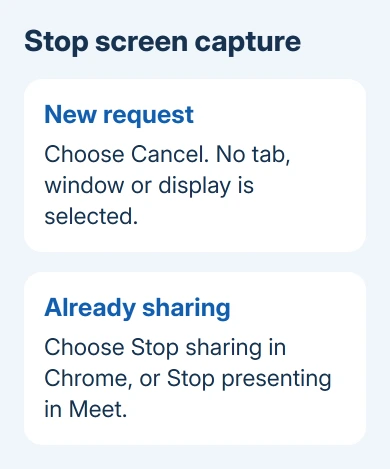
When a new screen picker opens, select Cancel rather than choosing a tab, window, or display. A request to share isn't permission to start. Don't select a screen just to make an unfamiliar prompt disappear.
Check the meeting preview after stopping. It should no longer show a live view of your desktop. A participant may still have an earlier image or recording, so stopping now doesn't remove material that was already sent.
I'd stop the current session before changing settings. That gives you an immediate result while you work out which longer-term control applies.
Share one tab when the rest of the desktop must stay private
Sometimes the goal is to present a document without exposing email, notifications, or another app. Start presenting again and select Chrome Tab in Meet, then choose the specific tab you want participants to see.
The browser's picker separates tabs, windows, and entire screens. Sharing a tab keeps the presentation within that tab. Selecting the whole screen includes whatever appears on that display during the presentation.
Choose a window only when you need an app outside the browser. Check its preview before confirming, especially with several similar windows open. A window with the right app name can still contain the wrong document.
Keep the shared tab on the material you're presenting. Opening a private page inside that same tab changes the content being shared. Starting with a separate presentation tab makes that easier to avoid.
The website can influence the options Chrome offers. Some meeting tools don't offer every capture type, and an organization's restrictions can narrow them further. Missing choices aren't a reason to grant broader access elsewhere.
Block Chrome's screen-recording access on a Mac
On current macOS versions, open Apple menu > System Settings > Privacy & Security > Screen & System Audio Recording. Find Google Chrome and turn off its screen-recording access.
Apple's screen-recording settings let you change access for each listed app. If macOS asks you to restart Chrome, do that before checking the result.
Older macOS releases can label the setting Screen Recording. On versions that use System Preferences, look under Security & Privacy > Privacy instead. Use the permission name your Mac shows; it isn't a Chrome site setting.
Try the same sharing action again. Chrome should lose the recording access you've turned off. The prompt and sharing choices you see depend on macOS and how you're sharing.
This change applies to Chrome as an app. It can affect legitimate presentations too. If you later need desktop sharing, return to the same setting and restore access for that session.
If the problem is the opposite, Chrome being unable to present when you want it to, the Mac screen-sharing repair steps cover that permission path.
Use the managed policy to block screen-sharing requests
If your organization manages Chrome, the policy to check is ScreenCaptureAllowed. Setting it to false blocks websites from requesting screen sharing through Chrome, except for sites allowed by the capture exception lists.
An administrator using the Google Admin console can open Devices > Chrome > Settings > Users & browsers, choose which organizational unit or group to configure, and find Screen video capture.
Select Do not allow sites to prompt the user to share a video stream of their screen, then save the policy. Check the adjacent site exception lists as part of the same change.
Those lists matter: ScreenCaptureAllowedByOrigins, WindowCaptureAllowedByOrigins, TabCaptureAllowedByOrigins, and SameOriginTabCaptureAllowedByOrigins can allow a matching site to request capture despite the general block.
On the affected computer, open chrome://policy and select Reload policies. Search for ScreenCaptureAllowed and check its value and status. If the policy doesn't appear on this page, you haven't confirmed that Chrome is using it.

Apply the policy through your organization's management system on Windows, macOS, Linux, or ChromeOS. A personal browser has no matching universal switch in its ordinary site settings. The Admin console requires management access.
Keep browser restrictions separate from other recording tools
Chrome's capture policy controls requests made through Chrome. A separate meeting client, remote-access program, or operating-system recorder has its own permissions and controls.
Check which app is actually sharing before changing browser policy. If the sharing notice belongs to another app, stop the session there. Removing a Chrome extension won't stop an unrelated desktop program.
For an unfamiliar extension, open chrome://extensions, turn it off, and retry the action that produced the prompt. Review it before removing it. The extension troubleshooting page explains restrictions you may see there.
If a work browser still allows an unwanted capture request, send IT the requesting site's address and the values shown on chrome://policy. Ask them to check the four capture exception policies as well as the general block.
The Short Version
Cancel a new request or stop the active share first. Use a single tab for a limited presentation, macOS permissions for Chrome's recording access, or ScreenCaptureAllowed with reviewed exceptions for a managed browser.
Checked November 12, 2026.
 If you have any business, I can build it online






