

Chrome uses your Google Account password for account sign-in. Reset that through Google Account recovery if you've forgotten it. For a password Chrome fills into another website, change it on that website first, then update the saved login.
Those are separate jobs. Editing a password in Google Password Manager changes the stored copy; it doesn't change what the website accepts. A Windows PIN prompt before showing a saved password wants your device's PIN.
In this guide
Choose the account that needs the new password
Look at the address and username on the sign-in page. Gmail, YouTube and Chrome account sign-in use a Google Account. A shopping site, forum or streaming service normally has its own account, even when Chrome remembers its password.
If you use Sign in with Google on the site, you'll need access to that Google Account. If it shows a normal email-and-password form, use the site's own password recovery unless you originally chose another sign-in provider.
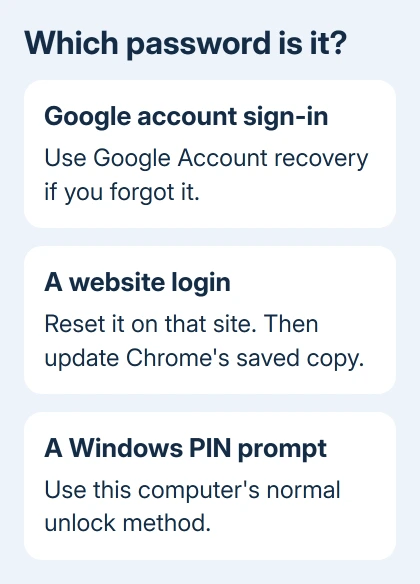
I'd identify the account before deleting anything. An intact saved login can still help you sign in, and removing Chrome data won't create a new password for an online account.
Change the Google password while you can sign in
Open your Google Account, check the email address, and choose Security & sign-in. Under How you sign in to Google, open Password. Confirm your identity if asked, enter the new password and select Change Password.
On a phone, you can open the same account page in Chrome. Use the account's security section rather than a saved password entry in the browser. Check the email address carefully if you use personal and work profiles on the same device.
Google's password change instructions explain that changing or resetting it signs you out in many places. Some verification devices, approved third-party apps and home devices are exceptions.
Have your recovery phone or another verification method ready before starting. After the change, use the new password at the next Google service sign-in. A password change isn't the same as removing every app's account access.
Try signing in with the new password. If it's accepted but you're then asked to verify your identity, use one of the methods offered. Changing the password again won't help you get a missing code.
Recover a forgotten Google password
Go to Google Account recovery. Identify the account with its email address or linked phone number, then answer the questions. The checks depend on your account, so your screen may differ from someone else's.
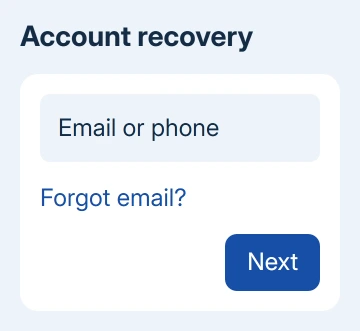
Use a device and browser you've used for that account before, preferably from a familiar location. If recovery requests an old password, enter the latest one you can recall. These are part of the account recovery tips.
Choose another offered method when the first one isn't available. You can only use a recovery email, a trusted device prompt or phone verification if the screen offers that choice. Follow the options shown for your account.
When you reach the password reset, choose a new password you haven't used for that account. Then finish the sign-in. Seeing the new-password screen is progress, but completing it and reaching the account is the result you're looking for.
For an account your employer or school controls, ask its administrator to reset the password if you can't do it yourself. A managed account can follow different rules from a personal Gmail account.
Google's recovery guidance says it doesn't provide a phone service that can sign you into an account. Keep any paid recovery service away from your passwords and verification codes.
Reset a website password, then correct Chrome's copy
Open the website's real sign-in page and choose Forgot password or its equivalent. Enter the account email, finish recovery and set the new password there. Wait for confirmation before closing that tab.
Try signing in using the replacement password. If Chrome offers to update the stored login, check the username and accept the update. With several accounts on the same site, it's easy to update the wrong saved entry.
On a computer, open Chrome's three-dot menu, then Passwords and autofill > Google Password Manager. Select the website and account. Use Edit, enter the password that now works on the site, and save it.
On Android, open Chrome's three-dot menu and Settings > Autofill and passwords > Google Password Manager. Select the matching entry and use Edit.
On iPhone or iPad, use Chrome menu > Settings > Autofill and passwords > Password Manager. Open the entry, choose Edit, change it and tap Done.
The device may ask for its normal unlock method before revealing or editing a login. Use your device's unlock method to continue. The Windows security prompt guide explains why a Windows PIN isn't your Google password.
Test autofill on the site's sign-in page after saving. If manually typing the new password works but autofill doesn't, compare the saved username and website address. Another entry for the same site can still contain the old password.
Leave browser reset and password deletion for other problems
Chrome's Reset settings command restores browser preferences. It doesn't reset a Google Account or website password, and its reset instructions say saved passwords remain unchanged.
An empty password list is also a separate problem from a rejected password. Use the missing Chrome passwords checks before clearing data, especially when the same logins still appear on another device.
If the reset email doesn't arrive, give the site's account support your username and the time you requested it. For a Google recovery delay, follow the waiting period on the screen; a reset isn't always immediate.
The Short Version
Reset Google sign-in through Account recovery. Reset another website's password on that site, then update its saved Chrome entry. A device PIN and Chrome's browser-reset button serve different purposes.
Checked November 10, 2026.
 If you have any business, I can build it online






