A convertible Chromebook should switch back to laptop mode at a normal typing angle. Unfold it, reconnect a detachable keyboard if fitted, and restart. An on-screen keyboard alone doesn't mean tablet mode has disabled the physical keys.
When both the built-in keyboard and touchpad stop together, check the device's position and hardware before changing browser settings. If the whole screen is frozen too, the problem is broader than a layout that still looks like a tablet.
In this guide
1. Return the Chromebook to its laptop position
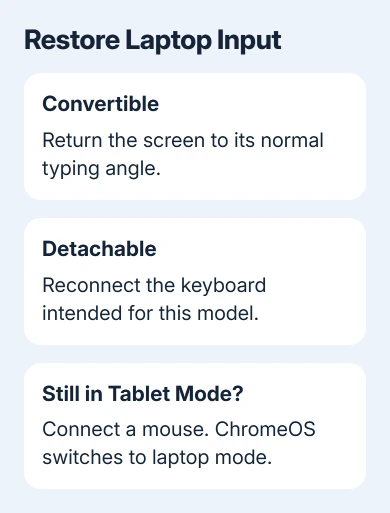
Set it on a desk with the display at a normal typing angle. A 360-degree convertible uses its attached keyboard differently when folded back. A detachable model instead needs its keyboard properly connected.
Disconnect an optional keyboard cover and reconnect it if your model uses one. Check the connection for visible debris without forcing the contacts. On a model with a permanently attached keyboard, don't try to detach it.
Try the physical keyboard in a text field, then move a finger across the touchpad. Test both controls separately. If they work, the computer is accepting laptop input even if an on-screen keyboard or large touch controls remain visible.
Google's tablet-mode instructions explain that a convertible can be used as a tablet by folding its screen back. The touch layout and automatic on-screen keyboard are normal when it's folded back.
Check whether just the pointer or just typing has stopped working. A broken keyboard, faulty touchpad and incorrect tablet-position detection need different checks. Tell support whether the built-in keyboard, touchpad or both still work.
2. Connect a mouse, then check the on-screen keyboard
Connect a compatible mouse. ChromeOS switches back to laptop mode when a mouse is connected. Check whether that restores the expected layout and lets you navigate; your built-in touchpad may still have a fault even though the mouse works.
Touch a text box to display the touchscreen keyboard while the physical keys are unavailable. If touch responds, you can use it to reach settings.
If physical typing works but the screen keyboard keeps appearing, open Settings > Accessibility > Keyboard and text input. Check On-screen keyboard. Turning it off hides that keyboard; it won't repair physical keys that don't respond.
The automatic keyboard can appear in tablet position even with that accessibility setting off. Its switch doesn't force laptop mode. Return to position and restart checks if both built-in input devices remain unavailable.
Use the touchscreen keyboard or an external keyboard if you can't enter the sign-in password. That lets you reach your files and settings while you check the fault. It doesn't mean the built-in keyboard is repaired.
For a computer that is actually running Windows, use the separate HP tablet-mode checks. An HP Chromebook and an HP Windows convertible don't have the same settings or recovery procedure.
3. Shut down and start in laptop position
Save open documents through touch controls or an external mouse, then shut down through the power menu. Turn it back on in its normal laptop position. Test the physical keys and touchpad at the sign-in screen.
Working controls there are useful: the hardware can respond before your usual tabs and extensions load. If the controls stop only after signing in, record that timing. If they never respond, move to the hardware-reset procedure.
Try an external USB mouse if the touchscreen is difficult to use. It lets you do the next checks even while the built-in touchpad isn't working. Disconnect unneeded accessories before the reset to check the Chromebook on its own.
If the screen doesn't react to touch and no external input responds, report that as a frozen Chromebook. That calls for a restart and hardware check, rather than adjusting the on-screen keyboard settings repeatedly.
4. Reset the hardware using the correct model procedure
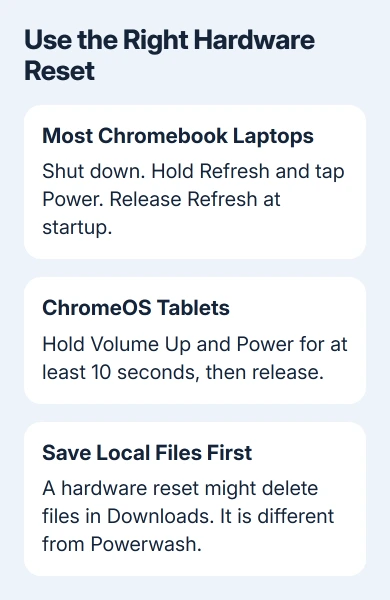
A hardware reset restarts the parts that handle keyboard presses and touchpad movement. Powerwash instead erases local user data. Save important local work elsewhere first: a hardware reset might delete some files from Downloads.
For most Chromebook laptops, shut down, hold Refresh, then tap Power. At startup, release the Refresh key. Refresh is the key carrying the top-row symbol used for refreshing pages, not a key on an external Windows keyboard.
For a ChromeOS tablet, hold Volume Up together with Power for 10 seconds or longer, then release them. Use the tablet procedure when your device is a tablet; don't keep trying a nonexistent built-in Refresh key.
Some older models use a reset button, power disconnection or removable battery. Find your exact model in the hardware-reset instructions first. A general battery-removal tip doesn't apply to a sealed laptop.
Test both built-in controls after startup, with the display in laptop position. If hinge movement makes them fail again, record it for repair. Repeated resets won't fix a damaged hinge or unreliable connection.
5. Install ChromeOS updates and check the pattern
With touch or an external mouse, select the time, open Settings > About ChromeOS, then choose Check for updates. Finish the offered update, then choose Restart when prompted. Leave its power adapter connected throughout the update.
After restarting, fold the screen back and return it to laptop position again. If one movement immediately stops the keyboard, report that pattern to the maker. If it fails without movement, record when the failure begins instead.
School and work Chromebooks can have updates and guest access controlled by an administrator. Ask them to check the installed ChromeOS version and the device model. Don't try to bypass management just to compare another sign-in.
I'd avoid a factory reset when both controls still fail at sign-in after the hardware reset. Ask the maker to assess keyboard, touchpad and position detection first, especially with drop damage or a loose hinge.
If support recommends Powerwash, follow the Chromebook factory-reset preparation before erasing local data. Give support the model, ChromeOS version, external keyboard or mouse results and whether the hinge angle triggers the fault.
The Short Version
Unfold, reconnect a detachable keyboard and restart. Connect a mouse to switch to laptop mode. For dead built-in controls, back up local files, use the model's hardware reset and update. Persistent failure needs a repair assessment.
Checked November 13, 2026.
 If you have any business, I can build it online