A Chromebook's spinning video player usually calls for a connection, site, or Chrome setting check. Try the video in Incognito first. A downloaded movie with sound but no picture may use video encoding the built-in player can't handle.
Start by separating online videos from files in the Files app. Browser resets won't change how a saved movie was encoded, and converting a movie won't repair a blocked streaming website.
In this guide
1. Compare another video and a private window
Reload the page. Compare a different clip from that service with one hosted elsewhere. If only one item fails, keep its address and error message. That gives the service a specific playback problem to check.
Open Chrome menu > New Incognito window and visit the affected video. Sign in if that service requires an account. For a subscription video, sign in as you would in your normal window so you're comparing the same access.
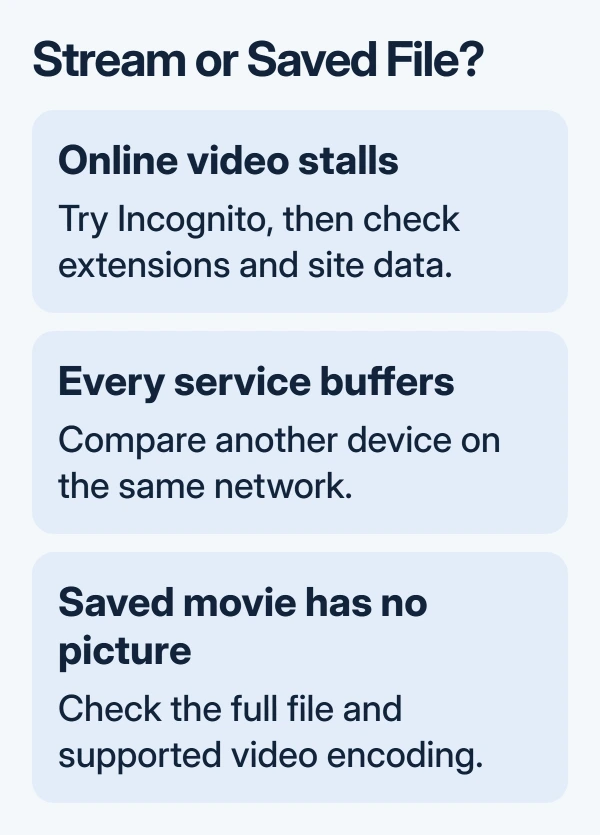
If it plays in Incognito, continue with extensions and site data. Google recommends a private-window comparison because extensions and stored browsing data can interfere with playback.
If both windows fail, check the connection, JavaScript, and updates. Also note whether the player shows an account or region message. Ask the streaming service about an account or region error instead of resetting the Chromebook.
When the menu doesn't offer Incognito on a school Chromebook, use the checks you can access and involve the administrator. A managed device may restrict private browsing or video services. Don't remove school management to test a player.
2. Check the connection when videos keep buffering
Open another website and see whether its pages load normally. If the Chromebook has just joined a hotel, library, or public network, complete any network sign-in first. A Wi-Fi connection alone doesn't mean internet access is ready.
Try the video on another device connected to the same network. If both devices stall, check the service's own app or status information before changing Chrome. A problem shared across devices is less likely to be one Chromebook setting.
For a home connection that also fails on other sites, restart your network equipment. Shut down the Chromebook, unplug the modem and separate router, and wait about a minute. Power the modem first, then the router after the modem is ready.
Wait for the router to reconnect before starting the Chromebook. Try the same video again. Don't restart school or workplace network equipment; tell its administrator which service fails and whether ordinary web pages still load.
If another internet connection plays the video, report the original network result to its owner or provider. Include whether other devices fail there too. That gives them something to check without you repeatedly deleting browser history.
3. Remove extension interference and damaged site data
When Incognito plays the video, return to a normal window and enter chrome://extensions. Switch off installed extensions, reload the video, and try it again. Include ad blockers and script blockers in the check.
If playback returns, enable extensions individually and reload after each one. The extension that brings the fault back needs an update, a site-access change, or removal. Leave other extensions alone once you've identified it.
If the video still fails with extensions off, clear only that service's stored information. Enter chrome://settings/content/all, search for the service's domain, and delete that site's data. Then reopen the service and sign in again.
Clearing the service's data ends its login session and can remove local preferences. Finish any unsaved work in that service before clearing it. You can leave your saved passwords and other sites' history alone for this check.
I'd try that single-site cleanup before a full browser reset. If only one streaming service is broken, keeping the change limited to that service makes the result easier to understand.
If you also see whole-browser hangs rather than one stalled player, the Chromebook freezing checks address the wider problem. A video stopping while other tabs remain responsive isn't the same failure.
4. Allow JavaScript and update ChromeOS
Open Chrome Settings > Privacy and security > Site settings > JavaScript. Check that the affected trusted site isn't blocked. Some video players need scripts to load their controls and start playback.
Allow the site's scripts and reload the page. If the player now appears, the script block was preventing it from running. If the player was already running but reporting a playback error, continue with the system update.
For ChromeOS, select the time on the shelf, open Settings > About ChromeOS, then choose Check for updates. After an update downloads, select Restart when offered. This updates the Chromebook's system and browser together.
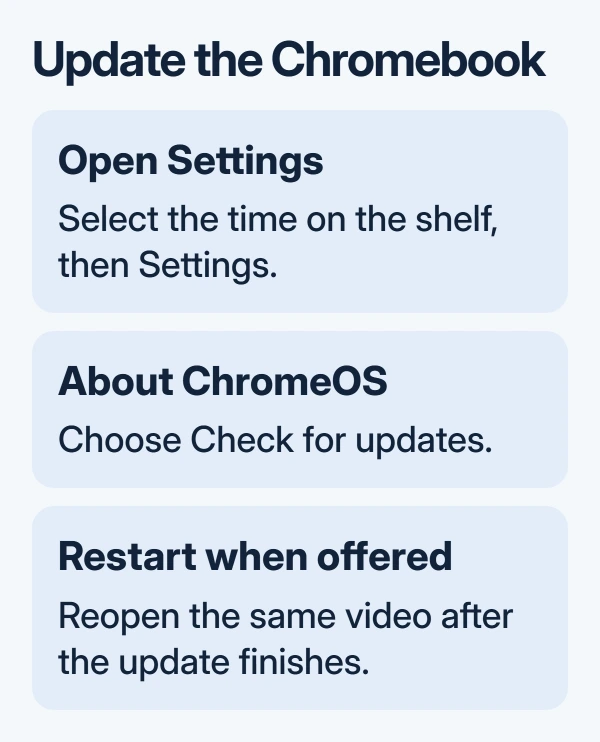
Keep the Chromebook connected until the download finishes, then reopen the failed video after restart. Closing Chrome won't finish a system update that's waiting for Restart. Check the result before changing another setting.
If an administrator controls updates or the video service is blocked by policy, send them the error and ChromeOS version shown in About ChromeOS. They'll need to help with a control you aren't allowed to change.
5. Take downloaded movies down the file-format route
Open a saved movie from Files and note whether it refuses to open, plays only sound, or stops partway through. Try another complete recording. If other files play, check the failed file's format and whether its download finished.
A filename ending in .mp4 doesn't identify every encoding inside it. MP4 is a container: it holds video and audio tracks, and the player needs to support how each track was encoded. Renaming an extension doesn't convert them.
For the exact sound-without-picture case, use the Chromebook MP4 playback guide. It covers getting a complete copy and requesting or converting a recording into supported video, without repeating browser repairs.
Keep the original when asking the sender for another export. Tell them whether the built-in player opens it and whether audio plays. That helps them send a compatible copy rather than the same recording with a new filename.
6. Reset Chrome only when several sites still fail
If several services still fail, open Chrome Settings > Reset settings, then Restore settings to their original defaults. Review and confirm Reset settings. Try playback before restoring extensions or permissions.
This browser reset isn't a Chromebook Powerwash. If videos still fail, use Help > Report an issue in Chrome with the page address, error, ChromeOS version, and private-window result. Ask school IT instead when the device is managed.
The Short Version
Try Incognito for streams, then check the network, extensions, site data, JavaScript, and ChromeOS updates. Check the file format when only a downloaded movie fails. Keep a browser reset for failures across several services.
Checked November 13, 2026.
 If you have any business, I can build it online