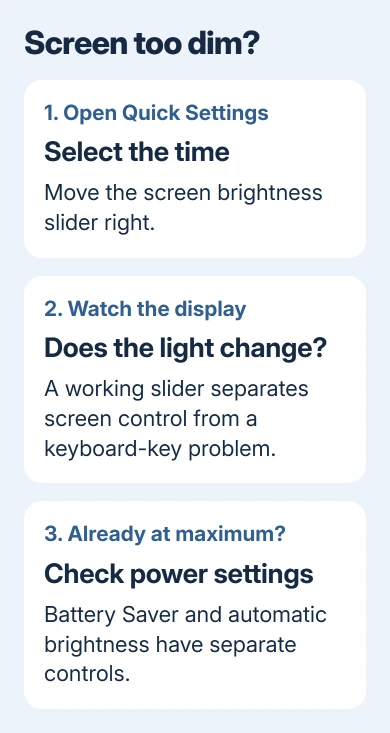
A Chromebook that won't brighten up can have low brightness, Battery Saver dimming the display, or automatic brightness changing it again. Select the clock, open Quick Settings, and move the brightness slider right.
If brightness is already at maximum, pressing its key again won't increase it.
A yellow-looking screen needs a Night Light check. A nearly black screen that doesn't respond to the slider needs a different check from either of those settings.
In this guide
1. Try the brightness slider instead of the key
Use the shelf's clock to open Quick Settings. Find the display brightness slider and move it toward the right. Watch whether your screen gets brighter as you move it, rather than checking only the slider's position.
If the display brightens, the screen is responding to brightness changes. Choose a comfortable brightness, then compare the keyboard control.
A working slider with an unresponsive key points you toward the keyboard controls rather than a screen replacement.
Use the screen-brightness key marked with the larger sun symbol. Don't hold Alt, which can change a keyboard-backlight control on supported models. The keyboard's illuminated letters and the display's light are separate settings.
Google's keyboard guidance notes that brightness keys won't keep changing a setting once it reaches its limit. If the slider is already fully right, move to the power and display checks.
For a Chromebook used as a tablet, use the touch slider in Quick Settings. Use that slider when the keyboard is folded back. The tablet's physical volume buttons don't replace its screen-brightness slider.
If several top-row keys act incorrectly, the Chromebook keyboard checks help separate a keyboard problem from a brightness setting. Continue here when the display stays dim even with the slider.
2. Turn off Battery Saver and compare on power
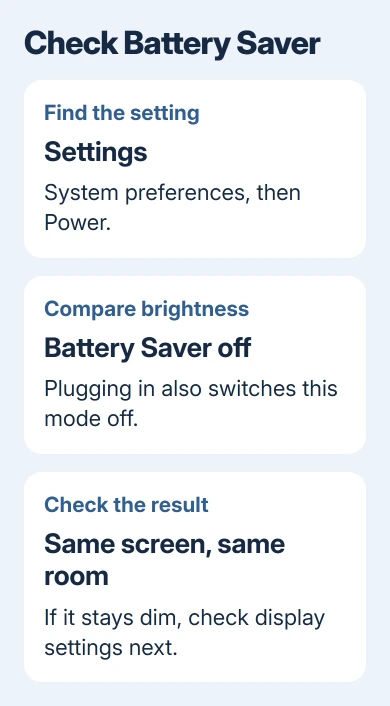
Connect the Chromebook to its charger. Battery Saver switches off while charging. Compare the display to see whether saving battery power was making it dim.
To check the setting yourself, open Settings > System preferences > Power and turn Battery Saver off. A yellow battery indicator with a plus sign is another sign that the mode is active.
Battery Saver reduces display brightness, turns off keyboard backlighting and limits other activity. It can switch on automatically when the battery gets low.
That can explain why your screen dimmed after a low-battery notification.
Compare the same screen with the charger connected and disconnected. If it brightens on power and stays usable with Battery Saver off, skip the factory reset.
Decide whether the extra brightness or longer battery life matters more right now.
If the battery won't charge, check the charger and power problem separately. A dim display doesn't explain a charging failure, and a battery that's still nearly empty can keep bringing power-saving behavior back.
If power makes no useful difference, leave the charger connected while you check the display settings. That keeps the battery from running down during the remaining steps.
3. Stop automatic brightness from changing it again
Open Settings > Device > Displays. On models and ChromeOS versions that support automatic brightness controls, turn off automatic screen brightness briefly and see whether that helps.
Set your preferred display brightness manually.
ChromeOS 130 introduced display brightness and ambient-light-sensor controls in Settings. The sensor measures the light around the laptop so the display can adjust to its surroundings.
Older software and models without the sensor won't have the same options.
Keep the area around the webcam and light sensor clear. A cover or object over a sensor can change the light it measures. Don't remove the screen bezel to look for it; use the manufacturer's model information if its location isn't clear.
Try the display in the same room for a few minutes. If manual brightness stays steady while automatic brightness kept changing, use the manual setting. If the option is missing, continue without trying experimental browser flags.
A slider at maximum can still look weak in direct sunlight. Move into shade and compare. That helps separate a display at its physical brightness limit from a setting that isn't responding at all.
4. Turn off Night Light for a yellow or dull screen
Open Quick Settings and turn Night Light off if it is enabled. This changes the screen's color balance. It can make whites look warmer, which some people describe as a dim screen even when brightness hasn't changed.
For its schedule, open Settings > Device > Displays and find Night Light. Set the schedule to Never if you don't want it turning on automatically. Compare the same white page before and after the change.
Dark mode is another separate setting. A dark app background won't become white just because the brightness is high. Check a different app or a light page before deciding the whole display is failing.
If the screen is now a normal color but remains too dark, return to the brightness problem. Changing Night Light's color temperature again won't make the screen brighter when brightness is already at maximum.
5. Restart before trying a hardware reset
Save your work, open the power controls in Quick Settings and shut the Chromebook down. Turn it on again and retry the brightness slider after sign-in. A normal restart is the simpler choice while the screen still responds.
If the display controls remain stuck, a hardware reset restarts the keyboard, touchpad and other hardware. Back up Downloads into Drive or to a USB storage device before this reset; it might remove downloaded files.
For most Chromebook laptops, shut down, hold Refresh, and tap Power. Release the held key once startup begins. For Chromebook tablets, hold Volume Up + Power for at least 10 seconds, then release both.
Some older models have a different reset method. Check the model-specific list in the hardware reset instructions before using a generic key combination on one of those devices.
I'd stop short of a Powerwash for a screen that stays almost black through startup. A factory reset erases your local files and settings. Have the hardware checked first if your screen produces almost no light.
6. Get the screen checked when controls don't change it
Notice whether the sign-in screen is dim too, whether the image flickers, and whether changing the lid angle changes the picture. Those details help a repair technician distinguish a display problem from an app's appearance setting.
For a damaged or distorted image, the Chromebook screen checks cover that symptom separately. A brightness adjustment won't repair lines, physical damage or a failing screen connection.
Give the Chromebook manufacturer's repair support your exact model, ChromeOS version, charger results and whether the slider changed the screen's light. For a managed device, send these details to your school or work device team.
Ask for a display or backlight assessment when the screen remains extremely dim at maximum brightness after restart and the supported hardware reset. Don't open the panel while arranging a warranty repair.
The Short Version
Use the Quick Settings slider, compare with Battery Saver off, and check automatic brightness. Turn off Night Light for a color problem. A screen that stays nearly black despite working controls needs model-specific hardware help.
Checked November 15, 2026.
 If you have any business, I can build it online