Clean an iMac's Magic Keyboard with a soft, lint-free cloth lightly moistened with water. Turn the keyboard off and unplug its cable first. Keep moisture out of the gaps around the keys rather than spraying cleaner onto the keyboard.
The keyboard beside an iMac is a separate accessory, so clean it separately from the computer. A sticky key after a spill also needs different attention from ordinary fingerprints or surface dirt.
In this guide
Prepare the keyboard and a lightly damp cloth
Finish your work, then switch the Magic Keyboard off. Disconnect its charging or USB cable if one is attached. Move it to a clear, dry surface where you can see the keys without reaching across the iMac's display.
Choose soft, clean material that won't leave lint behind. Moisten it lightly with water, then check that it isn't dripping. The aim is enough dampness to lift surface dirt without leaving liquid around the key edges.
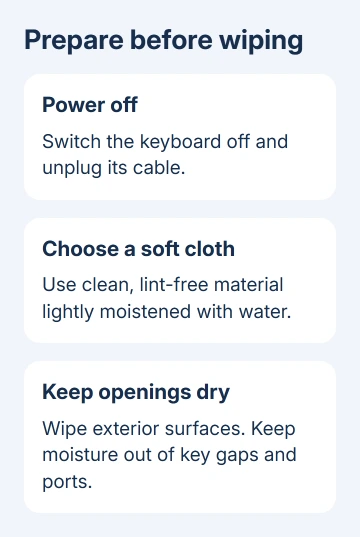
Apple says to use this exterior cleaning method for a Magic Keyboard or Magic Mouse. Switch it off and disconnect its cable before you start.
An older wired Apple keyboard doesn't have the same power switch. Disconnect it from the computer before cleaning. For a different brand, check that manufacturer's care instructions, especially if its keycaps have a special coating.
The iPad Magic Keyboard's removal instructions don't apply here. An iMac keyboard is separate from its computer. Cable types differ between generations; unplug yours before wiping.
Wipe the key surfaces without pushing water into gaps
Wipe the tops of the keys gently with the prepared cloth. Work in small areas, watching whether the dirt lifts and changing to a fresh section when the cloth gets dirty.
Use an unused section of your cloth to wipe the spaces you can reach around each key. Keep the cloth lightly damp, rather than feeding water into a stubborn spot. Keep cleaning liquid out of the keyboard's openings.
Wipe the exposed casing in the same way. Pay attention to the area around the power switch and cable port without pressing moisture into them. Leave the keyboard assembled while cleaning its surface.
If a mark doesn't lift immediately, use another gentle pass with the cloth. Pressing harder or soaking the area risks damage. The mark could be dirt, wear or damage to the key's finish.
I wouldn't pry off a Magic Keyboard key just to reach an ordinary smudge. The routine cleaning instructions work on the outside. A damaged key mechanism is a much larger problem than a mark that remains visible.
For a separate laptop keyboard, use the laptop keyboard cleaning steps. A MacBook's keyboard is built into the computer, so its power and cleaning preparations differ from an iMac's external accessory.
Choose a disinfecting wipe only for suitable surfaces
For hard surfaces that don't absorb liquid, the product cleaning guidance permits isopropyl alcohol wipes at 70 percent, ethyl alcohol wipes at 75 percent or specified disinfecting wipes.
That guidance includes keyboard surfaces. It doesn't call for pouring alcohol over the keys or filling their gaps with liquid. Use a suitable wipe gently on the exterior and keep moisture out of openings.

Neither bleach nor hydrogen peroxide belongs in the cleaning product you choose. Keep aerosol sprays, solvents and abrasives away from the keyboard. For ordinary dirt, start with the cloth lightly moistened with water.
Check the product label rather than assuming every antibacterial wipe contains the same ingredients. A general household cleaner isn't a substitute for the specific wipe types allowed in the cleaning instructions.
Don't transfer this advice to every part of the iMac setup. Display coatings, fabric accessories and other materials can require their own instructions. A wipe suitable for a hard keyboard surface isn't a universal screen cleaner.
Leave the keyboard dry before reconnecting it
After wiping, inspect the key edges and the cable port for moisture. Leave the keyboard disconnected while any surface dampness dries. Wait until it's dry before reconnecting it; turning it on isn't a way to check that it's dry.
There isn't a universal drying time for every cloth and room. A light wipe and a wet keyboard are different situations. Don't treat a timer as permission to power on an accessory that still looks or feels damp.
Once dry, reconnect the cable if you use one and turn the keyboard on. Open a note or another plain text field and check the keys you cleaned. Type a short line with letters, spaces and punctuation.
If typing works and the keys feel normal, cleaning is complete. A key that physically sticks needs different attention from a whole keyboard that won't connect. Repeated Bluetooth changes won't remove material trapped under a key.
For a connection failure that remains after cleaning, the Mac Bluetooth keyboard checks cover pairing and login behavior. Note whether the keyboard is powered on and connected before changing its saved pairing.
Treat spills and sticky mechanisms as repair problems
If liquid entered the keyboard, switch it off and disconnect the cable. Stop pressing keys to see whether it still works. Cleaning the visible surface doesn't tell you whether liquid remains inside the accessory.
For liquid inside, arrange help promptly with Apple's service providers or book a store appointment. Describe what spilled, when it happened and whether the keyboard was powered on at the time.
For a key that remains sticky after the exterior is clean, ask support to inspect the mechanism under that key. Don't keep adding water in an attempt to reach material underneath. Surface cleaning and internal repair are different jobs.
If a key has lost its printed finish, cleaning won't restore that printing. Describe the affected keys to support and explain whether they still register normally. That helps support tell a worn finish apart from a typing problem.
Before arranging service, identify the keyboard model and whether it has Touch ID or a numeric keypad. An older battery-powered keyboard and a rechargeable Magic Keyboard can need different replacement or service options.
The Short Version
Disconnect the cable after switching the keyboard off. Wipe its exterior with a lightly damp lint-free cloth. Choose suitable disinfecting wipes when needed. Reconnect only once dry; liquid inside or persistent sticking needs service.
Checked November 15, 2026.
 If you have any business, I can build it online