
Your PC froze, then a blue screen named CLOCK_WATCHDOG_TIMEOUT appeared and sat at 0% instead of restarting. Or it happens in games, every few days, with no pattern you can spot.
I would start with the settings that push the processor hardest, then the power behind it. Owners traced this stop code to overclocks, a graphics driver and a failing power supply. Most of those checks cost nothing.
On Microsoft Q&A, 800+ people share one question about it, and 100+ share another.
What the stop code means
Your processor has several cores, and they check in with each other on a timer.
Microsoft says: "This bug check indicates that an expected clock interrupt on a secondary processor, in a multi-processor system, wasn't received within the allocated interval."
In plain terms, one core stopped answering. Microsoft's bug check page adds: "Typically, this bug check occurs when the processor is nonresponsive or is deadlocked."
That is why the screen can hang at 0%. One asker watched it sit there: "It was stuck on 0% for 10-15 minutes while I was on my phone searching".
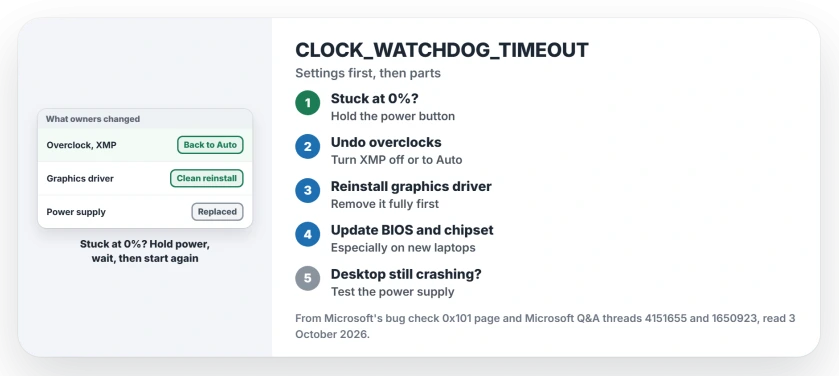
Status: checked 3 October 2026. Owners stopped it by undoing overclocks, reinstalling the graphics driver, and on one desktop by replacing the power supply.
Stuck at 0%? Hold the power button
Ours: if the counter has not moved in ten minutes, waiting longer rarely changes it. Keep the power button pressed for about ten seconds. Wait half a minute, then switch on again.
The person who asked on the 100+ thread did exactly that: "Turning my laptop off then on helped get rid of the blue screen, so that should work." Owners report the same after them.
Put everything back to stock speeds
Start with anything you or a gaming utility changed. On the 800+ thread, an adviser's first advice was blunt: "If you are overclocking your PC, try running everything (CPU, GPU, system memory) at their stock speeds."
Memory profiles count too. The same adviser adds this: "Turn off XMP profile or set it to Auto." That setting lives in your BIOS, under memory or overclocking.
An owner on the 100+ thread found the cause there in five words: "for me it was overclock overvolt". Ours: undervolting tools can cause the same instability.
Reinstall the graphics driver cleanly
The 800+ asker saw it in games: "it only appears when i started to play games on it". An adviser read the crash files and pointed at the display driver, suggesting a full removal and a fresh install.
The result was mostly good. "Tested on most of the app and games, seems to be working fine". One game still crashed afterwards, so it narrowed the problem rather than ending it.
A new driver can start it too. One owner wrote: "In my case I just updated my Nvidia driver and got the error the first time". If yours began after an update, the previous version is the test.
Update the BIOS and chipset driver
New laptops are not immune. One reply on the 100+ thread, with 20+ votes, reads: "I have got same error and my PC is Asus ZenBook S 16 Ryzen 9 AI."
Ours: on a new machine, check the maker's support page for a BIOS and chipset update before anything else. A BIOS update is usually not needed, but a stop code tied to the processor is a reason.
Suspect the power supply under load
One owner spent months on software changes before trying hardware. "I installed a new power supply, actually one with higher wattage." The crashes ended.
Months later they confirmed it: "I haven't had a single recurrence of the issue in the roughly one year since I installed it." Ours: a cheap or ageing supply is the suspect when crashes come under heavy load.
Keep it cool
Ours: blow dust out of the vents and fans, and check temperatures with your PC maker's utility while gaming. A processor that overheats throttles hard and can stall in exactly this way.
What did not help
The memory test and Windows Update, for the 100+ asker. Both found nothing, so neither explained the crash.
Restarts alone. One owner hard restarts and updates the Nvidia driver each time, which holds it off for a week to three months. Reading any stop code starts the same way, with what changed last.
Why does CLOCK_WATCHDOG_TIMEOUT stay at 0%?
Ours: with a core stalled, Windows may never finish writing the crash report, so the counter does not move. Holding the power button is the way out.
Is CLOCK_WATCHDOG_TIMEOUT a hardware problem?
Often, but not always. Owners fixed it with settings and drivers as well as a power supply. Undo overclocks and reinstall the graphics driver before you buy anything.
Can a game cause CLOCK_WATCHDOG_TIMEOUT?
Games load the processor and graphics card hardest. So they expose an unstable setting first. The fault is usually the setting or driver underneath, not the game itself.
The Short Version
- One processor core stopped answering in time.
- Stuck at 0%? Hold power, wait, start again.
- Undo overclocks and turn XMP off or to Auto.
- Reinstall the graphics driver from scratch.
- Update the BIOS and chipset driver on a new laptop.
- On a desktop, a new power supply ended it for one owner.
Where to Next
Set the memory profile in your BIOS to Auto now, and turn off any overclocking tool. Then play the game that crashed for an evening.
Still crashing? Share your PC's make and model in the comments, plus whether it happens in games or at idle. That splits the causes in two.

Isaac Smith is the founder and editor of PC Glance, a website that covers computers, laptops, and technology. He is a tech enthusiast and a computer geek who loves to share his insights and help his readers make smart choices when buying tech gadgets or laptops. He is always curious and updated about the latest tech trends.