

PC power supply problems can cause sudden shutdowns, failed starts or restarts under load. Check the outlet and external cable first. A dark monitor or stopped PSU fan alone doesn't confirm a failed supply.
First, check whether the PC loses all power, Windows crashes or just the screen goes dark. Each needs a different next step, and telling them apart can save you buying the wrong part.
In this guide
1. Check whether the desktop actually loses power
Watch what happens when the problem occurs. Does the entire desktop stop, with its fans and lights going out? Does it immediately start again? Or does the monitor lose its picture while the computer keeps running?
If everything shuts off at once, check what supplies the PC with power: the outlet, power strip, cable and power supply unit (PSU). The PSU is the box that converts wall power for the computer's components.
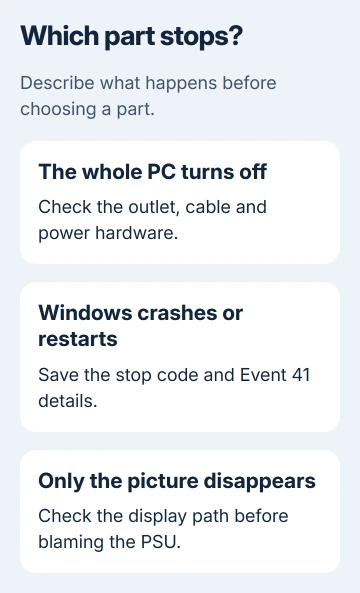
Case lights can stay on even when some parts aren't getting proper power. A blank screen alone doesn't mean the PSU is bad either. When reporting a dead PC, say exactly which lights and fans stop.
For a desktop that never responds to its power button, use the wider computer startup checks. A faulty button or motherboard can resemble a failed supply before Windows ever starts.
I'd start with this observation before ordering anything. A replacement supply won't fix a monitor input set to the wrong connection, and a graphics problem needs a different repair.
2. Rule out the outlet and external cable
Shut down the computer if it still runs. Seat its external power cable firmly at both ends. Test a known-working wall outlet, especially if the problem began after moving the desk or changing a power strip.
Check whether other equipment on the same strip also lost power. If several devices turn off together, check their shared power source. If only the desktop fails, its own cable or internal hardware could be the problem.
Stop using the equipment if you notice a burned smell, a scorched connector, visible damage or sparking. Don't open the PSU's metal enclosure; its internal electrical parts need a qualified technician.
If the computer now starts reliably from another outlet or with a compatible cable you know works, tell the technician before buying a PSU. That change points to the power connection rather than a Windows setting.
If the sudden shutdown returns, note what the PC was doing at the time. Does it happen while idle, starting a game, waking from sleep or pressing the power button?
3. Treat shutdowns under load as a reason to check capacity
A computer that turns off when a game or demanding application starts deserves a power-capacity check, especially after a graphics card, processor or other hardware upgrade. Heat and unstable hardware settings can also cause this behavior.
Microsoft recommends checking power capacity, heat, memory and overclocking in its unexpected-restart guidance.
Check your PSU model against the power requirements for your installed parts. Wattage is only part of choosing a replacement. It also needs the right connections and a design that fits your computer.
Return an overclock to its normal settings before judging the result. An overclock runs hardware beyond its standard operating settings; instability there can produce a shutdown that looks like a power-supply fault.
Check that the computer's cooling vents aren't blocked. If shutdowns happen after it has been working hard for a while, give the repair technician that timing as well as the list of recent hardware changes.
Repeatedly launching that demanding game won't identify the faulty part. If normal settings and clear cooling vents don't help, ask for a test with a compatible supply rather than guessing which part to buy.
4. Read a restart record without blaming the PSU automatically
If Windows starts again, right-click Start and open Event Viewer. Expand Windows Logs > System and look near the time of the restart for an entry from Kernel-Power with Event ID 41.
That entry records an unexpected shutdown. It doesn't name the broken part. A power interruption, a Windows stop error or holding the power button on a frozen computer can all lead to the same event.
Open the entry and check Details for BugcheckCode. A nonzero value gives a Windows crash code to follow. A zero value can occur when power disappears before a crash record can be saved, but it doesn't confirm PSU failure.
Save the event details and note whether an error screen appeared first. The restart-without-a-blue-screen guide explains how to use those records when the computer restarts too quickly to read them.
If a stop code appears, look into that Windows crash before replacing the supply. If power cuts out without a usable code, consider the outlet, recent hardware changes and temperature too. The log doesn't identify the failed part.
5. Use the computer's own supported power test
Some Dell desktops and all-in-ones have a built-in PSU self-test. The procedure depends on whether the supply has a test button. Look up that desktop model's service manual before trying a test.
For supported models with a test button, the self-test uses that button and its indicator. Other supported designs use a power-disconnection procedure. Check the result against your model's instructions so you know what its indicator means.
The existing PC power-supply test guide covers those procedures and the limits of inexpensive testers. Use that model-specific route once the symptoms justify testing the supply.
A stopped fan isn't a universal failure sign. Some supplies stop their fans at light loads. Check the PSU maker's fan behavior for that model instead of using fan movement as a pass-or-fail test.
If your model has no supported self-test, ask a repair shop to try a compatible supply they know works. This comparison is more useful than a software voltage reading or guessing from a single case light.
When to book a hardware repair
Arrange service when a desktop still loses power on a known-working outlet, fails its supported PSU test, or stops after a hardware upgrade despite running normal settings. Use the computer maker's support service if it's under warranty.
Give them the desktop and PSU models, graphics card, upgrades, shutdown timing and event details. Ask for a test of the supply and connected hardware. Event 41 alone isn't a reason to order a replacement.
The Short Version
Separate a full power loss from a Windows crash or a display failure. Check incoming power, recent upgrades and cooling, then use the exact model's PSU test or a technician's compatible-supply comparison.
Checked November 10, 2026.






