
Choppy computer audio can come from sound effects, a faulty driver or the speaker connection. Turn off audio enhancements first, then compare a file on your PC with a stream to check whether the breaks only happen online.
Sound cutting out is a different problem from voices arriving late in a video. These checks cover Windows 11 and 10, with an extra buffer check if your recording app only crackles during a busy project.
1. Turn off effects on the output you're using
Audio enhancements change the sound before it reaches your speakers. Microsoft says they can cause distortion or crackling, so turn them off first if you can hear the audio but it keeps breaking up.
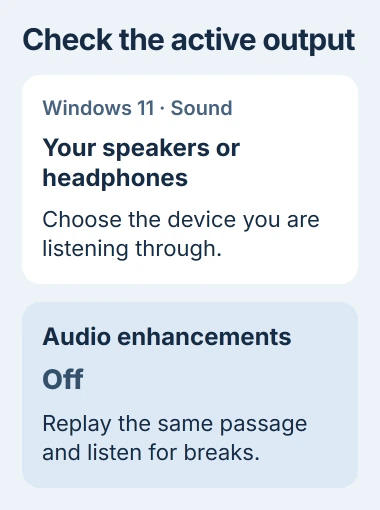
In Windows 11, open Settings > System > Sound. Select your speakers or headphones under Output, find Audio enhancements, and choose Off. Play the passage that was breaking up and listen for the same interruption.
For Windows 10, open Control Panel > Hardware and Sound > Sound. Choose the device on Playback, open Properties, then Enhancements. Select Disable all enhancements if that option appears, and apply the change.
Your sound driver decides which controls appear. If the Enhancements tab is missing, you haven't necessarily picked the wrong device. Try the effects controls you do have, then move on if the sound still stutters.
Also check any sound app that came with your PC, such as an equalizer or surround-sound app. Turn its effects off while you compare playback; these can change the audio separately from the Windows setting.
If removing the effects clears the breaks, leave them disabled. If nothing changes, restore any effect you prefer before moving on, so you don't lose track of what you've changed.
2. Compare a saved file, another app and another output
Open a music or video file already stored on the computer. Try it in a second player, then compare with the stream that stutters. Playing a saved file lets you check the sound without relying on your internet connection.
If only the stream stops, check another stream in the same app. A stream pausing to load, or one damaged upload, needs different checks from crackling in every app. A driver reinstall isn't the first move for one troublesome video.
If your saved file skips at the same spot in both players, try another file. This helps you tell whether that file is damaged or the PC struggles to play any file smoothly.
Switch from Bluetooth headphones to the speakers or a wired headset, choosing that output in Sound settings. If the file plays smoothly through speakers but skips over Bluetooth, focus on the wireless connection next.
If voices are smooth but consistently behind the picture, follow the Bluetooth lip-sync checks. That steady delay differs from sound repeatedly stopping and starting.
For a USB headset or audio interface (a box for connecting audio equipment), try a suitable port on the PC itself instead of a hub. Check the cable too. If that fixes playback, leave it connected there while you check the hub or dock.
I'd make these comparisons before changing several drivers. Knowing that only one app or one headset fails makes the next step much more useful.
3. Try a different supported playback format
The audio format controls how Windows sends sound to your speakers or headphones. A format that doesn't suit the device can cause poor playback; changing it is one of the documented distortion fixes.
On Windows 11, go back to Sound, then More sound settings. In Windows 10, open Sound through Control Panel. Both routes reach the window with the Playback tab.
Select the speakers or headphones you're using, open Properties, and choose Advanced. Note the current Default Format, pick another listed option, and select OK. Replay your saved file before changing anything else.
Choose from the formats your device offers. The highest number won't necessarily stop the sound cutting out. If a different format doesn't help, put it back to the setting you noted and move on.
With a recording interface, your recording app may use its own driver settings, separate from ordinary Windows playback. Only change the project's audio settings if the sound breaks up inside that app.
4. Restart the audio services, then check the driver
Close calls and recording sessions first. Press Windows + R, enter services.msc, and press Enter. Find Windows Audio, right-click it, and choose Restart. Do the same for Windows Audio Endpoint Builder.
Reopen your player and listen again. If the sound clears up but starts breaking after sleep or a restart, note when it happens. That gives support a way to try to recreate the problem.
For a driver update, open Device Manager from Start. Expand Sound, video and game controllers, right-click your sound device, and choose Update driver. Let Windows search automatically, and restart if it asks you to.
If Windows finds no update, check the PC maker's support page. Pick a driver for your computer model and the Windows version it runs. The Windows driver update guide covers choosing the correct source.
If the stutter started right after an audio-driver update, open the device's Properties > Driver and look for Roll Back Driver. If that button is gray, Windows can't restore the earlier driver this way.
If neither driver change helps, save the maker's replacement installer before uninstalling the audio device. Remove that device, restart, and use the saved installer if Windows doesn't restore working sound.
5. Check the buffer when only recording software stutters
A recording app keeps a little sound ready to play in a buffer. If your PC can't fill it fast enough, you can hear clicks or gaps. Check this setting if small music projects play smoothly but larger ones break up.
Focusrite recommends increasing the buffer in its Windows audio guidance. Use your interface's audio settings and raise it one available step, then replay the same project.
A larger buffer gives your PC more time, but you'll hear more delay when listening to a microphone or instrument through the app. Pick a setting that plays cleanly and still feels usable while you work.
Close other demanding apps and compare again. If a small project works but a busy one crackles, give the recording-app or interface maker that comparison, along with the driver version and buffer setting.
If every app and output stutters, tell the PC maker your Windows version and saved-file results. Contact the accessory maker if only one headset or interface fails. Those comparisons help support choose the next check.
The Short Version
Turn off effects, then try a saved file in another app and through different speakers or headphones. Check the format before replacing the driver. If only a recording app crackles, check its buffer, especially in larger projects.
Checked November 4, 2026.

Isaac Smith is the founder and editor of PC Glance, a website that covers computers, laptops, and technology. He is a tech enthusiast and a computer geek who loves to share his insights and help his readers make smart choices when buying tech gadgets or laptops. He is always curious and updated about the latest tech trends.