

When Focusrite USB ASIO shows Disabled in FL Studio, the driver isn't giving the app a working audio input or output. Close other audio apps, reconnect the interface, then select Focusrite USB ASIO again under Options > Audio Settings.
If Windows can't detect the interface either, check USB and the driver first. If FL Studio plays but records silence, check its Mixer inputs instead. Even with a working driver, you'll need to arm a track, making it ready to record.
In this guide
1. Reopen the native driver with other audio apps closed
Save your project and close FL Studio. Quit other recording software, calls and media players, then reconnect the interface. Start FL Studio again without opening those other apps and choose Options > Audio Settings.
Under Device, select Focusrite USB ASIO. ASIO lets recording apps send audio to and from your interface with little delay. The Focusrite entry is different from FL Studio ASIO and ASIO4ALL.
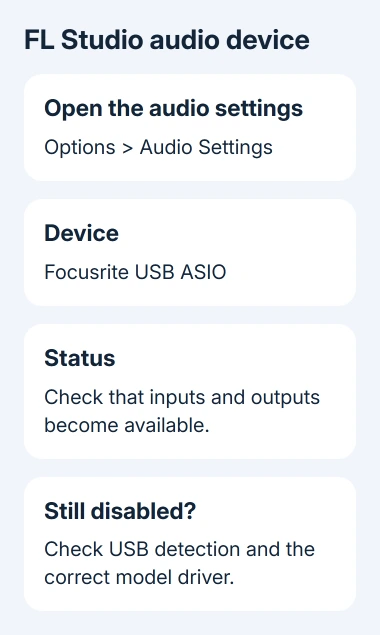
Focusrite recommends its own Windows driver in the FL Studio setup instructions. Seeing another ASIO option doesn't mean the Focusrite package is installed correctly.
Watch Status after selecting the device. It shows the selected driver's inputs and outputs. If those become available and playback starts, reopen your usual audio apps one at a time to see whether one brings the problem back.
If sound stops when you switch away from FL Studio, inspect Auto close in the same Audio Settings window. Turning it off keeps FL Studio connected to the device when you select another window.
If the device stays disabled, save the full error text. A message about an unavailable device needs different steps from an installation error. Don't treat every driver-opening failure as a shortage of computer memory.
2. Check the interface's data connection in Windows
Plug the interface into the PC itself, using a USB port that meets the model's specification. Push both connectors in firmly. Try a different data-capable cable if reconnecting doesn't help.
Check the USB indicator. A green USB light or symbol means a data connection on supported interfaces except Vocaster, which uses a white Computer light. Other power lights don't confirm a Windows data connection.
If your interface needs a separate power supply, connect the one specified for the model. If the front panel lights up but the USB data light doesn't, check the connection and power before changing your music project's settings.
Right-click Start > Device Manager. Look for the interface under Sound, video and game controllers and Focusrite Audio, where applicable. Note any missing interface or warning symbol; don't install unrelated audio drivers.
Both Windows 10 and 11 offer Device Manager. The Windows driver update procedure explains the device's driver controls, but use the model's Focusrite download for its audio package.
If changing the port and cable doesn't make the interface appear, try another supported computer if you have one. Tell support what happens. A saved driver entry in FL Studio doesn't confirm a live hardware connection.
3. Install the software for the exact interface generation
Open the official Focusrite Downloads selector. Select the product family, exact interface and generation, then choose your Windows version. Download the driver or control package that page provides.
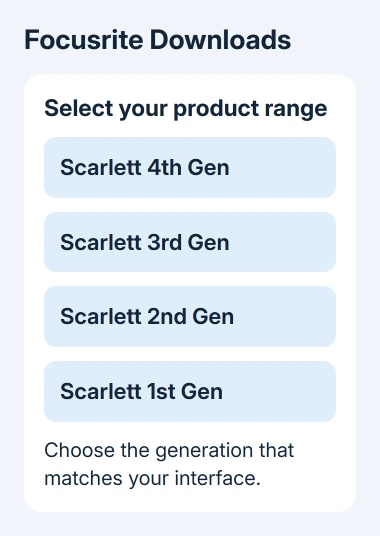
Save the project, launch the downloaded setup file and complete its instructions. Restart after installation, reconnect the interface and choose its ASIO driver in FL Studio. Downloading the package doesn't install it.
Check the interface's generation in its product information. First- and second-generation Scarlett 2i2 models use different software from the fourth generation. Select the product by its full name and generation.
Older first- and second-generation Solo, 2i2 and 2i4 models use a driver-only package without a control app. They won't appear in Focusrite Control's device list, so reinstalling that app won't help.
Other older Scarlett models use Scarlett MixControl, while newer supported models use Focusrite Control or Focusrite Control 2. Vocaster uses Vocaster Hub. The download selector is the safest way to choose the current supported package.
I'd reinstall the correct package before adding another generic ASIO driver. That keeps the audio setup simpler and gives support a useful result if the manufacturer's own driver still won't open.
4. Repair a control-app detection failure when it applies
For a compatible interface using the original Focusrite Control, open that app and check for No Hardware Connected or No Hardware Detected. First confirm the interface is listed in Device Manager as described earlier.
If Windows sees the interface but that control app doesn't, press Windows + R, type services.msc, and open Focusrite Control Server. Start it if stopped, or restart it if running, then reopen the control app.
This service belongs to the original Focusrite Control. Driver-only interfaces don't need it, and newer packages can differ. Follow the instructions for the control software supported by your model.
If the correct driver seems to be damaged, follow the driver and control-software reinstall procedure for that package. Disconnect the interface during removal and restart before reconnecting after installation.
If the installer names a DLL file in an error, troubleshoot that installation error instead of repeatedly opening FL Studio. Give Focusrite the exact filename and installer version so support can check that error.
5. Check routing when the driver works but sound is missing
Open View > Mixer in FL Studio. Select Master and check its output is assigned to the interface's intended outputs, usually 1 and 2 for the basic setup. Connect headphones or speakers to the interface you selected.
For recording, choose a Mixer insert and select the input receiving your microphone or instrument. Arm that insert for recording. A moving input meter means audio is reaching the channel, but the track must also be armed to record it.
If ordinary Windows sound goes elsewhere, check the Windows output selection. FL Studio's ASIO selection controls its own audio path, so changing only the taskbar volume won't repair a disabled ASIO device.
If playback now works but crackles, use the recording-buffer checks for that separate symptom. Buffer size changes how much processing time the PC has; it doesn't reconnect an undetected interface.
If it still fails, send Focusrite the model, generation, Windows and driver versions, Device Manager result and FL Studio error. Ask Image-Line for help if that native driver works in another recording app but fails in FL Studio.
The Short Version
Reselect Focusrite USB ASIO with other audio apps closed. Check USB detection and the exact model's driver package. Repair the applicable control service if needed, then check Mixer routing once the driver opens.
Checked November 12, 2026.
 If you have any business, I can build it online






