Full virus scans and defrag can freeze on restore files in System Volume Information. Clearing old restore points fixed both tasks for one owner. Back up first and check whether the failing path matches that folder.
Treat a scan stuck on one restore file differently from a PC shutting off during unrelated tasks. Shutdowns during other tasks call for storage or hardware checks, especially if copying your documents also fails.
In this guide
1. Save important work before another long scan
Copy essential documents to an external drive while the computer still responds. Start with work you can't replace. Restore points aren't a separate copy of those documents, and a quick antivirus scan isn't a file backup.
The original owner delayed a backup because they feared infecting another drive, then saved their work before cleanup. Avoid opening suspicious programs from that copy. Check its files with the receiving computer's antivirus.
If copying freezes or reports read errors, stop long scans and defrag attempts. Have a technician preserve your data before further changes. Trouble reading personal documents calls for more than changing a scanner setting.
If copying works, keep the backup disconnected while you check the failing scan. That preserves a separate copy of your work if Windows needs a deeper repair later.
2. Read the file path when the scan stops
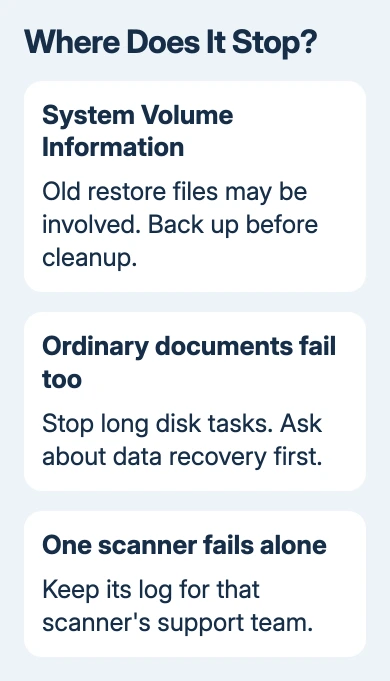
Write down the last file your antivirus shows and save its scan log if one is available. Check whether repeated attempts stop in System Volume Information, instead of assuming the antivirus program itself is broken.
The confirmed case involved Windows XP and paths containing _restore, RP320 and files ending in .rbf. Different antivirus programs stopped on that restore-data area, and defrag also froze there.
The owner tried changing scanners and running them in Safe Mode without clearing the failure. After they removed the old restore points, scanning, SFC and CHKDSK ran again; their next reply confirmed that defrag worked too.
Clearing the affected restore data helped in that case. It doesn't tell us that a virus caused the crashes or that every stuck scan has the same cause. The last filename alone can't tell you whether malware is involved.
If the folder is simply using lots of space, the System Volume Information cleanup guide covers its storage controls. The steps here address repeated failures while tools read that area.
If the path names an ordinary document or varies widely between failures, skip restore-point cleanup. Keep the path, scan result and any blue-screen stop code for the storage checks instead.
3. Clear matching restore data on Windows 10 or 11
This removes the drive's saved restore points, so don't do it while relying on one to reverse a recent bad installation. Keep your document backup ready before confirming deletion.
In Windows search, enter Create a restore point, then open the matching result. On System Protection, highlight the affected Windows drive and choose Configure. Read the drive letter before continuing.
Select Delete in the section for that drive's restore points, then confirm. Use this control rather than trying to take ownership of System Volume Information or remove its files in Explorer.
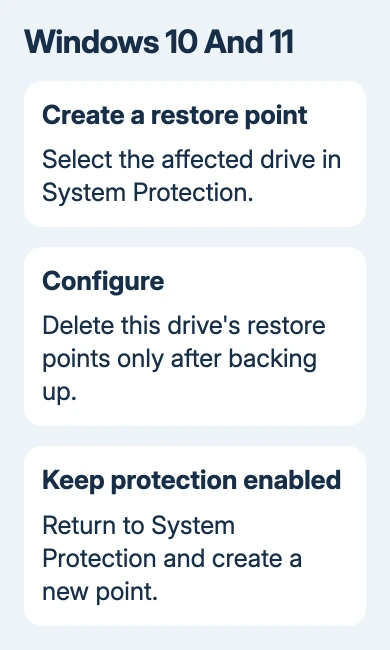
Leave system protection enabled afterward. If it was disabled, choose Turn on system protection, apply the change and return to the main tab. Microsoft's System Protection controls also let you create a new point.
Choose Create, give the point a recognizable description and wait for confirmation. The new point saves your system as it is now; it doesn't bring back the older points you removed.
These are the current cleanup controls to use when the failing path points to restore data. The owner-confirmed crash recovery came from XP, so use the file-path comparison to decide whether that explanation fits your newer PC.
4. Use XP's own System Restore tab on an old PC
Windows XP has different controls. Use an administrator login. In the right-click menu for My Computer, choose Properties. Open System Restore, select Turn off System Restore and apply the change.
Some installations label the checkbox Turn off System Restore on all drives. Confirm only after accepting that the saved points will be removed. This is the clearing step that helped the historical owner.
Return to that same tab, clear the turn-off checkbox, then apply and close the window. Don't leave System Restore disabled after the comparison. Turning it back on lets Windows create new restore data.
XP and Microsoft Security Essentials aren't current protection for an online computer. After saving your files, plan a move to supported Windows and current security software. Don't reinstall the old scanners from that discussion.
5. Retry the scan before doing more disk work
Run the antivirus scan that previously failed and watch whether it passes the old stopping point. Let it finish. Passing that one file is encouraging, but the final scan result tells you whether the whole operation completed.
If the scan finishes, check the other task that failed. There is no need to manually defrag a drive just to repeat the historical owner's tests. Use Windows' normal maintenance for the type of drive installed.
For Windows 10 or 11 with continuing disk errors, an admin Command Prompt can check an NTFS volume online with:
chkdsk C: /scanUse the letter of the affected volume. Keep its final report. This checks how files are stored and organized; it doesn't remove malware or tell you whether the physical drive is healthy. The modern /scan option isn't XP's command.
A surface check with /r can spend a long time reading a drive, so a paused-looking percentage alone doesn't identify a crash. If a boot-time report disappears too quickly, retrieve the CHKDSK result rather than assume it found nothing.
If scans, copying and disk checks still fail
I'd stop swapping antivirus products now. Tell your PC maker or technician about your backup, file paths, stop codes and CHKDSK report. Ask for checks of the storage drive and other hardware before another full-drive scan.
If only one scanner fails and other disk tasks now complete, send that scanner's log to its publisher. A failing scan by itself doesn't justify replacing the drive.
The Short Version
Save important work and record the stopping file. Clear old restore points when their location fits, then keep system protection enabled. Trouble copying ordinary files or running several disk tools needs storage and hardware attention.
Checked November 26, 2026.
 If you have any business, I can build it online