

Copilot's microphone can fail because Windows blocks access or selects another input. Allow microphone access first. If it works elsewhere, try that account in Edge; a missing Voice button can mean your account doesn't have that feature.
A missing Voice button and a conversation that starts then disconnects need different checks. Neither one automatically means your microphone has failed.
In this guide
1. Allow the microphone in Windows
On Windows 11, open Settings > Privacy & security > Microphone. Enable Microphone access. Set Let apps access your microphone to On as well. If Copilot appears in the app list, allow it there too.
Also check Let desktop apps access your microphone. Desktop apps don't always appear as individual switches, so the absence of Copilot from the first list isn't enough to explain the fault.
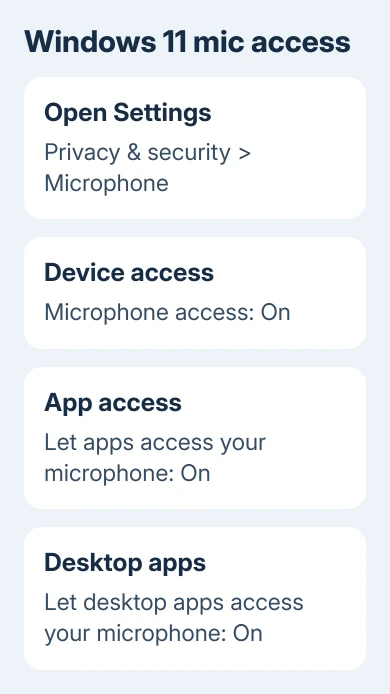
On Windows 10, use Settings > Privacy > Microphone. Under Allow access to the microphone on this device, choose Change if needed. Enable app access. Also enable Allow desktop apps to access your microphone.
These are the permissions covered in Microsoft's microphone troubleshooting steps. Close and reopen Copilot after changing them, then start a voice conversation again.
If Copilot now hears you, stop here. If it still doesn't, check which microphone Windows is using. A headset connected for listening can change the available recording devices without making the choice obvious inside Copilot.
2. Test the selected input before touching drivers
Check your headset's physical mute control and reconnect its cable or wireless connection. Then open Settings > System > Sound. Under Input, choose your microphone rather than another recording device.
On Windows 11, select that microphone's properties and find Microphone test. Click Start test, speak normally, then Stop test. Use Play for the recorded sample when that control is available.
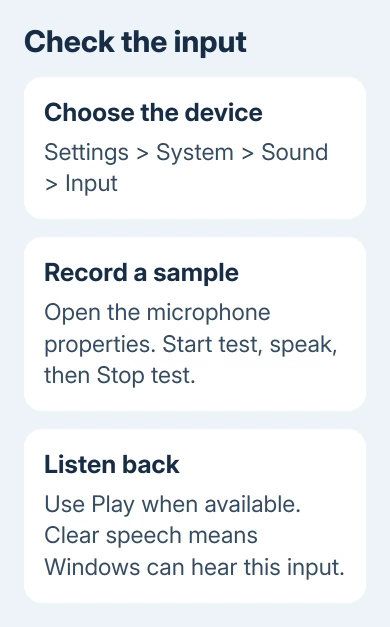
On Windows 10, choose the device under Choose your input device, then speak while watching Test your microphone. If the indicator moves as you speak, Windows is picking up sound from that microphone.
If the recording is silent, adjust Input volume and check the selected device again. For a microphone that fails in other apps too, follow the Windows microphone repair checks before returning to Copilot.
If Windows records you clearly, leave the working driver alone for now. Continue with Copilot's voice controls. Reinstalling audio software makes little sense while the same input is already recording normally.
3. Is Voice available for your account?
Open Copilot and look in the message composer for its Voice control. Start the conversation there and allow microphone access if asked. Wait for the audio greeting before speaking so you can tell the session has connected.
A microphone used for dictation and a Voice conversation aren't necessarily the same feature. Dictation turns speech into a written prompt; Voice opens a spoken conversation. The icons and layout can differ between Copilot experiences.
The current voice feature instructions describe a rollout of changes to the controls and say availability depends on subscription and region. Check the availability information for the account you're actually using.
For a missing Voice control, install any Copilot update offered in Microsoft Store > Library, then reopen the app. An update can change the interface; it can't grant a feature unavailable to your account.
Check the signed-in account: is it your intended personal, work, or school account? For a managed account, ask IT whether voice is available. Don't buy another plan just to troubleshoot a microphone Windows already detects.
4. Try the same account in Edge
Open copilot.microsoft.com in Edge and use the app's account to sign in. Start Voice and allow microphone access when prompted. Keep the same headset connected so this checks the difference between Copilot's app and its browser version.
If access was blocked earlier, open the site-information menu next to the address, review the site's microphone permission, and change it to allow access. Reload Copilot and start a new session after changing the permission.
An owner in the October 2024 Copilot microphone thread reported that voice worked through Edge while it failed in the app. You can use Edge when only the app fails, though that won't fix the app itself.
If Edge works, keep using it while you report the app problem. I'd keep a working browser session instead of repeatedly reinstalling a microphone driver that already passes the Windows test.
If the browser can't use your microphone either, compare its permission with the Windows permission from section 1. For a Chrome-only failure, the Chrome microphone permission checks cover that browser's additional control.
5. Report disconnects with enough detail to act on
A voice session can stop because of feature availability or a session limit, even when it detects your microphone. Note the exact message, whether the audio greeting played, and whether your speech appeared before it disconnected.
Check the current voice availability notes for your account and region. If the session reports a limit, follow that message before starting over. One disconnected conversation doesn't mean the whole service is down.
Use Copilot's profile or menu area to send feedback about the app. Include the app version, Windows version, account type, exact error, and whether Edge works. Leave private prompts and recordings out unless support specifically needs them.
If both versions fail despite a clear Windows recording, open Get Help for Copilot Voice support. Describe the availability or session error and say whether it failed in the app, the browser, or both.
The Short Version
Test the chosen input and review its Windows permissions. Check Voice availability for the signed-in account. If only the app fails, try Edge and report its version alongside the error text.
Checked November 17, 2026.
 If you have any business, I can build it online






