

Copilot needs the Word file attached or selected inside PowerPoint, not just its filename typed into a general chat. Open a new presentation, use PowerPoint's Copilot control and select the actual document before asking it to make slides.
A missing file option can also involve the signed-in account or license. The old claim that this always requires an enterprise subscription no longer matches the current home-account instructions.
In this guide
1. Start in PowerPoint and reference the actual Word file
Open a new presentation in PowerPoint. In the current layout, open Copilot Chat using the Copilot icon at the bottom-right corner. Describe the presentation you want and reference the Word document as part of that request.
For the home Copilot Pro flow, type / in the compose box and select the document from the file picker. Check that the chosen file appears as a reference before sending. Typing a filename on its own doesn't attach the document.
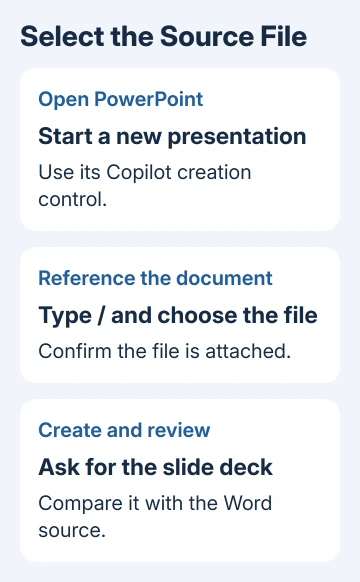
If your version shows Create a presentation from a file, choose it and select the document. Layouts differ between versions, so check that the file is referenced instead of expecting one particular screenshot.
Ask for a presentation based on that document, with the intended audience and purpose. Answer any follow-up questions about length or style, or let Copilot choose where that option is offered.
The result should be a slide deck. If you get text explaining how to make slides, Copilot hasn't created your deck. Check the selected file and PowerPoint control before rewriting the same request.
Microsoft's current PowerPoint creation instructions describe the updated Copilot Chat flow. The old 2024 forum discussion predates that interface and its current account options.
2. Check which account is supplying Copilot access
Look at the signed-in account in PowerPoint. Confirm that it's the account with the eligible Microsoft 365 and Copilot access, rather than another personal, school or work account that also happens to be signed in.
On Windows, File > Account shows the account and product. On a Mac, check the app's account control. Check the document's account too if it's stored in another organization's cloud storage.
The current PowerPoint Copilot FAQ supports creating from a single Word file for Copilot Pro at home. Work-account options can differ, including support for PDF files.
That differs from the original discussion, where an accepted 2024 answer said the feature required enterprise licensing. Don't buy an enterprise subscription solely because that old answer appears when you search for this fault.
If the Copilot button is absent or gray, check the license, app version, internet access and organization settings. Seeing a chat control doesn't tell you which presentation creation features your account includes.
For a work account, ask IT to confirm PowerPoint creation access for that account. For a personal subscription, ask Microsoft support to check the benefit attached to the subscription owner before paying for another plan.
3. Make the document available to the file picker
Open the Word document yourself using the same account. Check that it loads and that your latest changes are saved. A file you can't open through that account won't become available just because you describe it to Copilot.
For home subscriptions, Copilot works with supported files stored in OneDrive and used in the Microsoft 365 apps. Choose the actual cloud file through the picker. A path such as C:\Users\... typed into chat doesn't upload a local document.
If the document isn't in the picker, save a copy to the OneDrive account you're using and allow its sync to complete. Reopen the picker and select that copy, checking its name so you don't use an earlier draft.
Try a Word .docx file to check whether that works. File support depends on the Copilot task and license, so a document that opens in Word isn't automatically a supported source for every Copilot feature.
I'd try one short document with ordinary text before changing the original report. If that creates slides, the account and creation route are working, and you can focus on what differs in the longer file.
If the file opens but Copilot says access is denied, keep that exact message. On a work document, ask the owner or IT to review access through the same account. Don't remove company protection labels to force a file through.
4. Give a long report a usable structure
Open the source in Word and apply heading styles to its sections. Use Heading 1 for main topics and Heading 2 for their supporting sections. That gives Copilot a clearer document structure to turn into slides.
The current creation instructions say Copilot works best with Word documents smaller than 24 MB. That size gives Copilot a better chance of working well, but a smaller file can still fail to produce a deck.
For a large report, make a separate copy with the sections your audience needs. Keep the original intact. Leave unrelated appendices out of the presentation copy so a short deck can focus on the main points.
Relevant images can help because Copilot tries to incorporate images from the Word source. Check the generated result, though; an image being present in the document doesn't mean it will appear on the intended slide.
If a short file succeeds while the full report fails, note their sizes and structure for support. Support can compare those details to check why the larger source fails.
5. Check the generated deck and escalate the exact failure
Read the slide titles, figures and conclusions against the Word source. Correct missing qualifications and unsupported statements before sharing the presentation. A completed deck still needs your review.
When the slides are ready, print slides with speaker notes if you need a rehearsal copy. Review the notes as well as the visible slide text.
For a creation request that still produces only text or an error, record the app version, signed-in account type, file type and whether a short test document worked. Include the exact button or action you selected.
Ask the Office administrator or Microsoft's support team to check PowerPoint Copilot presentation creation from a referenced Word document. That names the failing feature so they don't start with general Copilot chat troubleshooting.
A successful deck can later be converted to Word handouts if you need an editable review document. That export is separate from the Word-to-slides creation step.
The Short Version
Reference the Word source inside PowerPoint Copilot, check account access, then try a short document. Home-account support has changed since the 2024 enterprise-only answer. Compare the resulting slides with the source.
Checked November 16, 2026.
 If you have any business, I can build it online






