

Interference near a Corsair mouse's USB receiver can make the pointer stutter during everyday use. Move the receiver away from USB 3.0 devices first; if only games hitch, check the polling rate instead.
These are different problems. Skipped movement calls for a wireless connection check. A game that slows when you move the mouse may be struggling with how often the mouse sends movement updates.
In this guide
1. Move the receiver away from busy USB devices
Plug the mouse's receiver into a different port on the computer, preferably one with more space around it. A front port can move it away from an external SSD, USB hub, or other equipment crowded behind the PC.
Corsair identifies USB interference as a possible cause. Moving the receiver addresses that disruption.
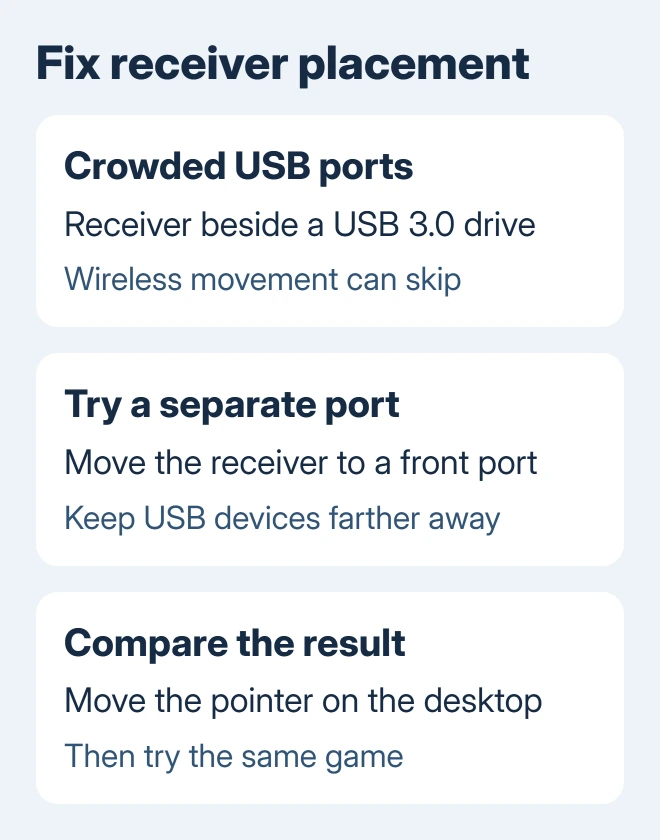
Keep the mouse in the same place and try the same pointer movement again. If the skips disappear after moving only the receiver, keep that arrangement and reconnect any USB accessories you disconnected, one at a time.
Don't judge the result by a single game with a changing frame rate. Move windows and select text too. Smooth desktop movement helps distinguish a game-performance problem from a wireless connection that drops movement.
If the mouse is still erratic, continue with its connection mode. The steps for a USB receiver and Bluetooth aren't interchangeable, even on mice that offer both modes.
2. Compare the wireless modes and a cable
Check the switch underneath your mouse. Use the 2.4 GHz position with its matching USB receiver. A Bluetooth position connects through the computer's Bluetooth radio instead, so moving the USB receiver won't improve that connection.
Recharge the mouse, or replace the battery if your model uses disposable batteries. Use its manual to identify the power indicator rather than treating every flashing color as a universal low-battery warning.
If your rechargeable model also works as a wired mouse, use a USB data cable to connect it directly to your PC, then compare the movement. Some battery-powered wireless models don't offer a wired data mode; skip this comparison on those.
If wired movement is smooth and the receiver connection isn't, focus on receiver placement, pairing, and wireless firmware.
If both connections skip, check the polling rate and software before buying a new receiver.
The wireless mouse connection guide explains receiver and Bluetooth setup if the mouse isn't connected at all. This page addresses a connection that works but skips or responds unevenly.
3. Lower an unusually high polling rate
Open iCUE, select your mouse, and look in its device settings for Polling Rate if your model offers it. Polling rate means how often the mouse reports movement to the computer.
If it's set beyond 1000 Hz, try 1000 Hz and replay the same section of the game. Available values depend on the mouse, receiver, connection mode, and software, so don't expect every wireless model to offer the same list.
Higher rates cost more processor time, especially while the sensor is tracking movement. A demanding game can make that cost easier to notice than an empty Windows desktop.
I'd check that setting before removing iCUE. It takes one setting change and shows you whether the hitch goes away at a lower rate.
Leave the lower rate selected if it fixes the hitch. If nothing changes, return to your previous preference and continue. A smooth pointer that simply travels too far needs sensitivity adjustment rather than a lag repair.
4. Update the mouse and receiver through iCUE
Connect the mouse and receiver directly to the PC for the update, without a hub or dock. Open iCUE and check the mouse's firmware controls. Firmware is the software stored inside the mouse or receiver.
In iCUE 5.14 and later, use the settings wheel on the device tile and select Check for Updates. In older iCUE 4 layouts, open the device and its Device Settings to find the update check.
Install an offered update and let it finish before disconnecting either device. Check the receiver too if it has a separate entry or update prompt, then try wireless movement again.
An update that finishes successfully should leave the device available in iCUE. If the app loses the device or reports a failed update, write down the message instead of repeatedly forcing a firmware update.
5. Pair the USB receiver again when needed
For an iCUE-supported mouse with a USB Wireless Receiver Pairing option, set the mouse to 2.4 GHz. Connect both the receiver and the mouse's USB cable to the computer.
Open the mouse's Device Settings, select Pair beside that pairing option, and choose Start Process. Once pairing completes, unplug the cable and check that the mouse continues to move the pointer wirelessly.
This pairing procedure connects the mouse to its USB receiver. It doesn't repair Bluetooth. Microsoft says a device must be discoverable for Bluetooth pairing; use your mouse's Bluetooth discovery instructions.
If the option isn't available for your model, follow its own pairing instructions. Don't substitute a different Corsair mouse's button combination simply because the shells look similar.
6. Reset the mouse with the matching buttons
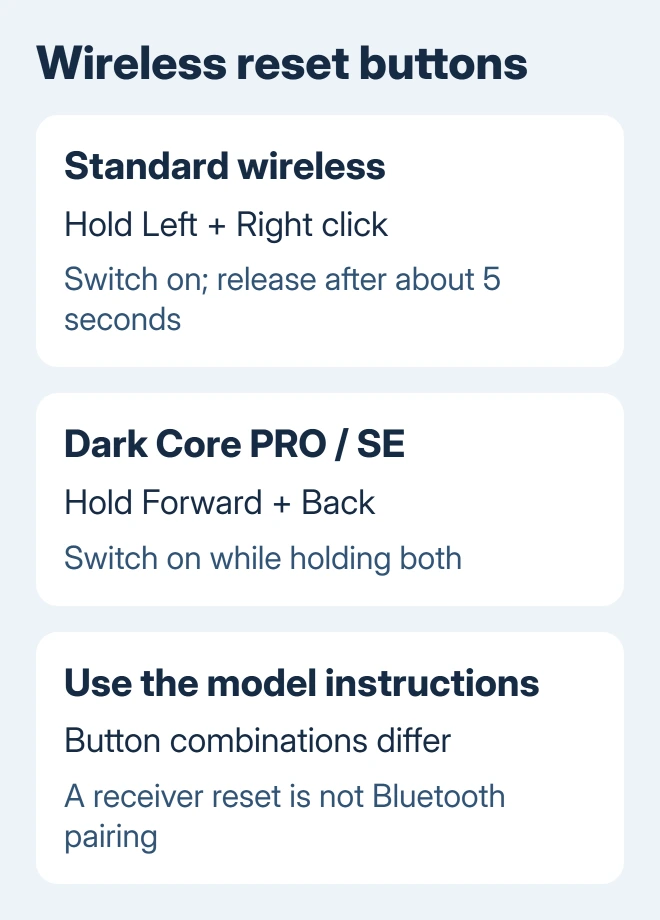
For the standard wireless reset, turn the mouse off. Hold both main mouse buttons, turn it on while holding them, then release after about 5 seconds. A flashing LED means the reset worked.
Dark Core PRO and SE use different controls: switch the mouse off, hold the Forward and Back side buttons, then move the power switch to ON without releasing them. Use that model's instructions for any remaining prompts.
If movement is still delayed on the desktop, compare the mouse on another computer. The Windows delayed-click checks help when another mouse shows the same delay on this PC.
For a fault that follows the Corsair mouse, give its support team the model name, the CH- part number from its label, and what happened with wired and wireless connections. Include any iCUE firmware or pairing error.
The Short Version
Separate the receiver from USB 3.0 equipment, compare the correct wireless mode, and reduce a high polling rate when movement makes games hitch. Follow with firmware, receiver pairing, and the reset for your particular model.
Checked November 12, 2026.
 If you have any business, I can build it online






