
DDPM Network KVM shares keyboard and mouse control between networked computers. It requires a supported Dell monitor and the optional Network KVM component. Install the component on each computer before starting the wizard.
If another computer isn't discovered, check the selected network adapter and subnet. On a Mac, local-network and Accessibility permissions can also prevent the connection.
Check the monitor and the optional component
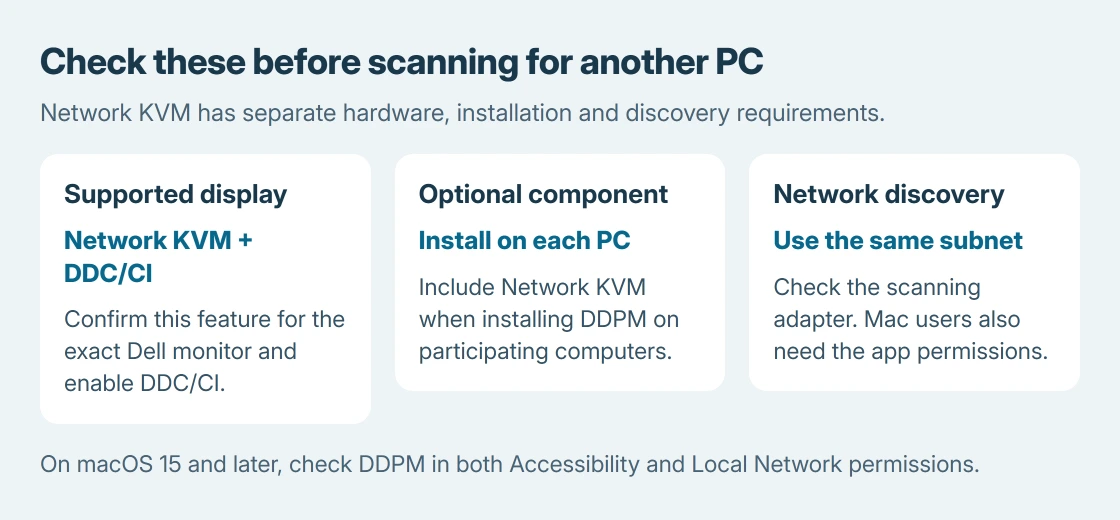
Confirm that the exact monitor supports Network KVM, rather than only USB KVM or DDPM display adjustments. Enable DDC/CI in its on-screen menu. A monitor appearing in DDPM doesn't establish support for every feature.
Network KVM is documented by Dell as an optional component in its Windows user guide. Check the installation on both computers when the option is missing.
Status: Dell's Windows 2.3.0 and Mac 2.3.0.2 DDPM manuals checked October 25, 2026. No monitor, firewall rule or computer-sharing session was changed.
This is a multiple-computer workflow. For two screens attached to one Windows PC, use the display arrangement controls instead. Those numbered boxes don't add another computer to a KVM group.
Run the Windows wizard and approve the other PC
In DDPM's Display sidebar, select KVM > Network KVM > Open network KVM. Select the Network KVM block and Next, then complete its checklist.
The wizard scans the same subnet. Select Add when the other PC appears. For a first connection to a computer using another monitor, enter the PIN displayed there. Its state becomes Added when connected.
If the scan misses a PC, select Change network adapter and choose the adapter serving that network. Dell also provides manual IP entry. These are documented discovery remedies, not a reason to reinstall unrelated display drivers.
On a Mac, allow the two permissions separately
Dell says its Mac Network KVM needs Accessibility permission in the Mac user guide. Open System Settings > Privacy & Security > Accessibility and allow DDPM when prompted.
For macOS 15 and later, also allow DDPM under Privacy & Security > Local Network, or accept its discovery prompt. Accessibility controls input; Local Network permits discovery. Granting one doesn't automatically grant the other.
Dell states that Network KVM disconnects when Apple Universal Control is enabled. If that feature is active, choose which sharing system to use before retrying Dell's wizard.
A visible PC can still be blocked from connecting
If discovery works but connection fails, have the network administrator check DDPM's firewall access. Dell lists default ports 5566, 5567 and 5568 in its troubleshooting instructions. Check any custom port assignments too.
Microsoft's firewall exception guidance recommends allowing a recognized app rather than leaving a port open unnecessarily. Use the required DDPM rules; avoid turning off the firewall for the whole computer.
Network KVM isn't the Windows projection feature. For sending a laptop's picture to a TV, follow the wireless display procedure, which has different hardware requirements.
After setup, test pointer movement and typing on the intended computer. Our completion check is control reaching the right machine, not merely a PC appearing in the scan.
If the supported setup still fails, use Save diagnostic report from DDPM's icon menu and send it to Dell with both OS versions, monitor models and the connection stage that failed.
The Short Version
Verify Network KVM support, enable DDC/CI and install the optional component on each computer. Use the wizard on the same subnet. Check the scanning adapter, Mac permissions and DDPM firewall access according to the stage that fails.

Isaac Smith is the founder and editor of PC Glance, a website that covers computers, laptops, and technology. He is a tech enthusiast and a computer geek who loves to share his insights and help his readers make smart choices when buying tech gadgets or laptops. He is always curious and updated about the latest tech trends.