A Dell KVM setup can switch the keyboard and mouse while showing no video because USB data and the picture use separate connections. Check that each computer has a video path to the monitor, then select the input matching that cable.
With a USB-C monitor, one cable can carry both functions only when the computer, cable and monitor port support video. Connecting USB upstream alone won't make an ordinary USB port send video.
In this guide
1. Match the cables to the kind of KVM
Check the model label first. A Dell monitor with built-in KVM uses its own video and USB upstream inputs. A separate KVM box sits between the computers and display, with computer-side and monitor-side connections.
For built-in KVM, trace each picture cable to HDMI, DisplayPort, or video-capable USB-C upstream. Then trace USB. A working keyboard tells you USB data is getting through. It doesn't confirm that the selected input has video.
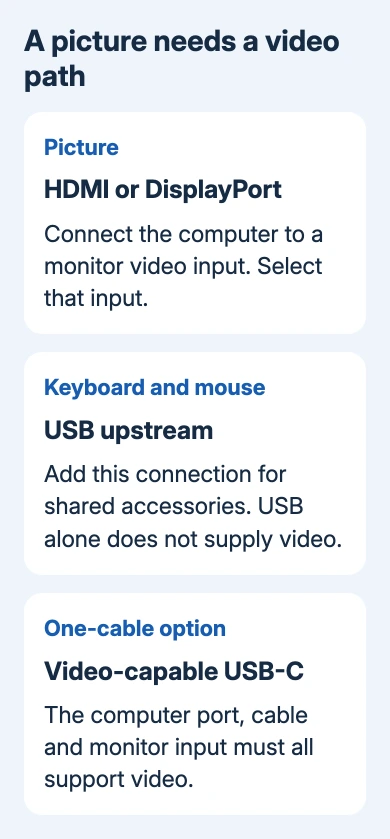
Dell's U3821DW manual shows two different arrangements: USB-C can provide video and USB data together, while HDMI or DisplayPort needs a separate USB upstream cable for the shared accessories. Other models need their own port diagrams.
For a separate KVM box, check that the selected computer's video cable enters its computer-side video socket and the monitor connects to the display-side output. A cable in a USB-only socket won't supply an HDMI or DisplayPort picture.
If you're using a dock as well, leave it out of the first check when a direct connection is available. Get a picture from one computer first, then reconnect the switching hardware.
2. Select the picture input with the monitor controls
Find Input Source in the monitor menu using its physical controls. Select the socket the current computer actually uses. A monitor left on HDMI won't display a computer connected through DisplayPort.
On the U3821DW, the choices include USB-C 90W, DP, HDMI 1, and HDMI 2. Read the socket label as well as the cable type: connecting to HDMI 2 while selecting HDMI 1 produces the same apparent failure.
If the monitor's menu appears, the screen can display it. The monitor still needs a video signal from your computer. Wake the selected computer using its own keyboard or power button if the shared keyboard is controlling the other PC.
Select the input manually before relying on automatic switching. If the picture returns, check input switching and the paired USB connection. If it stays blank, check the computer's display output and cable next.
For a blank monitor that won't show even its own menu, use the Dell monitor screen tests. A screen unable to draw its menu needs different checks from one reporting no signal on a selected input.
3. Check whether USB-C actually carries video
Check the computer manual for video output on that USB-C port. Look for DisplayPort Alt Mode or supported Thunderbolt displays. The connector's shape won't tell you: some USB-C ports carry only power and data.
Next, identify the monitor's video-capable USB-C upstream socket. A monitor may also have USB-C downstream ports for accessories or charging. Those ports serve a different purpose, even though a cable can physically fit.
On the U3821DW, the upstream USB-C port supports DisplayPort video and up to 90 W power delivery. Its downstream USB-C accessory port isn't an alternative computer video input. Use the model's port diagram to distinguish them.
Try the supplied video-capable USB-C cable. A charging-only cable can power the laptop without displaying a picture. Without USB-C video support, connect video through HDMI or DisplayPort and add USB upstream for accessories.
I'd get one video connection working before changing KVM software. Software can't add display output to a USB port whose hardware doesn't provide it.
4. Tell Windows to use the connected monitor
On the selected Windows computer, press Windows + P and choose Duplicate or Extend. Selecting PC screen only disables the external display even when the cables are connected correctly.
In Windows 11, open Settings > System > Display, expand Multiple displays, and select Detect. Windows 10 also provides its external-display controls under Settings > System > Display.
The external-display troubleshooting steps include checking the connection and trying another cable or port. Check each computer separately and keep track of the selected monitor input.
If direct cabling works but switching doesn't, report both results with the KVM model and connection types. The second-monitor detection guide covers the Windows checks after the cabling is correct.
5. Pair USB with video after the picture works
Once each computer shows a picture on its own input, pair each video input with the USB upstream connection for that computer. Otherwise the screen can show one computer while the mouse continues controlling the other.
On supported Dell Display Manager versions, Input Manager > KVM wizard assigns the USB upstream ports to video inputs. Follow the wizard for the connected monitor. The menus you'll see depend on your monitor and software version.
The U3821DW's own USB menu also pairs upstream USB with the HDMI and DP inputs. For that model's Auto KVM setup, its manual specifies PIP/PBP Mode: Off, Auto Select: On, and Auto Select for USB-C: Yes, with the USB and video inputs paired.
Those are U3821DW settings, not a universal menu path for every Dell display. If your model uses different controls, use its manual's KVM section to find the right settings.
Safely eject any USB storage shared through the monitor before switching it to the other computer. Switching USB to move the keyboard also disconnects the drive, which could interrupt a file being saved.
If one input stays blank, give Dell support the monitor and computer models, selected input, cables, and direct-connection result. Ask them to verify that combination's KVM wiring and video support.
The Short Version
Give each computer both a valid video path and the USB connection its KVM needs. Select the correct picture input, confirm USB-C video support when used, then pair USB switching with the working video inputs.
Checked November 27, 2026.
 If you have any business, I can build it online