

A Dell mouse can stop responding because its battery is flat, its receiver is disconnected, or it's switched to another device's mode. Check power and the underside switch, then check its cable, USB receiver, or Bluetooth connection.
The touchpad built into a Dell laptop is a separate device. If that's the part that stopped working, use the touchpad link in the first section. The checks here are for an external mouse.
In this guide
1. Check power and identify the connection
Turn the mouse over and read its model label. Look for its power switch, battery compartment, and connection-mode control. A wired mouse takes power through its cable; a wireless one needs its own battery or charge.
For a replaceable battery, check its direction against the markings inside the compartment. Fit a fresh battery if you're not sure how much charge is left. For a rechargeable model, use the charging method specified for that mouse.
Turn a wireless mouse off and back on. Watch its indicator during startup rather than expecting its light to stay on. Some models turn their indicators off after showing connection or battery status.
For the MS3320W, Dell's manual describes an amber low-battery indication and a connection light that turns off after successful pairing. Check startup and battery indicators together before deciding the battery is dead.
If the laptop's built-in pointer pad is the problem, use the touchpad repair steps. Replacing an external mouse battery won't change a disabled touchpad setting.
2. Connect a wired mouse directly to the computer
Unplug the mouse and wait briefly before reconnecting it. Use a USB socket on the computer itself while checking the fault. Remove a hub, dock, or adapter from the connection when your computer has a suitable socket.
Try another USB socket. If the mouse works there, test the original socket with another suitable device. That tells you whether the first connection is the problem or the mouse fails everywhere.
Examine both the plug and the cable for damage. If movement stops when the cable bends near the mouse or connector, tell support that detail. Changing Windows pointer speed won't repair an intermittent physical connection.
The Windows mouse hardware checks recommend direct connection, another USB port, power checks, and testing on another PC. Do these before installing mouse software.
If the pointer now moves but the wheel or one button still doesn't work, report that specific control. Pointer movement tells you the mouse is communicating with the PC. Repeating cable setup won't explain why that control fails.
3. Use the matching receiver and receiver mode
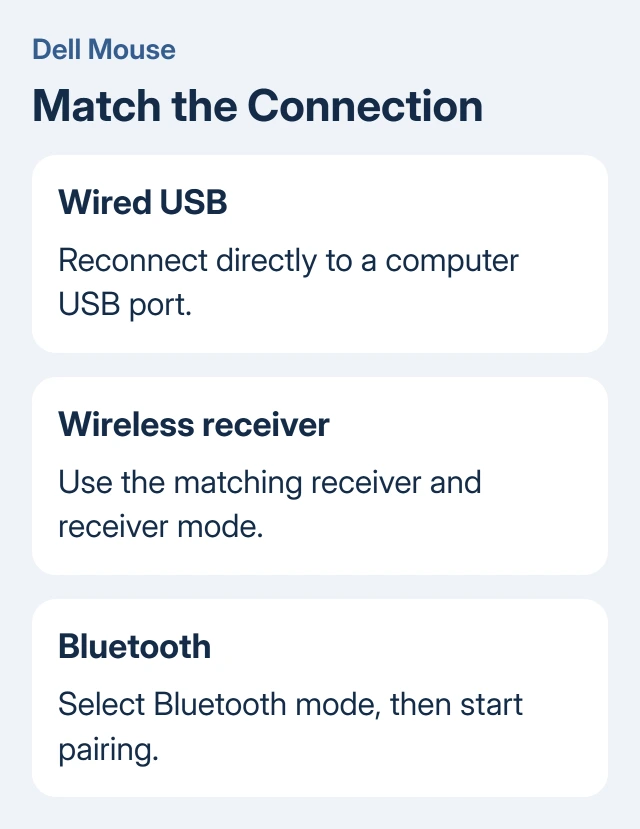
A wireless USB mouse communicates through its small receiver. Look inside the battery compartment if it isn't in the box or computer. Plug the receiver into the PC, then check that the mouse is using its receiver connection.
On a mouse with several modes, Bluetooth and the receiver aren't interchangeable. Select the receiver mode using that model's switch or connection button. Its printed symbol and manual identify which position to choose.
Don't assume a loose Dell receiver belongs to the mouse just because both have the same brand name. Check the model's pairing instructions before buying a replacement receiver or trying a spare from another desk.
Unplug the receiver, wait about ten seconds, and put it back into a computer USB port. Keep the mouse near its receiver for this comparison. If the pointer returns, try your normal desk position and connection separately.
On the MS3320W, the included Dell Universal USB dongle provides the receiver connection. The model's connection indicator lights to show the connection and then turns off. The receiver connection won't require a Bluetooth entry in Windows.
For the broader setup choices, the wireless mouse connection guide explains why receiver setup and Bluetooth discovery use different steps.
4. Put a Bluetooth model into pairing mode
Switch the mouse to its Bluetooth connection before opening Windows discovery. The exact button action depends on its model. A mouse left on the receiver channel won't appear in Windows' device search just because that search is running.
On the MS3320W, select Bluetooth by pressing the connection-mode button twice within three seconds. Its connection-mode light blinks for three minutes while pairing is available. Other Dell models can use another sequence.
In Windows 11, open Settings > Bluetooth & devices and turn Bluetooth on. Choose Add device > Bluetooth. In Windows 10, use Settings > Devices > Bluetooth & other devices > Add Bluetooth or other device > Bluetooth.
Choose the mouse when it appears and complete the pairing prompts. The MS3320W manual describes a solid white connection light for a few seconds after pairing, followed by the light turning off.
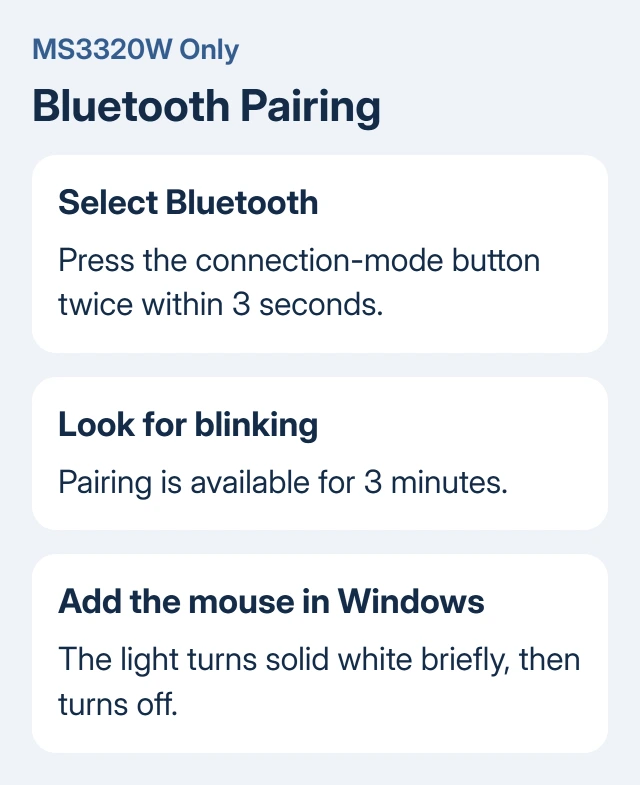
Move the mouse to check the result. If discovery finds nothing, check whether its pairing light is still blinking, then retry discovery while the mouse is close to the computer. Restart pairing if its discovery period has ended.
If Bluetooth itself is missing from Windows, check the PC's Bluetooth adapter next. The mouse's pairing button can't turn on a Bluetooth adapter that Windows can't use.
5. Compare tracking and another computer
If the mouse connects but movement skips, use an ordinary mouse pad, then inspect its sensor opening for dirt. A tracking fault can look like disconnection even though the receiver or Bluetooth connection remains active.
Move wireless equipment and USB devices away from the mouse's immediate connection area for a comparison. Dell's MS3320W troubleshooting includes checking nearby wireless and USB 3.0 interference. Keep the setup simple while checking it.
Connect it to a second PC using its cable, receiver, or Bluetooth connection, with any required software installed. For Bluetooth, pair it with that computer rather than expecting its original pairing to follow automatically.
If it works there, concentrate on the first computer's ports, Bluetooth, or software. If it fails on both after the power and connection checks, ask Dell about the mouse and receiver as a hardware pair.
Get the model-specific repair or replacement
If basic movement works but customized buttons don't, check which Dell configuration application supports the exact mouse. Follow that product's download instructions. An application for another model isn't a universal mouse driver.
Before changing a Windows driver, identify its device. Keep a working keyboard or touchpad available so you can still control the computer. Removing the wrong device can make the PC harder to control without fixing the mouse.
I'd send Dell the model, connection type, battery result and second-PC result. State whether movement, every button or one control fails. Those details help support tell pairing trouble apart from worn buttons or poor tracking.
The Short Version
Check power, then its connection: cable, matching receiver, or Bluetooth. Use its model's button sequence. Test a simple surface and another computer. Failure on both PCs calls for hardware support.
Checked November 16, 2026.
 If you have any business, I can build it online






