

Error 0xc0000022 stops Edge before its window opens, so clearing cookies won't reach this fault. Start with Edge's Repair option in Windows Settings; if it still fails, an owner fixed this error by repairing Windows itself.
Check that the application-error dialog names msedge.exe. A website refusing access after Edge opens is a different problem, even if its message also mentions access.
In this guide
1. Repair Edge from Windows Settings
Save your work, then close the browser. Restart Windows once, then try Edge again. If the same application-error dialog returns, open Windows Settings rather than trying to reach settings inside the broken browser.
On Windows 11, choose Settings > Apps > Installed apps. Find Microsoft Edge, select its three-dot menu and choose Modify. Approve the administrator prompt, then select Repair.
On Windows 10, open Settings > Apps > Apps & features, select Microsoft Edge and choose Modify > Repair. The repair downloads browser files, so leave the PC online until it finishes.
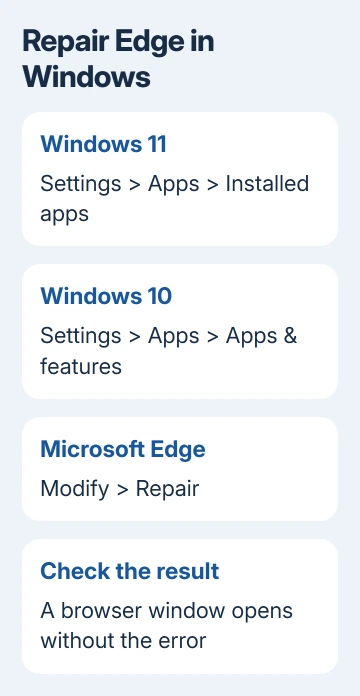
Microsoft's Edge repair instructions say repair should leave browser settings and data intact. When it finishes, launch Edge from Start and check whether a normal window opens.
If Modify isn't available, the browser may be installed and managed by your organization. Send IT the exact code and ask them to repair Edge with their PC management tools.
The code means access was denied. It doesn't identify the blocked file or Windows component. Avoid changing permissions across Program Files or downloading replacement DLL files because a search result links them to this code.
2. Check security software and the failed program
Open your security app and check for updates and recent blocked-app events. Look for an entry naming msedge.exe at the time you tried to launch it. A block naming another app doesn't explain this Edge dialog.
If the log shows an Edge block, use the security vendor's support route to review it. Include the executable's full path and the event time. On a work PC, send that information to IT rather than changing the protection policy yourself.
If there is no matching event, continue with the browser-start check. Don't leave your protection switched off because the log is empty. Look for a specific block, then move on if you can't find one.
Also check which program the message names. A WebView2 error in another app and an Edge browser launch error name different program files. Keep the complete dialog text when requesting help.
If many unrelated apps now fail, the application-startup error guide explains why the exact code matters. Error 0xc000007b points to a different problem; don't apply its runtime fixes just because both dialogs say an app couldn't start.
3. Try a separate Edge profile without deleting yours
A damaged profile can prevent Edge from starting. Test a temporary profile before removing your normal one. Edge will use a separate folder, leaving your original profile in place.
Press Windows + R, type cmd and press Enter. In Command Prompt, run:
"C:\Program Files (x86)\Microsoft\Edge\Application\msedge.exe" --user-data-dir="%TEMP%\edge-test-profile"That is the standard installed path in the startup troubleshooting procedure. If Windows can't find that path, check the actual Edge installation location rather than treating a missing-file message as the original error.
If a fresh Edge window opens, your normal profile needs attention. Keep the test window separate and don't delete the old profile to make the repair permanent before checking your favorites, passwords and sync state.
If the same 0xc0000022 dialog appears with the temporary folder, the fault isn't limited to your normal profile. Move to Windows repair rather than returning to inaccessible browser-data controls.
In the original discussion, launching with extensions disabled also failed. That result matters: an extension check is useful, but it wasn't the successful repair for that owner.
4. Use an in-place Windows repair when Edge still fails
An owner in the original discussion fixed it with an in-place repair, which can reinstall Windows and preserve both your programs and personal files. Reinstalling Edge over itself and starting without extensions had failed earlier.
Their factory reset had also left the error in place. I'd use repair media before repeating the same factory recovery again. Starting the repair from inside Windows lets you keep installed programs as well as personal files.
Back up important files first. Get matching Windows 11 media from the official Download Windows 11 page, matching your PC's processor type and Windows language. Use another browser or PC when Edge is the only browser installed.
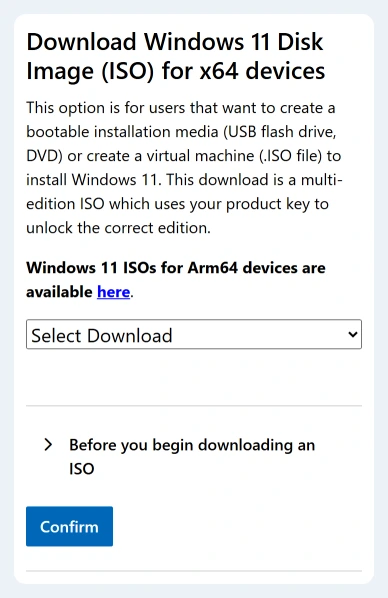
For an ISO file, open its right-click menu, select Mount and open the resulting drive in File Explorer. For prepared installation media, open that drive from your existing Windows desktop. Run setup.exe there.
Follow the in-place reinstallation steps. Choose Change what to keep, then Keep personal files and apps. Check that the final confirmation still says both will be kept before choosing Install.
If that choice is unavailable, ask support to check the installer's language, edition and version. Don't substitute Keep nothing. Starting the PC from USB uses a different installation route from running Setup inside Windows.
On Windows 10, use matching Windows 10 media and choose to keep your files and apps. Its standard support stopped on October 14, 2025; repairing Windows doesn't extend that support or change which security updates your PC can get.
If the application error survives repair
Open Event Viewer > Windows Logs > Application. Look for an Application Error event at the launch time and save its details, including the faulting application and module names. Include your Windows build from winver.
Use Get Help in Windows and request help with an Edge launch failure after browser and Windows repair. Give support the exact dialog, event details and repair results. For an organization-managed PC, begin with the administrator.
If Edge opens but pages then fail to connect, use the separate Edge connection-reset checks. Getting past the application dialog and reaching a browser window changes the problem you're troubleshooting.
The Short Version
Repair Edge through Windows Settings first. If it still won't launch, check the security log and try a temporary profile. An owner fixed it with an in-place Windows repair; select Setup's option that keeps files and apps.
Checked November 23, 2026.
 If you have any business, I can build it online






