

Edge blocks many file links by design, but a work intranet can allow them through the IntranetFileLinksEnabled policy. When links stopped opening after Edge 121.0.2277.83, owners confirmed that version 121.0.2277.106 restored them.
Update Edge if an old installation still has that fault. On current versions, check the policy and source page's intranet zone first. A blocked browser link and an inaccessible folder need different repairs.
In this guide
1. Update Edge before changing a working intranet
Type edge://settings/help into the address bar to open the update check. Let the update check finish, then use the restart button if one appears. Reopen the original intranet page.
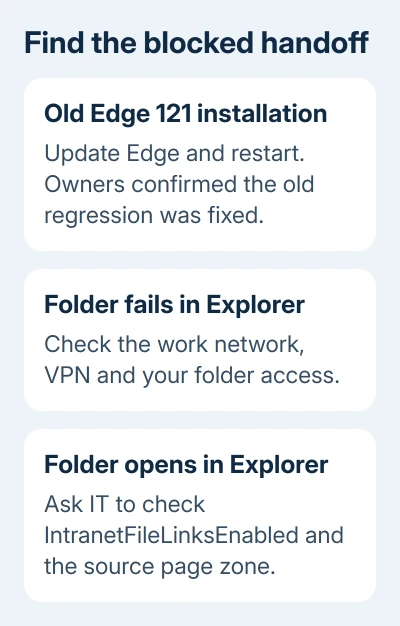
The historical failure opened a new tab showing about:blank#blocked instead of opening File Explorer. The organization already had its file-link policy enabled, and the same links had worked in Edge 120.
One owner confirmed that 121.0.2277.106 fixed their installation. That explains what happened on an older setup. Downloading that old release today isn't the answer. Use your organization's current supported Edge update.
If your organization manages updates, give IT the version from the About page and ask whether the update policy is holding it back. Reinstalling the same version supplied by IT won't get you past an update restriction.
If the browser itself stops responding before you can check the version, use the Edge recovery steps. A browser that opens normally but blocks one kind of link needs the checks that follow.
2. Open the target folder directly in File Explorer
Ask the intranet owner for the link's actual destination. For a shared folder, that might be a Windows network path such as \\fileserver\team. Open File Explorer with Windows + E, enter the approved path in its address bar, and press Enter.
Use your organization's real server and folder names; the example isn't a working address. Check the exact folder the link points to. A different folder opening tells you nothing about access to this destination.
If the folder opens, the share is reachable with your current account. Keep that window available while you check Edge's handling of the link. The open folder also lets you reach those files while the browser link is blocked.
If Windows asks for credentials or reports that it can't access the location, deal with that first. Connect to your work VPN when the share requires it, then have IT verify the address and your access permissions.
A network share can be available only inside the workplace network. Edge's file-link policy doesn't supply a missing VPN connection, restore a removed file, or grant permissions to a folder. Tell IT what File Explorer actually reports.
3. Check whether the file-link policy reaches this profile
Type edge://policy in the affected Edge window. Search the page for IntranetFileLinksEnabled. Check its value and any error or status shown with it. Use Reload policies if IT has just changed the setting.
Microsoft's file-link policy description says that enabling it lets intranet file links open Windows File Explorer. Disabled or unconfigured policies don't allow that behavior.
Tell your administrator if the policy is missing, set to false or showing an error. Ask them to check it for this profile. A setting applied elsewhere in the organization hasn't necessarily reached the window you're using.
The policy applies to each profile separately. Check the profile picture to tell your work and personal windows apart. After IT applies the policy, retry the company page in your work profile.
For administrators, open Administrative Templates > Microsoft Edge > Content settings in Group Policy. Enable Allow intranet zone file URL links from Microsoft Edge to open in Windows File Explorer for the intended users or devices.
I'd check the effective policy before editing the intranet's links. It gives the administrator a concrete result to work from, and avoids changing a page that still works for other employees.
4. Verify that the source page belongs to the intranet zone
The policy requires an intranet-zone HTTPS source page and an intranet-zone file destination. Edge uses the zone definitions configured for Internet Explorer. Those Windows zone settings still matter in modern Edge.
Give IT the full address of the page containing the link and ask which zone it's assigned to. The source page matters, not just the file server at the other end. A moved site or changed hostname can need a different zone assignment.
Don't add arbitrary public websites to the intranet zone. Have IT check only your intended internal site. The policy allows trusted intranet pages to hand file links to Explorer; it isn't a general file-access switch.
Local development has an extra limit. The policy excludes https://localhost/; loopback addresses such as 127.0.0.1, which point back to your computer, default to Internet zone. Testing on localhost isn't the same as testing your intranet.
Once IT confirms the zone and policy, retry that file link. File Explorer should open. For a link to a file, the policy opens the folder containing it with the file selected. Don't expect the link to launch the file's app.
When the link still opens a blocked tab
Send your administrator the source page address, target path, Edge version, policy result, and File Explorer result. Ask them to reproduce that same link in another managed Windows profile with the same policy and zone configuration.
If those match but one updated browser fails, IT can open Help and feedback from the three-dot menu, then choose Send feedback. Include the blocked-tab text. Hide private filenames in screenshots sent outside the organization.
For a separate problem where a website's taskbar shortcut has vanished, use the pinned-site repair steps. Recreating a taskbar pin won't change whether an intranet page can open a file link.
The Short Version
Update Edge, open the destination directly in File Explorer, then check IntranetFileLinksEnabled in the affected profile. IT should verify the source page's intranet zone. The old Edge 121 regression had an owner-confirmed update fix.
Checked November 23, 2026.
 If you have any business, I can build it online






