

RESULT_CODE_HUNG appears when an Edge page stops responding. Close extra tabs, reload, then update Edge. If only MSN stories hang while other sites work, try the same story in an InPrivate window before repairing the entire browser.
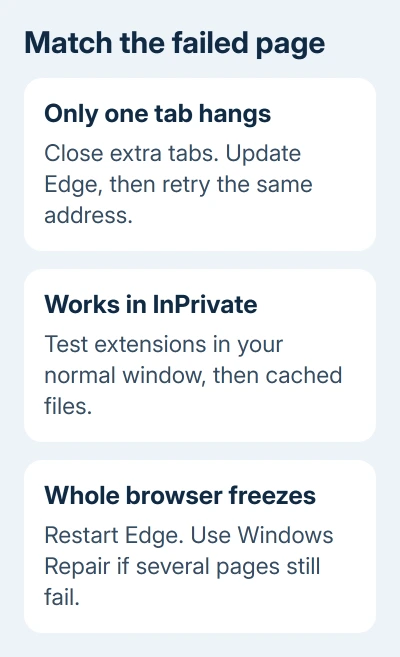
The address bar may still work even when the page doesn't. That distinction matters: one frozen tab calls for page and extension checks; restart first when the whole window freezes.
In this guide
1. Recover the tab without restoring every open page
If a This page isn't responding box offers Wait and Exit Page, give an important unfinished task a chance to finish with Wait. If the prompt keeps returning, choose Exit Page and reload the address once.
Save reachable work before you exit any tabs. A page that has stopped responding may lose an unfinished form when you exit it. Copying the address from Edge's address bar saves the destination, not what you typed into the form.
Close other tabs and demanding apps, and pause downloads. Try opening the affected address in a fresh tab. If it works with fewer things running, Edge may have been struggling with the workload. Reopen your other tabs gradually.
If Edge's menus also stop working, close the browser and restart the computer. On Windows, Ctrl + Shift + Esc opens Task Manager, where Microsoft Edge > End task closes a stuck session. Reopen only the page you're checking.
On a Mac, use Option + Command + Esc, select Microsoft Edge, and choose Force Quit. If the whole browser remains stuck after reopening, the broader Edge recovery guide covers startup and blank-window faults.
2. Install the update and compare another website
Open Settings and more > Help and feedback > About Microsoft Edge. The address edge://settings/help reaches the same update check. Install an available update, relaunch when prompted, and revisit the failed address.
Try a second, unrelated website too. If only one news story or slideshow fails, write down its full address. Being able to see a story in search results doesn't mean you can open the story itself.
The 2021 reports involved MSN articles and moving between photos. Several owners could read those pages in Chrome while Edge hung. Others said it improved later. That discussion doesn't explain every new case of this error.
Microsoft's Edge troubleshooting steps include updates, reducing open tabs and apps, and comparing another browser. Those checks remain useful without assuming today's fault is the old MSN incident.
If the same page fails across browsers while other sites work, report the address to that site's support. If every website fails across browsers, check your connection and router instead. An Edge repair won't repair a website's server.
3. Try InPrivate, then test extensions individually
In Edge for Windows, an InPrivate window opens with Ctrl + Shift + N. On Mac, choose File > New InPrivate Window. Enter the same failing address rather than opening a different article from the site's home page.
InPrivate starts a separate temporary session. Only extensions you've allowed for private browsing can run there. If the page works, check your normal profile's extensions and site data next. This test alone won't tell you which caused it.
An owner could read the page in InPrivate, but it failed again in their regular window. InPrivate gave them a temporary way to read it. Their usual profile still had the problem.
Enter edge://extensions in your normal window. Disable extensions, then reload the page. If that helps, restore one add-on, reload, and repeat until you reproduce the hang. Keep that add-on off and check its support options.
If InPrivate and the regular window both hang, keep going. A website that requires a login may also show different content in InPrivate. Sign in there when necessary before deciding the two windows behave differently.
4. Clear cached files when the regular session still hangs
Press Ctrl + Shift + Delete in Edge on Windows to open the browsing-data controls. On Mac, use Settings and more > Settings and search settings for Delete browsing data. Choose the option to clear data now.
Choose All time under Time range, and select Cached images and files. Leave saved passwords and unrelated data unchecked, then clear the selection. Our Edge cache walkthrough explains those choices.
Reopen the same page and check its previously stuck control, such as the next-photo button. Reaching the top of a story isn't enough when the failure originally appeared halfway through it. Repeat the action that triggered the error.
I'd check extensions before deleting cookies, so you can try a possible fix without signing out of websites. Deleting cookies signs you out, so save that extra step for trouble that happens only after signing in to that site.
Cache clearing didn't help several owners in the old discussion. If it doesn't help yours, move on rather than repeating it after every failed reload. Record that result so support knows the page was checked with refreshed cached files.
5. Repair Edge on Windows if several pages still hang
Close Edge for all signed-in Windows users. On Windows 11, open Settings > Apps > Installed apps, find Microsoft Edge, open its menu and choose Modify. Approve the permission prompt and select Repair while connected to the internet.
In Windows 10, find Microsoft Edge under Settings > Apps > Apps & features, then select Modify > Repair. Browser data and settings should stay intact. An unavailable Modify command needs your administrator's help.
That Windows repair option doesn't apply to macOS. On Mac, give support your updated Edge version and explain what happened in a regular window, an InPrivate window and another browser. The Windows repair menus aren't available on your Mac.
If the failure continues, choose Settings and more > Help and feedback > Send feedback. Include the full version, page address, exact error, and action that makes it hang. Include diagnostic data when appropriate for the page's privacy.
The old thread asked people to include a tracking code for its 2021 incident. Describe your current problem clearly; that old code isn't a repair command. For a workplace site, include IT in that report too.
The Short Version
Recover the hung page, update Edge, compare InPrivate, and test extensions. Clear cached files once if needed. Repair Edge on Windows when the fault affects several pages, or report a single failing address to the site and Edge support.
Checked November 23, 2026.
 If you have any business, I can build it online






