
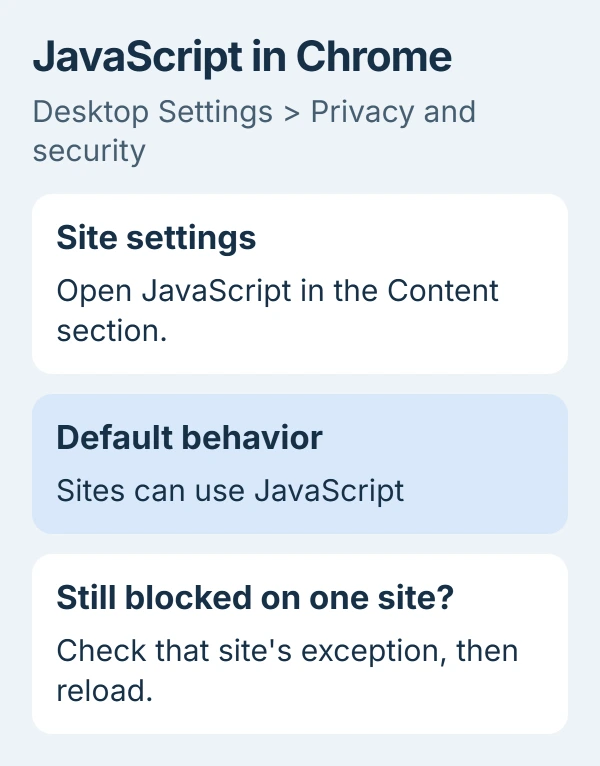
To enable JavaScript in Chrome on a computer, open Settings > Privacy and security > Site settings > JavaScript. Select Sites can use JavaScript, then reload the affected page so its interactive features can run.
A website's own permission can override that default. If its forms, menus or videos still don't work, check the permission for that site.
Allow JavaScript in desktop Chrome
Open Chrome's three-dot More menu, choose Settings, then select Privacy and security. Open Site settings, find the Content section and select JavaScript.
Choose Sites can use JavaScript under Default behavior. Google says to use this desktop route in its JavaScript instructions. Change Chrome's setting, rather than a website's own menu.
The direct address chrome://settings/content/javascript opens the same settings page. Type it into Chrome's address bar to skip browsing through Settings. It isn't a command to enter into a search engine or Terminal.
JavaScript runs the code behind many page controls. Java is a different technology, so installing a Java application isn't part of enabling this permission. Use Chrome's own JavaScript setting.
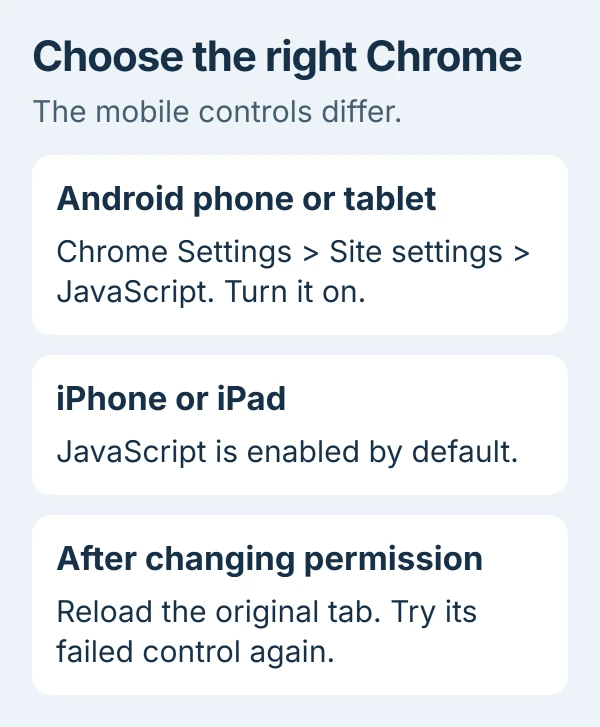
Return to the original tab and reload it. Try the same menu, form or video again. If the control works now, the permission change fixed that problem. Leave the other browser settings as they are.
Check a single site's exception
Open the affected website and select View site information, the control beside its address. Choose Site settings, then find JavaScript and change it to Allow if that site is blocked.
The site-permission reference explains that a site's own setting overrides the default. Changes save automatically. Return to the site's tab and reload it to use the new permission.
On the main JavaScript settings page, check the lists of individually allowed and blocked sites too. Match the address to the site you're using, since another service may have a similar name.
If the general setting already allows JavaScript, switching it on again won't remove an exception that blocks one site. Check that site's exception before resetting the whole browser.
If you prefer to block JavaScript generally, keep that default and allow only the sites you need through their permissions. You'll need an exception for each service whose interactive controls depend on it.
I'd allow just that site if you blocked JavaScript on purpose. You can get one trusted service working while keeping your chosen setting for the rest.
Turn it on in Chrome for Android
Open Chrome's three-dot menu on the phone or tablet and tap Settings. Under Advanced, choose Site settings > JavaScript, then turn JavaScript on. Go back to the affected tab and reload it.
Use the Chrome app's settings, rather than Android's general app-permission list. The camera and location switches in the phone's Settings app don't replace this browser control.
If you have several browsers installed, check which one opened the link. Changing Chrome won't change Samsung Internet or Firefox. Open the same address inside Chrome before deciding its setting had no effect.
Chrome on iPhone and iPad has JavaScript enabled by default. It doesn't have the Android menu. If an iPhone page fails, check the site or app instead of installing a script-enabling utility.
Handle a locked setting on a work browser
If a setting is grayed out or keeps changing back, an organization may control it. Open Chrome's More menu and look for Managed by your organization, then ask the administrator about JavaScript restrictions.
The managed-browser explanation describes how to check management. chrome://management shows management information, while chrome://policy lists applied policies on a computer.
Send IT the site's address and the disabled setting so they can review the restriction. Repeatedly selecting the same option or reinstalling an extension won't change a rule enforced for your account.
If your personal computer unexpectedly shows management, check which software or account is responsible before removing anything. Security tools can manage Chrome too. Check that separately from a site's ordinary blocked permission.
When allowing scripts doesn't repair the page
Start with a reload, then compare the page in a new Incognito window. If it works there, check extensions in the normal window through More > Extensions > Manage extensions.
Turn extensions off for the comparison, then restore them individually while repeating the failed action. The video and game troubleshooting procedure uses this approach to find an extension that interferes with playback.
Check for a browser update through More > Help > About Google Chrome. Save any unfinished web work, install the available update and relaunch when prompted. Retry the same page after Chrome reopens.
A page that appears briefly and then turns entirely white may have a drawing problem. The Chrome blank-page checks cover that behavior, which differs from an individual button that won't respond.
If the website's support team requests error details, open Chrome's developer tools and select the requested panel. You don't need to paste repair code into Console to enable JavaScript.
If one site still fails after these permission, extension and update checks, contact its support team. Include the page address, Chrome version and the control that fails. If IT manages Chrome, explain what the permission check showed too.
The Short Version
Use Site settings to allow JavaScript, check exceptions and reload. Android has a JavaScript switch; iPhone Chrome enables it by default. Check extensions or management if permission alone doesn't restore the page.
Checked November 5, 2026.

Isaac Smith is the founder and editor of PC Glance, a website that covers computers, laptops, and technology. He is a tech enthusiast and a computer geek who loves to share his insights and help his readers make smart choices when buying tech gadgets or laptops. He is always curious and updated about the latest tech trends.