

Error 640 on a Mac signals a failed write for lack of space when its message names NSCocoaErrorDomain. Read the complete error and identify its volume before deleting files; a bare number cannot establish this diagnosis.
An error while expanding a ZIP may need different checks from an app that cannot save a document. Keep the complete message and the name of the failing app so the next action matches the actual failure.
Does the message identify Cocoa error 640?
Look for NSCocoaErrorDomain Code=640, an out-of-space explanation and any named file or volume. In Apple's Foundation documentation, NSFileWriteOutOfSpaceError identifies a write that fails because storage space is unavailable.
The Swift project's Foundation error mapping associates Cocoa code 640 with insufficient space. That mapping does not make every unrelated app's number 640 equivalent.
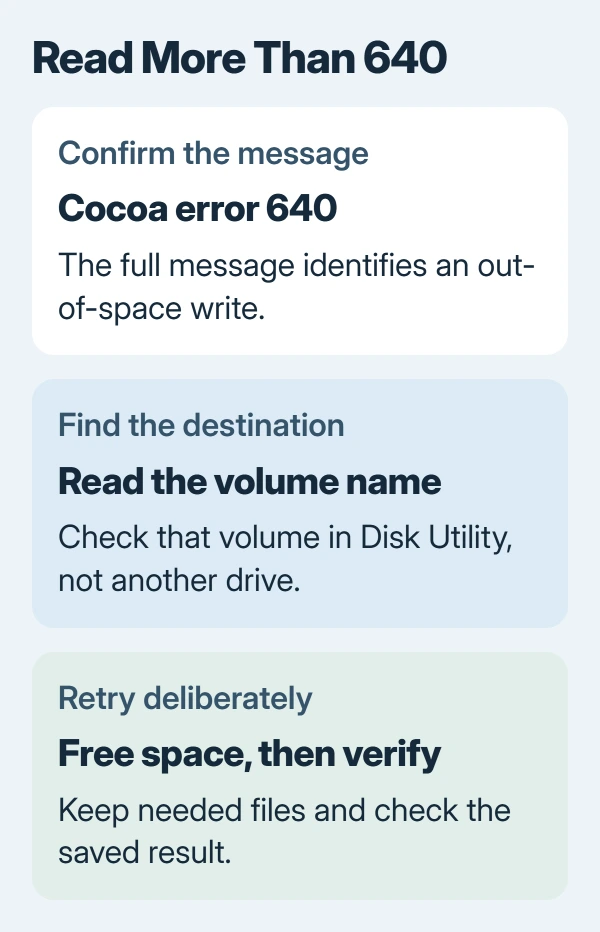
Status: Foundation's Cocoa 640 mapping and Apple's disk-space instructions verified November 1, 2026. This guide applies to the stated file-write error, not every app-specific 640 code.
If the only visible message is Unable to expand, follow the Mac ZIP extraction checks. Do not assume that a failed archive is damaged simply because another app uses the same number.
Check the volume the app was trying to use
Open Disk Utility, choose View > Show All Devices, and select the volume named in the error. Use Info for its details. Check the selected item's identity before interpreting its capacity and available space.
Apple documents the selected disk's details in its Disk Utility reference. A roomy external drive does not resolve a write directed to the internal Data volume.
Available space can include storage that macOS expects to reclaim. Apple says Disk Utility can include both free and purgeable space in that figure. Record what the affected volume reports if the app still refuses the write.
For a Photos-specific warning despite apparently available capacity, use the Photos local-storage checks. Keep that library problem separate from an unrelated document-save error.
Make room without removing the file you need
For the startup disk in macOS 13 Ventura and newer, open System Settings > General > Storage. Earlier releases show storage through Apple menu > About This Mac > Storage. Inspect the categories to find files you recognize.
Apple's storage cleanup guidance recommends moving files to another storage device or removing unwanted downloads and media. Preserve needed files in a verified copy before deleting their originals.
Review Trash before emptying it. Apple states that moving files there does not release their occupied storage until Trash is emptied. That final deletion should contain only files that can safely be discarded.
Retry the failed operation in its app. A successful save, copy or installation should finish without that error; for a saved document, reopen the resulting file and check its contents before closing the original work.
If the same write still fails
Keep the source document open when it contains unsaved work. If the app offers Save As, try a separately named copy on another writable location with space. This fallback is ours; verify the copy before closing the original.
Contact the app developer with the complete error, macOS release, volume and space readings. Mention whether other files save to that destination. Share a nonprivate sample if support needs to reproduce the failure.
There is no universal number of gigabytes that clears this error for every operation. An app may need working space as well as room for its final file; use its stated requirement when available.
The Short Version
Cocoa error 640 means a write failed for lack of space. Check its destination, make room and retry. For an unexplained 640 in another app, obtain the full message before assuming the same cause.

Isaac Smith is the founder and editor of PC Glance, a website that covers computers, laptops, and technology. He is a tech enthusiast and a computer geek who loves to share his insights and help his readers make smart choices when buying tech gadgets or laptops. He is always curious and updated about the latest tech trends.