

Event 513 from CAPI2 is log noise rather than a fault. It shows up when a backup or restore point starts and the System Writer, the part of Windows that lists system files for the backup, is refused access to one network driver.
If your backups finish, you can leave it alone. To stop it anyway, give that driver one extra read permission with two sc commands in an administrator Command Prompt. Owners on Windows 8 and 8.1 who did this saw the error disappear.
In this guide
What the event is telling you
The full text reads "Cryptographic Services failed while processing the OnIdentity() call in the System Writer Object." That sounds alarming, but it's about a backup helper, not your certificates or passwords.
Backups and restore points use the Volume Shadow Copy Service, which asks a set of helpers called writers what to back up. The System Writer runs inside Cryptographic Services and opens the settings of every driver registered on the PC.
One of them, the Microsoft Link-Layer Discovery Protocol driver (mslldp.sys, which finds devices on a wired network), doesn't let Windows services read its settings. The writer logs access denied for it and carries on.
Microsoft's article on the error says "This event log entry can be safely ignored." If your backup or restore point finished, the entry changes nothing, and fixing it only buys you a cleaner log.
Check the Details line first
Press Win+R, type eventvwr.msc and press Enter. Open Windows Logs > Application and look for Event ID 513 with CAPI2 as the source. If the log is busy, filtering the Application log by event ID finds it quickly.
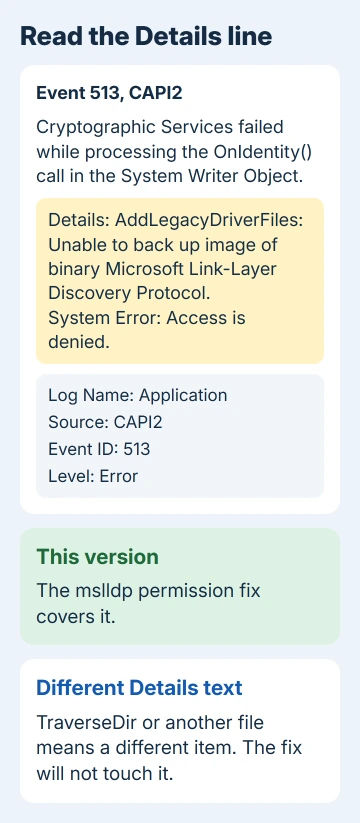
Read the lines under Details on the General tab. The common version names the driver directly: "AddLegacyDriverFiles: Unable to back up image of binary Microsoft Link-Layer Discovery Protocol." with Access is denied under System Error.
That's the version the fix covers. If your Details line says something else, such as TraverseDir : Unable to push subdirectory, the writer couldn't open a different folder or file. The permission change won't touch it.
1. Decide whether to change anything
If restore points and backups complete, you can skip everything that follows. The change is small and easy to undo, but it does edit a security setting on a Windows driver, so only make it if a clean log matters to you.
It's most useful when your backup app flags the error in every report, or when you're chasing a real problem in Event Viewer and want the noise gone. In that case, carry on.
2. Save the driver's current permissions
Open Command Prompt as administrator. Stick with Command Prompt rather than PowerShell, where sc is a shortcut for a different command. Then show the driver's current permissions:
sc sdshow mslldpYou'll get one long line that starts with D: and a list of entries in parentheses. Some PCs also have an S: section at the end. Copy the whole line into Notepad and save it, because it's your way back.
Use your own line, not one copied from a website. The permissions can differ between PCs, and the owner who first traced this problem gave exactly that warning along with the fix.
3. Add read access for service accounts
The missing piece is this entry, which lets Windows services read the driver's settings. SU stands for service accounts and the letters in the middle add up to read access. Drivers such as mup already carry this same entry:
(A;;CCLCSWLOCRRC;;;SU)Add it to the end of the D: part of your saved line. If the line has an S: section, place the entry just before S:. If it doesn't, add it at the very end.
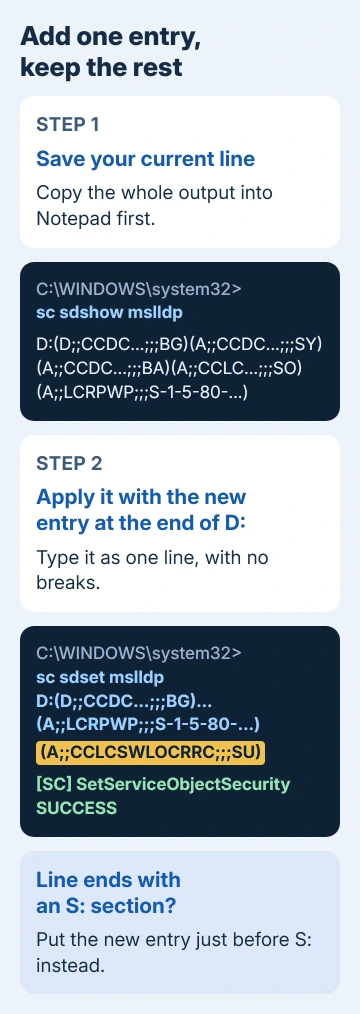
Then apply the edited line by typing sc sdset mslldp, a space and the line. On a PC whose line has no S: section, the finished command looks like this:
sc sdset mslldp D:(D;;CCDCLCSWRPWPDTLOCRSDRCWDWO;;;BG)(A;;CCDCLCSWRPWPDTLOCRSDRCWDWO;;;SY)(A;;CCDCLCSWRPDTLOCRSDRCWDWO;;;BA)(A;;CCLCSWRPWPDTLOCRRC;;;SO)(A;;LCRPWP;;;S-1-5-80-3141615172-2057878085-1754447212-2405740020-3916490453)(A;;CCLCSWLOCRRC;;;SU)It wraps on this page, but type yours as one line with no breaks. A line break in the middle is how one owner corrupted the driver's permissions and had to restore the PC. When it works, you'll see [SC] SetServiceObjectSecurity SUCCESS.
4. Check that the error is gone
Create a restore point or run your usual backup. Making a restore point by hand takes a few clicks in System Protection. Then refresh the Application log and look for a new Event 513.
Owners who made the change saw the error go away. One wrote "This fixed three of my pc's" after upgrading them to Windows 8 Pro, and another said "the CAPI2 errors disappeared" after a full Acronis backup.
A tighter version of the same fix
Another owner gave the right to one service only. Instead of the SU entry, they added an entry that grants Cryptographic Services alone permission to query the driver's settings:
(A;;CC;;;S-1-5-80-242729624-280608522-2219052887-3187409060-2225943459)The long number is the CryptSvc service's own fixed security ID. This version keeps every other service out, and I'd pick it on a work PC where permissions get audited.
Undo it if you change your mind
Run sc sdset mslldp followed by the original line you saved in Notepad. That puts the driver's permissions back exactly as they were, and the 513 entry returns with your next backup.
If your backup actually fails
When a backup or restore point stops with an error, Event 513 on its own isn't the cause. Look for other errors logged at the same minute, especially from VSS, and take them to your backup software's support with the event text.
On Windows Server, Microsoft's support can look at the writer's state with you. On a home PC, your PC maker's support or Microsoft's Get Help app is the next stop.
The Short Version
Event 513 from CAPI2 is harmless when backups finish. To stop it, save the output of sc sdshow mslldp, add (A;;CCLCSWLOCRRC;;;SU) to the end of the D: part, and apply it with sc sdset mslldp on one line.
Checked November 19, 2026.
 If you have any business, I can build it online






