

Old ABBYY FineReader software bundled with Epson printers can crash Excel 2013 at launch. Start by disabling its Office add-in. Removing the ABBYY component fixed this fault for owners when simpler repairs failed.
A workbook that crashes only when opened is a different case. Launch Excel itself from Start before opening any file. If even a blank session fails, follow the startup checks in this order.
In this guide
1. Check whether scanner software started the trouble
Think about what changed before Excel stopped opening. Printer and scanner software can include a text-recognition program that sends scanned text into Office. The printer may still work while that Office integration causes trouble.
The asker in the Excel 2013 startup-crash thread later identified the ABBYY software supplied with an Epson printer as the cause. Another owner confirmed that removing its ABBYY component restored all Office applications.
Check another installed Office app, such as Word, without opening a document. Note whether it also crashes at launch. If several apps fail together, scanner software is a better fit for these reports than a single damaged spreadsheet.
If you don't have ABBYY or any related scanner software installed, skip its removal step. Test Safe Mode, then inspect the add-ins installed on your PC. This fault doesn't mean every Epson printer needs uninstalling.
I'd check this connection before another Office reinstall. One owner had already removed add-ins and tried an online repair, but the suite only worked after they removed the bundled ABBYY software.
2. Open Excel without its normal startup extras
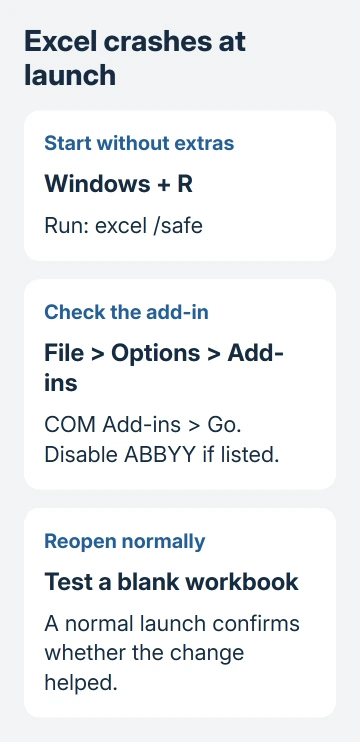
Close Excel and press Windows + R. Type excel /safe, separating excel and /safe with a space, then press Enter. This Run command works without finding the old Accessories menu mentioned in Windows 7 instructions.
Look for Safe Mode in Excel's title bar. Create an empty workbook and type a number into A1. If the window stays open, start by checking the add-ins and files Excel normally loads at startup.
Choose File > Options > Add-ins. Beside Manage, select COM Add-ins and click Go. Note the checked entries, then clear the ABBYY entry if one appears. Click OK and close Excel.
Launch Excel normally from Start. Check that Excel opens without Safe Mode. Working only in Safe Mode leaves the cause in place. Open a copy of a familiar workbook once the empty session stays open.
If disabling ABBYY fixes it, leave its add-in off while you check for a compatible version. Your workbook doesn't need conversion simply because an add-in made the program crash.
If ABBYY isn't listed, test other checked entries separately. Reopen normal Excel between changes, and restore entries that don't affect the fault. Also inspect Excel Add-ins through the Manage list if COM entries aren't responsible.
Microsoft's Office startup-crash guidance names older ABBYY FineReader integration as a known source of trouble. If Safe Mode crashes too, move to installed-software and repair checks.
3. Remove the bundled component when disabling isn't enough
Save work in other apps, then press Windows + R and enter appwiz.cpl. In Programs and Features, look for the installed ABBYY FineReader entry. Read its name carefully before choosing Uninstall.
Remove that component, rather than choosing the printer driver or every Epson entry. ABBYY handles text recognition, which turns a scanned page into editable text. Without it, you may lose the option to turn scans into editable text.
Before removal, make sure you have a way to reinstall the component if you rely on it. A printer's basic scanning function and its bundled text-recognition program are separate features, but their packaging differs between models.
Follow the uninstaller and restart Windows if requested. Launch Excel normally and create a blank workbook. Then try Word if that app also failed earlier. Check that both stay open before returning to your usual files.
The confirmed report involved an Epson Workforce 845. That helps you recognize the old software bundle, but the problem isn't necessarily limited to that printer, and it doesn't affect every ABBYY release.
If the crash continues after removing the installed component, don't repeat the uninstall or remove unrelated software. Keep the result and continue with Excel's remaining startup components.
4. Check files that Excel opens automatically
Excel can open workbooks from its XLStart folder or an alternate startup folder whenever the app launches. So even if you haven't chosen a workbook, Excel may be loading one in the background when it crashes.
In a working Safe Mode session, open File > Options > Trust Center > Trust Center Settings > Trusted Locations. Find the XLStart location in the list and note its path before closing Excel.
Move the files from that location into a separate backup folder temporarily. Reopen normal Excel. Keep the files, especially a personal macro workbook, because they may contain shortcuts or automation you use every day.
If startup now works, put the files back individually, closing Excel before each change. The file that brings the crash back needs its own repair. If nothing changes, restore the originals and continue.
Check File > Options > Advanced > General > At startup, open all files in if it contains a folder path. Record the path before clearing it for a test. An empty box needs no change.
An extra window that opens without crashing belongs with the second blank Excel window checks. That behavior shouldn't send you through a printer-software uninstall.
5. Repair the suite after the targeted checks
Press Windows + R, enter appwiz.cpl, and select Office 2013. Choose Change, then the repair option your installer offers. An MSI installation has Repair; Click-to-Run can offer Quick Repair and Online Repair.
Try Quick Repair first when it is available. If it fails, connect to the internet for Online Repair; keep your Office account details ready for afterward. This repair also covers the other Office apps installed with Excel.
Test normal Excel before opening the workbook that originally worried you. If the app works but one file still crashes, preserve the original and troubleshoot a copy. At that point, the problem is with that file rather than Excel's startup.
If the crash occurs only after Excel opens and you copy cells, follow the copying-related Excel freeze guide. Choose the next repair by the action that actually makes Excel fail.
For a continuing launch crash, give IT the Office edition, Windows version, Safe Mode result and installed ABBYY version. Ask them to check scanner integration and Excel's application error before reinstalling the same suite again.
Office 2013 no longer receives support. Have IT plan its replacement, especially if the PC also uses Windows 7 or 8. Even if these steps get Excel working, the old installation still won't receive security support.
The Short Version
Check ABBYY integration first, test a normal launch after Safe Mode changes, and remove only the troublesome scanner component if needed. Then check startup workbooks and repair Office if Excel still crashes before opening a file.
Checked November 16, 2026.
 If you have any business, I can build it online






