

An Excel 2016 logging bug caused macro crashes with out-of-memory errors, even with small arrays. Build 16.0.6366.2062 fixed that bug. Update Office first; the old EnableLogging workaround applies to that historical fault.
If the same message appears in a current installation, check what's causing it there. If the workbook crashes on several computers, that pattern also matters: adding RAM to one PC won't explain a failure that follows the file.
In this guide
1. Check the Excel build and install the available updates
Open Excel without running the failing macro. Select File > Account and write down its product name and build in Product Information. Open About Excel and note whether it says 32-bit or 64-bit, too. Support will need that detail.
Select Update Options > Update Now. If the menu offers Enable Updates, select that first. Save any documents open in other Office programs, then allow the updater to close them. Launch Excel again when installation finishes.
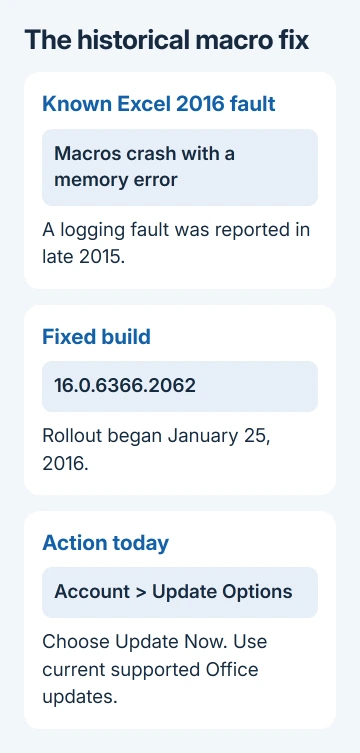
Microsoft says 16.0.6366.2062 fixed the bug in the January 2016 update reply. Rollout began January 25, 2016. That build fixed the bug at the time; use today's available update rather than looking for that old build.
Test the macro in a copy of your workbook. Use the same input that caused the crash, and check the resulting output as well as whether Excel stays open. A macro that stops early without crashing still hasn't completed its job.
If Update Options is missing, use the Office update instructions for the installation type or have your administrator apply the approved update. October 14, 2025 was Office 2016's last day of support.
I'd check the build before editing the registry. The update announcement followed the registry workaround and replaced that older advice. If an updated supported release still crashes, move to section 3.
2. Keep the EnableLogging workaround tied to the old fault
Before the update was released, a Microsoft employee suggested setting EnableLogging to 0 under HKEY_CURRENT_USER\Software\Microsoft\Office\16.0\osm. That disabled the logging implicated in this Excel 2016 failure.
This setting is in the Windows registry, where programs keep their settings. Back up the relevant key before changing it, and have IT handle a managed computer. There is no reason to edit unrelated Office keys for an out-of-memory message.
If you have to keep using an old installation, close Office, open Start, search for Registry Editor, and open it. Browse to the exact osm key. If the path isn't present, ask IT to confirm the installation before creating settings.
When EnableLogging exists there, open its value editor and enter 0 as the value data. The original instructions say a missing value should be created as DWORD (32-bit) Value, named EnableLogging, then set to 0.
DWORD (32-bit) is the registry value type specified in the workaround. It doesn't mean switching the installed Excel application from 64-bit to 32-bit. Keep those two decisions separate when discussing the change with support.
The reply also mentions HKEY_CURRENT_USER\Software\Policies\Microsoft\Office\16.0\OSM and HKEY_LOCAL_MACHINE\Software\Policies\Microsoft\Office\16.0\OSM. Your administrator should check EnableLogging there if the first change doesn't help.
Reopen Excel and rerun the saved test copy. If it still crashes, stop treating the logging key as the explanation. The staff reply offered this workaround for that particular bug. Owners haven't confirmed it as a fix for all later versions.
3. Check whether the crash follows the workbook
In a copy of the file, try the same macro with a small set of input that contains no confidential data. Keep its file format macro-enabled, such as Excel Macro-Enabled Workbook (.xlsm). Saving it as .xlsx won't retain its VBA code.
If you need help keeping and running trusted code, the Excel macro controls cover that task. Don't lower macro security to repair an application crash. If the code has already started running, permission to run it isn't the problem.
If another supported Excel installation is available, try the workbook there. Record both builds and whether each is 32-bit or 64-bit. If it fails on both, have the author review the file's code and contents as well as the Excel versions.
The original asker reported a macro reading about 700 names and crashing at varying points. Reinstalling hadn't fixed it, and the file also crashed on computers at a Microsoft store. Those details explain why the later app fix mattered.
Large workbooks can also have separate memory problems. Whole-column formulas, excessive formatting and numerous objects add work even to a short macro. Ask the author to inspect a duplicate before removing sheets.
For broad performance trouble outside macros, the Excel slowdown guide covers that workbook overhead. Keep a record of whether only this macro fails or ordinary editing and calculation also break.
4. Compare add-ins without making macro security weaker
Close Excel, press Windows+R, enter excel /safe, and press Enter. Open the test workbook through File > Open. Use a trusted workbook and its normal permitted macro workflow; don't disable protection to force an unknown file to run.
Safe mode leaves out several add-ins and startup customizations. If the problem disappears there, open File > Options > Add-ins in a normal session and record the enabled tools. Check COM Add-ins through the Manage list and Go button.
Restart Excel normally between individual add-in changes. If one tool triggers the crash again, ask its maker about compatibility and updates. Restore the original choices if removing add-ins doesn't help, and report the crash.
When the macro still crashes on an updated installation
Give your organization's support team a workbook copy, the exact error, your Excel build and the results from other PCs. If the data is confidential, ask the author to replace it with sample records that trigger the same code failure.
When only this project fails, have its VBA developer review the procedure and output. Note the stopping line or operation if it stays consistent. If it stops in different places, tell support that rather than guessing at the cause.
An Office repair is a separate option when unrelated workbooks or ordinary Excel use also crash. On Windows 11 use Settings > Apps > Installed apps > Office > Modify; Windows 10 uses Apps & features > Office > Modify.
The Short Version
Update before editing settings: build 16.0.6366.2062 fixed the old logging crash. EnableLogging advice belongs to that incident. A continuing failure needs workbook, version and add-in comparisons, with a reproducible example for support.
Checked November 17, 2026.
 If you have any business, I can build it online






