A January 2020 bug in Excel version 2001, build 12430.20050, broke saving and caused crashes when opening dialog boxes. Install Office updates first: a corrective update resolved the incident, replacing the need for an old rollback.
The pattern was Save As > Browse doing nothing, new files refusing to save, or Excel Add-ins crashing. If today's Excel has another build, check its current behavior separately from this old incident.
In this guide
1. Check the complete build, then install updates
Open Excel and choose File > Account. Read the version and build in the product information area, using About Excel if needed for the full number. Write down the full build number, not just Version 2001.
The original incident thread identified 12430.20050. An update to build 12430.20120 was offered during the response, and the incident was reported resolved on January 18, 2020.
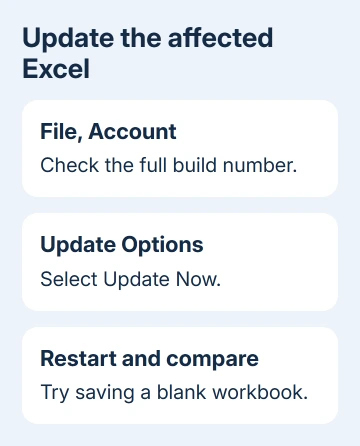
Choose Update Options > Update Now. If updates are disabled and Enable Updates is available, enable them first. Save open work in other Office apps before the updater closes those programs.
Wait for the update check and installation to finish, then reopen Excel. Check its build again to confirm the update installed. Closing the update window before it finishes isn't the same as applying the offered update.
If Excel won't stay open long enough, open Word and use its File > Account > Update Options > Update Now command. The Office update instructions use this shared Office update route.
If Update Options is absent and only About remains, the installation may be managed or licensed differently. Have IT check the update channel and deploy its approved current build.
The reported problem affected non-English, 32-bit Excel on the Insiders Slow update channel. Printing, macros, and zooming could also crash. Check About Excel for the build and bit version when reporting that old installation.
2. Retest saving with a disposable workbook
Create a blank workbook after the update, enter a short piece of text, and choose File > Save As > Browse. Choose a new filename in an easy-to-find local location, such as Documents.
The expected result is a working file-picker window followed by a saved workbook. Close that workbook and open the saved file again. This checks the operation that failed in the original report without risking an important spreadsheet.
If Browse still doesn't open, write down that exact result. It is different from a dialog that opens but refuses a particular folder. If Excel says you can't write to a folder or can't reach a network drive, report that message instead.
For a new workbook that repeatedly asks to save when you close it, cancel closing until you've preserved the content somewhere safe. Don't keep clicking Yes and assume a file must exist because Excel asked about saving.
If the file saves but closing it asks again, check Excel's repeated save prompts. That behavior can follow recalculation, which differs from a file that never reached the disk.
3. Check the add-in dialog only after updating
In the original report, File > Options > Add-ins, followed by Manage: Excel Add-ins > Go, could crash Excel. That matters because an instruction to remove add-ins could itself send readers into the failing dialog.
After updating, use a blank workbook to open that dialog once. If the add-in list opens normally, Excel has stopped crashing at that step. Close it without changing anything unless you're fixing a separate add-in problem.
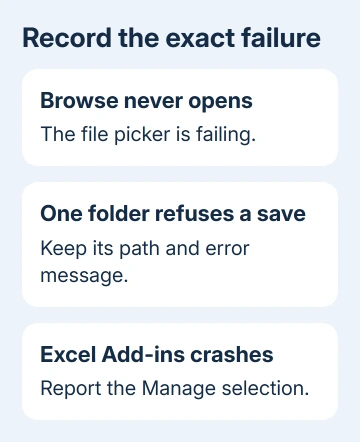
If saving works but the add-in dialog still crashes, record both results. Send support the build and failing dialog. You don't need to uninstall every add-in just because the old bug affected both saving and this dialog.
The Excel add-in guide explains the difference between add-in types. Excel Add-ins and COM Add-ins have different lists, so record which Manage selection triggers the crash.
If only a business workbook crashes while a blank one works, send a copy with private data removed to the workbook or add-in supplier. Ask them to try the same steps with your build and the required add-ins.
4. Leave the old rollback command out of today's repair
An owner in the January 2020 thread restored operation by reverting to version 1912, build 12325.20288. That was a temporary way around the fault in that new release, before the fix was available.
That build belongs to the incident history. A current supported installation includes later fixes too. Let IT choose an approved build on managed computers, rather than copying a years-old Click-to-Run command.
The thread also contains a report that switching Office from French to English helped. That is a historical workaround, rather than evidence that every current save-dialog problem requires changing your language.
I'd apply the update and retry the broken command before changing Office's language or reverting to an older build. Both old workarounds changed more than a normal update. This historical build number alone isn't a reason to repeat them.
Keep Office updates enabled rather than preserving an old workaround. For a new regression, give IT the current and previous builds. Ask whether a supported temporary rollback fits the organization's update channel.
5. Escalate a failure that remains on the current build
The incident number in the original discussion was OP200466. Include it when reporting the 2020 build. A crash on today's build could have a different cause, so start with what's failing now.
For a work account, ask your administrator to review the installed Office build and Microsoft 365 service health. Tell them whether Save As Browse opens, whether a blank workbook saves locally, and whether the Excel Add-ins dialog crashes.
For a personal installation, send Microsoft Support your comparisons, Windows version, and Office language. If no Office app opens to update, ask which repair procedure fits the installation.
Keep the affected workbook and an untouched copy of important files. A repair conversation is much easier when support can tell whether the app fails with every blank workbook or only with a particular file and destination.
The Short Version
Install updates instead of reverting to 1912. Check Save As Browse, a blank workbook saved locally, and the Excel Add-ins dialog separately. If a newer build still fails, report its full number and the failing operation.
Checked November 16, 2026.