Excel's file-type warning can come from a blocked add-in before any spreadsheet opens. Check the startup add-ins and unblock only the file you trust. Owners fixed this warning that way while keeping Protected View enabled.
For a warning limited to one downloaded workbook, check that file instead. A message during startup points toward something Excel loads automatically. A message that appears after opening one report points toward that report.
In this guide
1. Check whether the warning starts with Excel
Close your workbooks and quit Excel. Open Excel from Start without choosing a recent file. Dismiss the warning if necessary and create a blank workbook. Check whether the message appeared before you created that workbook.
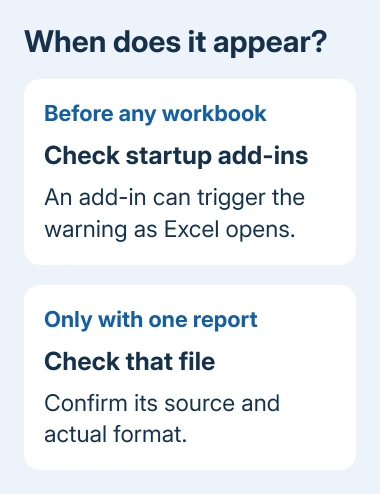
Owners reported seeing the warning when they opened Excel from the taskbar. That explains why repairing or replacing the spreadsheet didn't help those readers: the file causing the warning was an add-in loaded in the background.
An add-in is an extra tool Excel loads to add commands or calculations. Older macro-based add-ins use .xla or .xlam files. Download protection can block those files, and Excel then complains while trying to load them.
If Excel starts cleanly and only one workbook triggers the message, go to section 4. Otherwise, check the startup add-ins first. I'd make that distinction before spending time on an Office repair.
2. Find the add-in file and unblock it
Open File > Options > Add-ins in Excel for Windows. Look at Active Application Add-ins, select an entry and read its Location. Write down the full folder and filename so you're checking the file Excel actually uses.
In File Explorer, navigate to the folder you wrote down. Right-click the add-in file, choose Properties, and look at the General tab. If Unblock is present near the bottom, select it and click Apply, then OK.
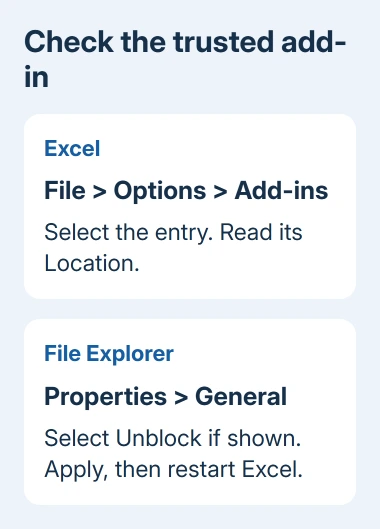
Only unblock an add-in whose source and purpose you trust. The block protects against code downloaded from another computer. It doesn't mean you should approve every file in the folder.
Quit Excel fully and reopen it normally. Check that Excel opens without the warning and that the add-in's usual commands work. If the same message remains, check the next active add-in rather than repeatedly unblocking the first one.
If Properties has no Unblock checkbox, have IT review that add-in's security policy or supply an approved copy on a managed PC. Next, try opening Excel in Safe Mode.
One owner on Microsoft's forum identified a blocked add-in as the cause; another confirmed the fix and explained how to find each add-in's location. They unblocked the affected file and left attachment protection on.
Microsoft's macro security guidance also covers removing the downloaded-file mark from trusted Excel add-ins. A digital signature alone doesn't bypass that mark for an Excel add-in.
3. Use Safe Mode when the add-in isn't obvious
Close Excel. Press Windows + R, enter excel /safe, and press Enter. The Windows desktop app then skips several startup features, including Excel add-ins and most COM add-ins, another type of extension.
If the warning disappears, check what Excel loads during a normal start. Safe Mode changes several things together, so it can't identify which startup item failed. Return to the add-in list and compare the entries that load normally.
For a COM add-in check, open File > Options > Add-ins, choose COM Add-ins in Manage, and select Go. Note the checked entries, clear them, and restart Excel normally.
If the warning disappears, restore one entry and restart Excel to check it. Repeat for each entry. When the warning returns, leave the last entry disabled and ask its publisher for an update or replacement.
For an ordinary Excel add-in, choose Excel Add-ins in Manage, then Go, and clear the suspect entry. This lets you check startup without deleting the add-in file. Re-enable it only after resolving its block or replacing it.
If Safe Mode also shows the warning, don't keep cycling through add-ins indefinitely. Move to the file-specific checks and record the full message. The Excel startup troubleshooting page covers a broader failure to open or respond.
4. Check a single downloaded workbook separately
Put the saved attachment in a known folder, rather than reopening it repeatedly from the email preview. Confirm who sent it and what it should contain. Then open that file's Properties > General and look for Unblock.
If the sender is unknown or the file wasn't expected, ask for confirmation before opening it. For an expected report, request a fresh copy saved in a supported Excel format if its type doesn't match what you were promised.
Changing the filename from .xls or .html to .xlsx doesn't convert the contents. A reporting system can produce an HTML table with an Excel-looking filename, and that needs correction at export, not a new extension typed in Explorer.
Have the sender open the original export in its proper application and use Save As or export to create a real Excel workbook. Ordinary worksheets without macros usually use .xlsx; macro-enabled workbooks need .xlsm.
Keep both the original and replacement for comparison. If only the new export opens, send both filenames and that result to the person maintaining the export. That gives them the exact report that failed to open.
5. Keep Protected View on while checking Office
Leave the checkboxes in File > Options > Trust Center > Trust Center Settings > Protected View enabled. Disabling them changes how future downloads and attachments open; it doesn't repair a blocked add-in or convert an unsupported file.
Check File > Account > Update Options > Update Now if your installation offers it. For a managed PC, have IT compare the Office build with the add-in version, particularly if the fault started after an update.
Quick Repair and Online Repair had both failed for the original asker. Repair can still help with other Excel faults. For this warning, I'd check the add-ins and the file before trying another reinstall.
If the symptom is Excel closing or freezing while opening an email attachment, use the separate Protected View crash checks. A crash and a file-type warning need different next steps.
Send support the file that triggers the warning
For a work add-in, give IT its name, full location, Excel build from File > Account > About Excel, and the result of the Safe Mode check. Ask whether they can supply a current, approved copy of that add-in.
For one report, give its sender the exact warning and request a new export. If even a blank Excel launch fails without add-ins, open Get Help from Windows Start and request Microsoft 365 or Office support with those results.
The Short Version
A warning before any workbook opens calls for an add-in check. Unblock the trusted add-in file, then restart Excel. For one downloaded report, verify its source and actual format. Keep Protected View enabled throughout.
Checked November 16, 2026.