Excel 2016 can crash in Protected View because of a DisplayLink driver conflict. Disconnect the USB display adapter or dock, then check its driver. Owners also fixed this fault by disabling Excel's hardware graphics acceleration.
A workbook that opens from a trusted folder but crashes from email fits this pattern. Keep Protected View enabled while you check it. Turning off attachment protection changes the security of every future file without repairing the driver.
If Excel stays open but displays a file-type warning in Protected View, inspect the startup add-ins; this warning needs different checks from a display crash.
In this guide
1. Compare the docked and undocked display
Save other open work and close Excel. Disconnect the USB display dock or adapter, use the laptop's built-in display, then open the same known, trusted attachment again. Keep the file and email app the same for this comparison.
On a desktop, use a display connected directly to the computer if one is available. DisplayLink is technology used by some USB display products; a dock with a USB-C plug doesn't necessarily use it.
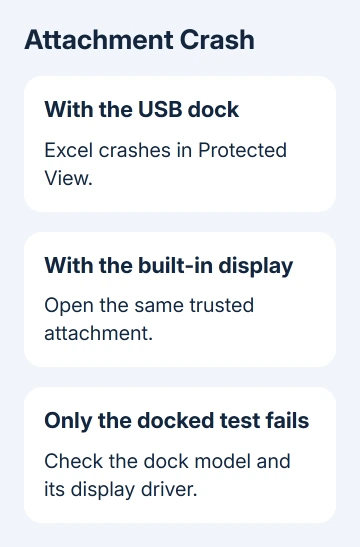
If the attachment now opens and Enable Editing works, check the display setup before changing Office's document settings. Write down the dock model and driver version, then continue with the display workaround and driver update.
If it still crashes, disconnecting the dock hasn't helped. Continue through the remaining checks, particularly whether a blank workbook and Excel's Safe Mode work. Don't assume every Protected View failure comes from DisplayLink.
I'd keep one attachment for these comparisons instead of trying a different file each time. That way, a working result tells you something about the setting you just changed rather than the contents of a different spreadsheet.
2. Disable graphics acceleration in older Excel
For Excel 2016 builds that show the option, open Excel without the attachment and create a blank workbook. Choose File > Options > Advanced, then scroll to the Display section.
Select Disable hardware graphics acceleration and click OK. Close every Excel window, reopen Excel, and test the trusted attachment again. This changes how Office handles graphics.
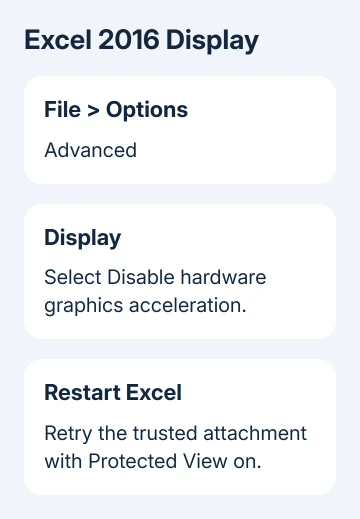
One owner in Microsoft's discussion reported that DisplayLink support suggested this change and that it fixed the crash. That fix worked for an Excel 2016 display-driver conflict; it doesn't apply to every app that opens email attachments.
The checkbox's wording matters: selecting Disable turns acceleration off. Don't clear it when trying this workaround. The option is inside Excel's advanced settings, rather than Windows display resolution or Outlook's attachment settings.
An older Excel 2013 crash during scrolling on Windows 8.1 has a separate Windows animation-effect fix.
Some newer Office builds don't show this checkbox. If it isn't present, move to updating the dock and graphics software. Don't add old registry switches just to reproduce a control that your version no longer provides.
3. Update the dock's driver rather than installing a 2016 build
Read the dock or adapter's model label and check its maker's approved driver. On a managed laptop, have IT provide the display and dock updates.
The DisplayLink Windows download page also lists the current software and supported Windows versions. Use Latest Official Drivers, rather than copying the old version number from the forum.
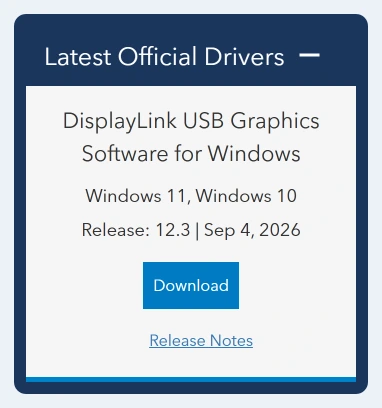
Another owner in the thread said DisplayLink 7.9 M5, dated February 23, 2016, resolved the problem. That is the historical fixed version they used, not the driver to install on a current Windows PC.
Save open work before updating the driver, and restart if requested. Reconnect the dock and retry your attachment in Excel. Check both entering Protected View and choosing Enable Editing: either point could trigger the original crash.
If Excel crashes only with the dock connected, send the maker your comparison results, dock model and installed driver version. Explain exactly when Excel fails, including whether the same file works undocked.
A machine with no DisplayLink hardware needs a different explanation. Don't install DisplayLink software to fix an ordinary laptop display. Continue with Excel's update and startup checks instead.
4. Keep the attachment warning in place
Protected View opens potentially unsafe files with editing limited. The Protected View explanation describes why email and internet files can take this route even when a local workbook opens normally.
For a file you expected from a trusted sender, check the contents before choosing Enable Editing. Trusting a sender doesn't make an unexpected macro request necessary for reading an ordinary spreadsheet.
Don't clear every checkbox under File > Options > Trust Center > Trust Center Settings > Protected View as a general fix. The display fixes that worked for owners address the crash without removing that protection.
Saving the attachment locally is still useful for comparison. However, a file downloaded from the internet can retain its warning after saving. Moving it to Downloads doesn't automatically make it a trusted document.
If Excel stays open and the problem is that controls remain unavailable, the Excel commands page explains the separate editing, protection and cell-entry checks.
5. Check Office when the display changes don't help
Open a blank workbook and choose File > Account > Update Options > Update Now. Close open Office work when the updater requests it, then test the attachment again after the update finishes.
To check whether add-ins are involved, close Excel, press Windows + R, type excel /safe, and press Enter. Try the trusted file once Safe Mode appears in the title bar. If the file opens, check the extras Excel loads during normal startup.
In that case, use File > Options > Add-ins > Manage: COM Add-ins > Go to note and disable checked add-ins. Relaunch Excel normally, restoring each add-in separately until you find the one that causes the crash.
If the file opens normally and freezes only when you copy cells, use the Excel copying-freeze checks. That fault can involve a printer or clipboard behavior rather than attachment opening.
Get help for the remaining crash
Office 2016 for Windows reached the end of support on October 14, 2025. It can still run, but don't wait for a new Office 2016 patch to repair a current fault.
Ask IT about moving that installation to a supported Office edition. For a supported edition, request Office help through Get Help in Start, supplying the Excel build, dock and graphics details, and whether Safe Mode changed the result.
When a normal workbook works and only a particular attachment fails across displays, ask its sender for a fresh copy. Keep the original attachment available for comparison, rather than overwriting the only copy during troubleshooting.
The Short Version
For DisplayLink-related Excel 2016 crashes, compare the built-in display and try the old graphics checkbox when present. Update the dock driver and keep Protected View on. Check startup separately if every workbook fails.
Checked November 16, 2026.