

Excel's formula bar is usually missing because its display setting is turned off. On Windows, open View and select Formula Bar in the Show group; the long input box should return between the ribbon and the worksheet.
A visible box with no formula is a different problem. An empty cell has nothing to display, while a protected sheet can hide a formula even when its calculated answer remains visible. Check which case matches before changing the workbook.
In this guide
1. Switch the formula bar back on in Windows
With your workbook open, select desktop Excel's View tab. In its Show group, check Formula Bar. Look for the input field beside the fx control and the cell-address box.
Select a cell that contains something. Its text, number or formula should appear in the bar. A calculation such as =A1+B1 belongs there even when the cell itself displays only the answer.
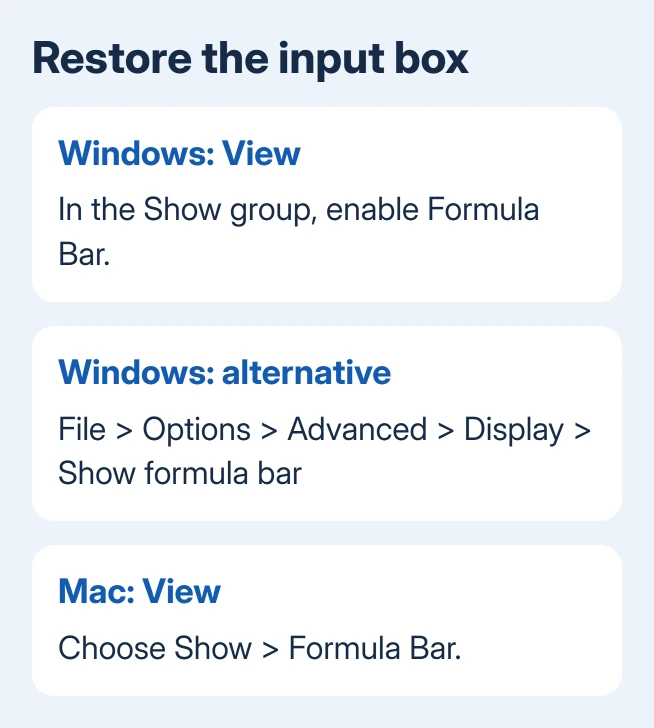
If the checkbox is already checked, try the other Windows setting: File > Options > Advanced. Find the Display section, enable Show formula bar, then choose OK.
Microsoft lists that setting in its Excel Advanced options. It's separate from Display options for this workbook, where the horizontal and vertical scroll-bar switches live.
That distinction matters if you've been looking through workbook controls. A missing input box at the top needs the formula-bar setting, while missing Excel scroll bars need their own controls at the sheet's edges.
These desktop steps apply to Microsoft 365 and supported desktop versions of Excel for Windows that have the View ribbon and Excel Options. A narrow window may compress ribbon groups, so maximize Excel if the labels aren't all visible.
2. On a Mac, use View rather than File Options
In Excel for Mac, open the View tab and choose Show > Formula Bar. Select a cell containing a value to confirm that the field has returned and is showing its contents.
The Mac formula-display instructions give that route. File > Options is a Windows instruction; it isn't the way to reach this setting on a Mac.
When the formula bar exists but a long formula is hard to read, use Control + Shift + U on the Mac to expand it. That makes room for more of the formula; it doesn't turn a hidden formula bar back on.
Compare a short cell value with a longer formula. If the short value appears correctly and the long formula is only partly visible, the input box needs more space. The cell contents aren't missing.
Keep the formula intact while checking the display. A formula that doesn't fit on one line doesn't need to be rewritten. Leave the cell selected and use the expanded box to read the rest.
3. Separate a hidden ribbon from a missing formula bar
Look for the row of ribbon tabs such as Home, Insert and View. If the tabs remain but the commands disappear, the ribbon is collapsed. Select View to reveal its commands and then check Formula Bar.
On Windows, Ctrl + F1 switches the ribbon's expanded or collapsed state. It doesn't directly turn the formula bar on. Use it to restore the ribbon so you can reach the formula-bar setting.
For a window that's too small, maximize Excel and compare again. This makes room for the controls without changing worksheet zoom. Worksheet zoom changes cell size, not the formula-bar visibility switch.
I'd check these display controls before repairing Office. They take seconds and leave the workbook alone. If the input box returns and follows your cell selection, the basic problem is solved.
In Excel for the web, the Windows File > Options dialog isn't available. Use the browser workbook's View controls for Formula Bar when offered, or open it in desktop Excel if the web layout doesn't provide the control you need.
4. The bar is present but one cell's formula is hidden
Select another cell that contains something, then return to the affected cell. If other contents appear normally, the formula bar is working. Check the affected cell or worksheet next.
On a protected worksheet, a formula marked Hidden can calculate normally while staying invisible in the bar. Check whether Review shows Unprotect Sheet, which indicates that sheet protection is active.
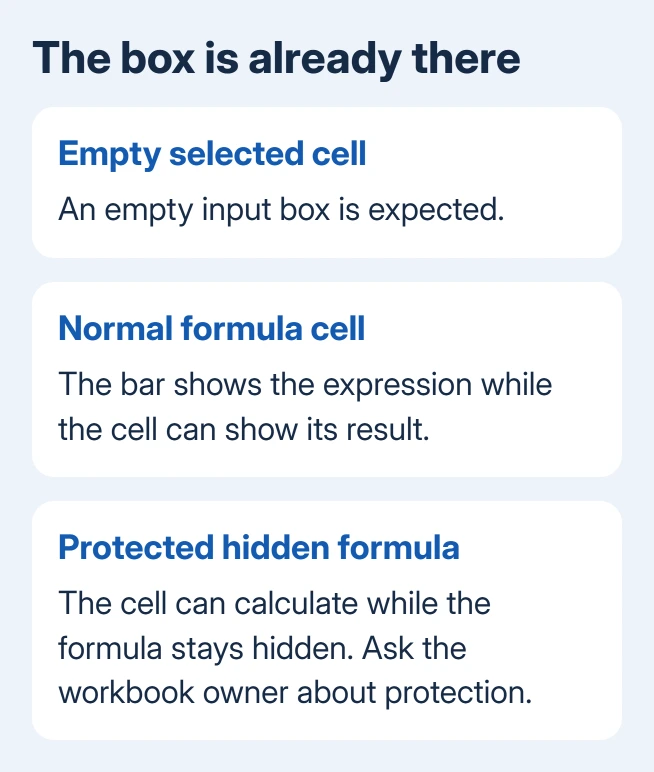
If you're authorized to edit the sheet, choose Review > Unprotect Sheet and supply its password if requested. Select the formula cell again. Its formula should appear if sheet protection was hiding it.
To keep the formula visible after protecting the sheet again, right-click the relevant cells and choose Format Cells > Protection. Clear Hidden, confirm the dialog, and reapply the protection you need.
Ask the workbook owner when you don't have the protection password. A formula hidden this way isn't a display failure. Changing Excel's general settings won't remove the sheet's protection.
5. Displayed formula or wrong answer: follow the cell problem
The Show Formulas command on the Formulas tab makes formulas appear in worksheet cells instead of their results. It doesn't restore a missing formula bar. Avoid switching it repeatedly when your goal is the input box.
If the bar shows a formula but its answer won't update, use the Excel calculation checks. Automatic calculation and text-formatted formulas are separate from hiding a display control.
If the bar stays empty even when you select cells with contents, save your work, close Excel normally and reopen it. Create a blank workbook, enter a short word in A1 and select that cell. Compare it with the original file.
If the blank file works, tell the original workbook's owner which sheet and cell are affected. Tell them whether the sheet is protected and whether other cells display normally, so they can check that part of the file.
If every workbook fails with Formula Bar enabled, open Help > Contact Support where available, or use Microsoft support for Excel. Provide the Excel version, operating system and a screenshot showing the selected cell and missing field.
The Short Version
Turn on View > Formula Bar. Windows also has File > Options > Advanced > Display > Show formula bar; Mac uses View > Show > Formula Bar. A visible bar that hides only certain formulas calls for checking worksheet protection.
Checked November 15, 2026.






