

Excel's startup error can come from Windows compatibility settings, even when the repair button doesn't help. Turn off any old compatibility mode set for EXCEL.EXE first, especially if you're using Office 2013.
If that setting isn't enabled, try Excel's Safe Mode to check its add-ins and startup files.
The message We're sorry, but Excel has run into an error that is preventing it from working correctly doesn't identify a damaged workbook. If it appears before a blank sheet opens, check Excel's startup first.
In this guide
1. Remove an old Windows compatibility setting
Close Excel. Find its shortcut through Start, right-click it, and choose Open file location when available. Open the shortcut's Properties and look at Target to find the actual EXCEL.EXE program file.
In File Explorer, right-click EXCEL.EXE, choose Properties, and open Compatibility if that tab is present. Record any checked options, then clear manually enabled compatibility settings, including Run this program in compatibility mode for.
Choose Apply and OK. If your company manages these settings, ask IT before changing them.
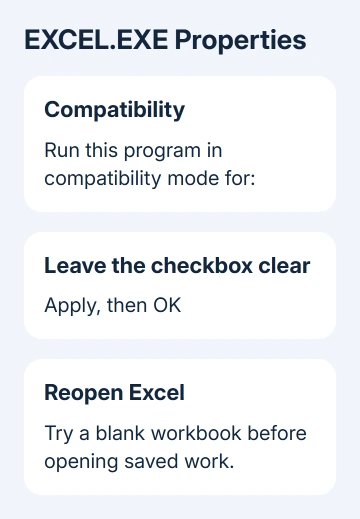
Compatibility mode uses settings meant for an older Windows version. An old selection can remain when your Office edition doesn't need it. The setting belongs to Excel's program file, rather than an individual workbook.
The original Office 2013 discussion listed C:\Program Files\Microsoft Office\Office15\Excel.exe and C:\Program Files\Microsoft Office 15\Root\Office15\Excel.exe.
Use the location of your installed copy; those aren't universal paths for current Office.
One owner who'd asked about the error confirmed that changing compatibility settings fixed it after both repairs had failed. A second owner reported the same result. Try that short check before clicking Repair Now again.
Launch Excel through Start, then create a blank workbook. If it stays open, try one of your ordinary files. If compatibility mode was already off, leave unrelated properties alone and continue with Safe Mode.
2. Compare startup in Excel Safe Mode
Press Windows + R, enter excel /safe, and press Enter. Type a space between excel and /safe. A successful launch shows Safe Mode in Excel's title bar.
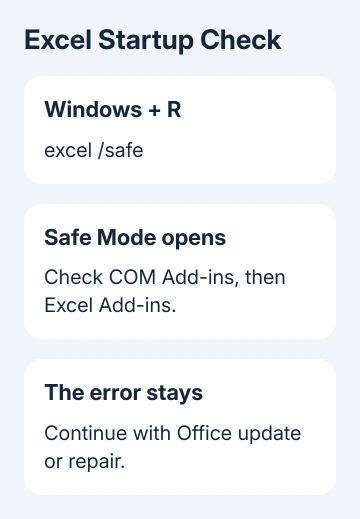
Try creating a blank workbook there. If it works but normal startup fails, check what Excel loads. Safe Mode bypasses startup settings, Excel add-ins and most COM add-ins, the extra components attached to Office.
It doesn't mean the last workbook you edited is broken. It also doesn't identify one particular add-in by itself. The next step is to compare Excel's normal startup with those extras switched off.
If the same error closes Excel in Safe Mode, skip the add-in switches for now and move to updating or repairing Office. Excel needs to remain open before you can change its add-in list.
If Excel opens and only its buttons are unavailable, use the Excel commands guide instead. When a workbook works but one button is unavailable, check its editing state. A launch-time app closure needs the startup checks here.
3. Find the add-in that stops normal startup
In the working Safe Mode window, choose File > Options > Add-ins. At the bottom, set Manage to COM Add-ins, then click Go. Note the checked entries before clearing them and clicking OK.
Quit Excel, then launch it without Safe Mode. If that works, revisit the list and restore entries individually. Restart Excel after each change. Leave off the entry that brings the error back while you check for an update to it.
The Excel startup troubleshooting steps also cover Excel's own add-ins and startup folders. If the COM list changes nothing, select Excel Add-ins under Manage and test its checked entries the same way.
Keep these two lists separate in your notes. A PDF tool, accounting connector or other business add-in can be important to your work, so you need to know exactly which component you disabled before asking its maker or IT for help.
When neither list explains the difference, check File > Options > Advanced > General > At startup, open all files in. A folder entered there makes Excel load its files automatically. Record the path before changing it.
Move suspected startup workbooks to a temporary folder rather than deleting them. The linked steps also explain Excel's XLSTART folders. Restore files individually and restart to find which one makes the normal launch fail.
4. Update the Office installation
Open another working Office app, such as Word. Choose File > Account > Update Options > Update Now. If updates are disabled and Enable Updates is available, select that first.
Save open work when the installer asks to close Office. After it finishes, reopen Excel normally. Check a blank workbook before returning to the spreadsheet you were trying to open when the error appeared.
If Update Options is missing, a company policy or a different installation type can control updates. Ask IT to check the Office build and update channel, rather than downloading an installer from a search advertisement.
Office 2013 and Office 2016 are old products. The date on the original discussion doesn't mean a new fix is coming for those editions. A current Microsoft 365 installation and a retired Office installation need different support plans.
5. Repair Office when Excel still closes
For Windows 11, find Office in Settings > Apps > Installed apps. Its entry can use the edition name or Microsoft 365. Choose Modify from its three-dot menu.
For Windows 10, the route is Settings > Apps > Apps & features. Click the suite, then Modify.
Close Office apps before proceeding. Try Quick Repair if offered, then Online Repair if the first repair doesn't help. A traditional MSI installation instead offers Repair > Continue. The repair covers the Office suite.
A repaired Office 2013 installation that instead fails activation with 0x80070005 needs the activation permission check.
If both repairs already failed, don't repeat them unchanged. Note whether compatibility mode, Safe Mode or a particular add-in changed the error. Support can use those results to decide which part still needs attention.
For a supported home edition, open Get Help from Start and request Office startup support. For a managed PC, send IT the full message, Office build from File > Account > About Excel, and when startup fails.
An app that opens normally but stalls only when you copy cells needs a different check. The Excel copying freeze guide covers that narrower fault, including printer-related delays.
The Short Version
Check EXCEL.EXE for an unwanted compatibility mode, then compare normal startup with excel /safe. Disable and restore add-ins individually when Safe Mode works. Update or repair Office if Excel still fails before a workbook opens.
Checked November 16, 2026.
 If you have any business, I can build it online






