

Excel for Mac 2011 can load unwanted workbooks from a startup folder even when the startup preference is empty. Move the unwanted workbook to a normal folder. If only your last session returns, check the Mac's window-restoring settings.
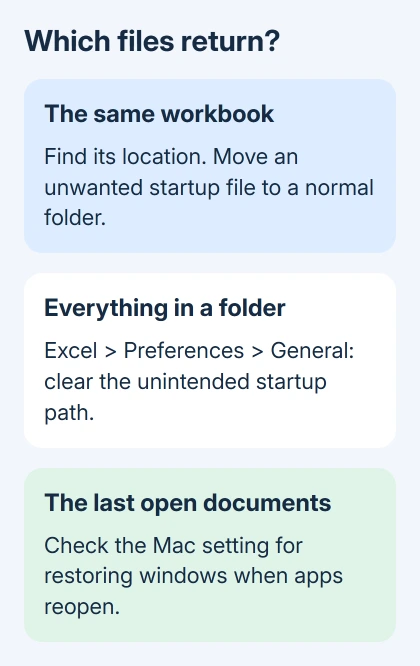
Notice which files come back: the same workbooks every time, everything in one folder, or just the documents you left open when you quit. Each pattern points to a different setting or folder to check.
In this guide
1. Find where the unwanted workbook is stored
Start with a file that opens every time, even after you close it before quitting. Find that exact file in Finder and select File > Get Info. Read its location in the Where field.
An owner in the Mac 2011 startup discussion fixed this after locating the unwanted workbook inside an Excel folder and moving it to the desktop. In a later post, they reported finding the same cause again.
Quit Excel, then move the unwanted workbook to an ordinary document folder. Move the file rather than deleting it. Launch Excel from its application icon, without double-clicking any workbook, and see whether it stays closed.
If it does, reopen the workbook manually from its new location. That lets you keep using it without asking Excel to load it at every start. The workbook's contents don't need rebuilding because its folder made it open automatically.
Search Finder using the full workbook name when its location isn't obvious. Check that the result is the same document, especially if several backups or copies have similar names. Check its location before moving anything.
For another unwanted file, repeat the location check. Don't assume that every workbook Excel opens came from the same folder. A startup folder and the Mac's session restoration can both be involved on one computer.
2. Clear the alternate startup folder in Preferences
In Excel 2011, open Excel > Preferences > General. Look for At start-up, open all files in. This setting names a folder to open files from. It's separate from the setting that shows the workbook gallery.
If it contains a folder, copy the path somewhere before clearing it. Remove the path, close Preferences, quit Excel, and launch it again. When that path was the cause, files from that folder should stop opening automatically.
Choosing your Documents folder there tells Excel to try opening files from that location. It isn't a list of recent workbooks or a setting for where new documents should be saved. That explains why unrelated files can appear at startup.
If the field is already empty, leave it empty. Changing the gallery checkbox won't clear a different startup location. Continue with the built-in startup folder rather than repeatedly toggling a setting that's already correct.
A reply in the old discussion describes pointing the setting at an empty folder as a workaround. I'd clear the unintended path first. It's easier to understand later than a specially created folder whose purpose you've forgotten.
For current Excel for Mac, the same general preference is described in the startup customization instructions. The startup-folder location has changed since Office 2011, so use the matching path in the next section.
3. Check the startup folder for your Excel version
With Excel closed, open Finder's Go > Go to Folder. For a standard Office 2011 installation, check /Applications/Microsoft Office 2011/Office/Startup/Excel/. This is separate from the alternate folder in Preferences.
Move an unwanted workbook out of that Excel folder, then reopen the app. Leave unfamiliar supporting files alone until you've checked what they do. Some startup files provide a workbook or tool you intentionally load.
Owners also found files under Documents > Microsoft User Data > Excel and Library > Application Support > Microsoft > Excel. Compare those locations with the path of your unwanted file; don't empty every folder.
The ~ at the start of a path means your own home folder. If you need to inspect a hidden user Library folder, Finder's Go to Folder accepts a path starting with ~/Library/. You don't need to make hidden files visible across the whole Mac.
For current Excel for Mac, the startup folder is ~/Library/Group Containers/UBF8T346G9.Office/User Content/Start-up/Excel. Use that location for newer Excel, moving out only the unwanted workbook.
Don't create all these folders when they aren't present. An old Office 2011 path is relevant to Office 2011; a current Group Containers path belongs to newer Excel. The file location from section 1 is your best starting point.
4. Stop the Mac restoring the previous Excel session
If Excel reopens only the files that were open when you last quit, save and close those documents, then quit Excel with Command + Q. Reopen the app and compare that launch with your usual one.
Apple's window-restoring controls also include holding Shift while opening an app. Try that for one launch when saved windows keep returning. It doesn't change your permanent settings.
On older compatible versions of OS X, the system preference wording varies. In Lion, System Preferences > General includes Restore windows when quitting and re-opening apps; turn that off if you don't want session restoration.
Later releases use Close windows when quitting an app in System Preferences > General. Turn that on. These opposite-sounding labels serve the same purpose, so read the wording before choosing a checkbox.
On a current Mac running a newer Excel release, use System Settings > Desktop & Dock > Close windows when quitting an application. These settings apply to newer Excel on a current Mac; they won't make Office 2011 run there.
If Excel itself returns after a Mac restart, clear Reopen windows when logging back in in the shutdown or restart dialog. This controls login restoration, separately from Excel's startup files.
If the same documents still come back
Note the full location of each returning file and whether a clean quit or Shift launch changes the result. Ask your Mac technician to check whether those files are coming from a startup folder or the session the Mac saved when you quit.
Don't start by deleting every Office preference file. That can remove unrelated settings while leaving an actual startup workbook in place. A known file path gives the technician a more useful starting point.
If Excel is crashing when opening cloud documents rather than restoring them, follow the OneDrive opening checks. If it opens documents but won't save them, the Mac 0x0 saving error is a separate problem.
Office 2011 is obsolete and won't run on macOS Catalina or later. Before replacing the old setup, ask for help moving your workbooks and any macros you need to a supported Office version.
The Short Version
Find the returning file's location, clear an unintended startup path, and move unwanted startup workbooks to an ordinary folder. If only the last session returns, change the Mac's restore-windows setting instead.
Checked November 16, 2026.
 If you have any business, I can build it online






