

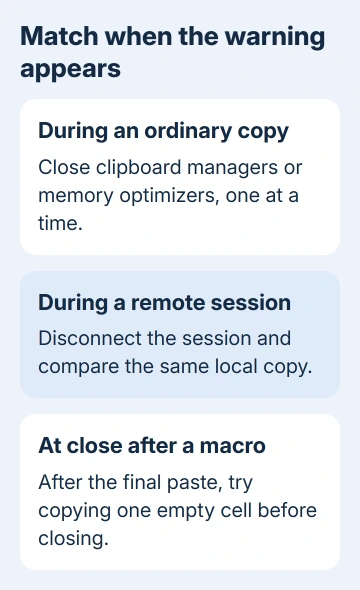
Excel's The picture is too large and will be truncated warning can mean a clipboard conflict, even when copying text. Close clipboard utilities, memory optimizers or remote clipboard sharing, then copy again.
If it happens only when closing a workbook after a macro, replacing the copied selection with an empty cell has also worked for an owner. Choose the fix that matches when you see the warning.
In this guide
1. Stop programs that monitor copied content
Save the workbook. Quit any clipboard manager, memory optimizer or text-expansion utility that is running, then copy the same cells again. Retry after each program closes to see which one stops the warning.
Owners in the original Excel warning discussion fixed it by closing clipboard managers, PhraseExpress or memory optimizers, including Glary Utilities' optimizer. Some didn't need a Windows restart.
Copy a small range first, then the selection that produced the error. Paste into a spare worksheet area and compare the row count and last copied entry. Check that everything you need arrived, whether or not Excel still shows the warning.
If a particular utility causes the warning again when reopened, keep it closed during the task and ask its developer about an update. If closing that program restores copying, you don't need to uninstall Office.
A separate warning about pasting only within the workbook needs the Excel clipboard-warning checks. That message's Live Preview fix isn't confirmed for truncation.
2. Disconnect remote clipboard sharing
If TeamViewer is connected to another computer, finish any work that needs the connection and disconnect that session. Leave Excel open, then repeat the same local copy. Owners found that the warning stopped when the remote session closed.
For an older TeamViewer version, the reported control was Extras > Options > Advanced > Clipboard synchronization. Turn that option off and restart TeamViewer if you're using that version, then reconnect and compare Excel's behavior.
That is the historical menu from the reports. A newer TeamViewer interface can put the clipboard control elsewhere, so look for its clipboard-sharing option rather than expecting the old Extras menu to exist.
Turning sharing off stops copying between the local and remote computers. If you need that transfer, give IT the TeamViewer and Excel versions. Use an approved file-transfer method while they address the clipboard conflict.
You don't need to uninstall TeamViewer to try this. One owner found that ending the active connection stopped the warning while the program remained open. Try that comparison before changing a working remote-access installation.
If no remote session is running, skip this change. An owner who didn't have TeamViewer still got the warning, so it isn't the only possible cause.
3. Clear the Office Clipboard and watch what returns
Open Home in Excel. Click the small launcher in the Clipboard group to open the Office Clipboard task pane, then choose Clear All. The Office Clipboard instructions show this pane and its clearing controls.
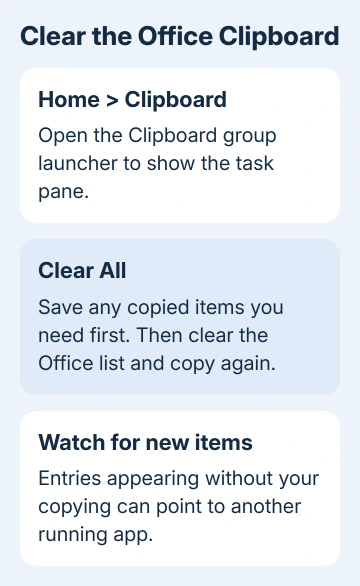
This removes the items held in the Office Clipboard. Paste anything you still need into a saved document first. Then copy the intended cells again rather than relying on a previous clipboard entry.
Keep the pane open briefly. If items appear when you aren't copying, check which program is producing them. An owner traced repeated entries to Windows Mail messages; closing that app stopped the copying problem.
To check Outlook, finish any mail edits and exit the app. Another owner got the warning with Outlook open, and it stopped after they closed it. This checks whether the running app is involved; you don't need to delete any mail.
Windows clipboard history is a separate feature from this Office pane. The Windows clipboard-history controls manage saved Windows entries; clearing that history isn't the same command as clearing the Office list.
If Clear All helps only until a background app starts filling the pane again, stop or update that app. Repeatedly emptying the list leaves the source of the unwanted entries running.
4. Replace the copied selection before closing after a macro
One owner got the warning when closing Excel after running a VBA macro, a saved sequence of commands that performs a task. They weren't using clipboard-sharing software. Copying an empty cell before closing fixed it for them.
After the macro has finished and any required paste is complete, select an unused empty cell and press Ctrl + C. Then save and close the workbook normally. Compare that result with closing after the macro's original large selection.
Choose an already empty cell in the workbook rather than deleting data to make one. Copying it replaces what you've just copied; it doesn't erase the original cells or change the macro.
If this prevents the warning consistently, give the workbook's author that exact sequence. They can review how their macro leaves copied data at the end. Don't add unfamiliar Windows clipboard code to suppress the message.
If copying fails during ordinary editing too, return to the app and clipboard checks. Copying an empty cell helped with that closing warning; it isn't a general repair for copying problems.
5. Escalate a repeatable failure without repeated cleanup
Clearing temporary files didn't help some owners, or helped only briefly. Another owner first thought an Office repair worked, then corrected their report after tracing the problem to TeamViewer. I'd try the clipboard checks first.
Record the Excel version, whether you copied only text, the copied range and the app you pasted into. Note whether the error appears during copying or only when closing, and which utility or remote-session change made a difference.
Send those details to IT or the conflicting utility's developer. Ask them to reproduce the warning with the same clipboard-sharing settings. If a macro in one workbook triggers it, send its author a sample without private data.
The Short Version
Stop clipboard utilities or remote clipboard sharing and retry the exact copy. Clear the Office Clipboard if needed, then watch for unwanted new entries. For a macro-related closing warning, try copying an empty cell after the final paste.
Checked November 16, 2026.
 If you have any business, I can build it online






