

An Excel VBA "Ambiguous name detected" error means the code has a name conflict. Look for duplicate procedures with the name shown in the message, especially a second Worksheet_Change event pasted into the same sheet's code.
Keep one event procedure and combine the actions inside it. Renaming that event won't solve the task because Excel needs its exact event name to run it automatically. Ordinary macros and variables have different naming choices.
In this guide
1. Find the name and the module that won't compile
Make a separate workbook backup before touching the VBA project. Keep its macro-enabled file type, such as .xlsm, so your copy keeps the VBA code. Work on that copy while deciding which procedures belong together.
In desktop Excel for Windows, Alt+F11 opens the window where you edit Visual Basic code. Use View > Project Explorer to display the workbook projects when necessary. Expand the project for the affected workbook.
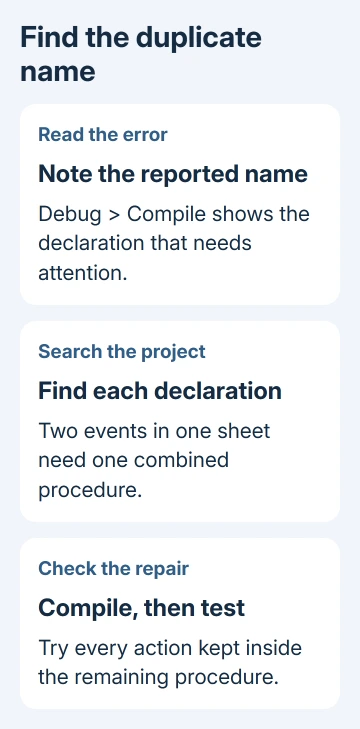
Select Debug > Compile VBAProject. The project name can appear in place of VBAProject. Note the name in the error. After you close the message, look at the procedure or declaration the editor highlights.
The highlighted line tells you where VBA encountered the conflict. It doesn't tell you which copy is the one to keep. Read both procedures before deleting either, particularly in a workbook that already automates several jobs.
Use Edit > Find or Ctrl+F to search for the reported name. Choose Current Project to search all the workbook's code. Find its declarations, where a procedure or variable gets its name, as well as places that use it.
For example, a search for Worksheet_Change can find an event in several sheet modules. That is normal when each worksheet has its own event. Two declarations inside the same sheet module are the conflict to fix.
2. Combine duplicate worksheet events into one procedure
Right-click the affected sheet tab in Excel and choose View Code to reach that worksheet's module directly. Look for repeated Private Sub Worksheet_Change(ByVal Target As Range) declarations.
Keep one opening declaration and its matching End Sub. Move the useful actions from the other copy inside that remaining procedure. Once you've moved those actions, remove the extra opening declaration and its matching End Sub.
Microsoft's VBA naming guidance explains why names can conflict within their scope, meaning the part of the project where a name is visible.
Don't rename the extra event to Worksheet_Change2 and expect Excel to call it. That creates an ordinary procedure with an event-like name. Excel needs the Worksheet_Change name to run that code automatically when a cell changes.
For two independent cell checks, the combined structure can look like this. This example belongs in the worksheet module whose B2 and B3 cells it checks:
Private Sub Worksheet_Change(ByVal Target As Range)
    If Not Intersect(Target, Me.Range("B2")) Is Nothing Then
        Me.Range("C2").Value = "B2 changed"
    End If
    If Not Intersect(Target, Me.Range("B3")) Is Nothing Then
        Me.Range("C3").Value = "B3 changed"
    End If
End Sub
Both checks sit inside one event. Use this structure to combine your actions, rather than pasting a second Worksheet_Change into the sheet. The example writes status text into C2 and C3, so try it in cells you don't need.
Separate If blocks allow both actions when one pasted selection touches both watched cells. An ElseIf chain runs only its first matching branch. Choose the structure that matches what the workbook should do with a multi-cell paste.
3. Give ordinary macros names that describe their jobs
If the error names Macro1 or another ordinary procedure, compare its declarations. Two unrelated jobs shouldn't keep the same generic name when code needs to tell them apart. Rename one to something specific, such as UpdateSalesPicture.
Update the code that calls the renamed macro. Also check worksheet buttons or other controls assigned to it. A successful compile won't correct a button that's still pointing at the old macro name.
Procedures in separate modules can sometimes share names if the code calling them makes clear which to run. When a call is unclear, include the module name, as in SalesTools.UpdatePicture, to pick the procedure you want.
That isn't a reason to add module prefixes everywhere. I'd give unrelated routines clear names first. It makes the next edit easier and reduces the chance of changing the wrong Macro1 in a project with several sheets.
If the macro lives in a worksheet module, don't move it blindly into a standard module. Worksheet code can use Me to mean that worksheet. A standard module doesn't have that worksheet meaning and needs code that names the worksheet instead.
The Excel VBA editor shortcut guide helps when the keyboard opens another app or doesn't reach the editor. Changing workbook calculation settings won't repair duplicate procedure declarations.
4. Check variables when there is only one procedure
A name can also be used by both a module-level variable and a procedure. If a module declares Public RefreshTotals and also defines Sub RefreshTotals(), change one name. Those are different things competing for the same name.
The error reference distinguishes this from cases where adding an object or module name resolves an unclear reference. Adding the module name won't help when both conflicting items are in that same module.
Search the full name, including declarations at the module's beginning. In a large project, record each match's module and line before editing. Start with the exact name shown in the error, rather than similar spellings.
If the project is password protected, ask its maintainer to inspect those declarations. Turning on macros or weakening Trust Center settings doesn't remove a name conflict. The code has to be corrected by someone who can edit it.
5. Compile again, then test each action separately
Run Debug > Compile after the change. Another error may appear once the first conflict is gone. Fix the problem named in that message. Don't remove more procedures simply to get past the compile check.
Return to Excel and test each action that was combined. Change one watched cell, then the other, and try a paste covering both if the workbook allows it. Check that each expected result still happens once.
A later runtime error is a separate problem. The Excel runtime error 57121 guide covers that specific message after compilation; it isn't another name for ambiguous declarations.
If the code compiles but operates on the wrong sheet, give the maintainer the module name, edited code and exact cells used in the test. Later replies in the discussion dealt with worksheet references after the duplicate-event problem.
The Short Version
Find the reported name throughout the VBA project. Combine duplicate worksheet events, rename conflicting ordinary procedures or variables, then compile and test every action the workbook needs.
Checked November 17, 2026.
 If you have any business, I can build it online






