File Explorer crashing on right-click can come from the Windows menu itself or an app that adds commands to it. In Windows 11, try selecting a file and pressing Shift + F10 to reach the older menu, then update Windows and restart the PC.
That shortcut can let you finish working with your file while you check the crash. It won't repair every cause, particularly when Explorer also closes before you open a menu.
In this guide
1. Check whether the newer menu triggers the crash
Open a folder with Windows + E, select one ordinary file, then press Shift + F10. Compare that with right-clicking the same file. Leave that file selected for both checks to keep the comparison useful.
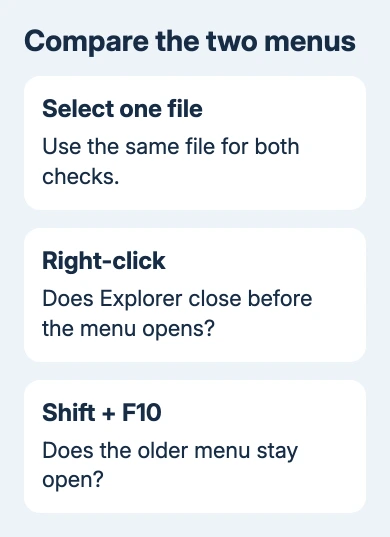
When the keyboard menu opens but a right-click closes Explorer, use it to finish what you were doing with the file. That difference suggests the newer menu is involved, but doesn't tell you which app or Windows file is responsible.
On Windows 11, Show more options also opens the older commands. That button isn't useful when the first menu crashes before you can select it. The keyboard shortcut avoids that first menu.
Windows 10 has a different right-click menu. A right-click crash there needs the update, app and system-file checks later in this guide, rather than a Windows 11 menu replacement.
Try a folder and the desktop background separately. A crash only on one file type gives support a much narrower problem than a crash on every folder and desktop right-click.
If Explorer closes while opening Home without any right-click, follow the separate File Explorer Home crash repair. Resetting saved folder shortcuts addresses that opening-view fault.
2. Finish Windows updates and restart
Press Windows + I to open Settings without using Explorer's menu. On Windows 11, select Windows Update, then Check for updates. Install available updates and use Restart now when requested.
For Windows 10, open Settings > Update & Security > Windows Update. Its update availability depends on the edition and support arrangement, so don't expect every Windows 10 PC to receive the same updates.
After restarting, repeat the same right-click that caused the crash. Check that the menu opens normally. An update can finish successfully while the menu still crashes.
The original September 2023 report involved Windows 11 22H2, build 22621.2215. That was the version affected in that report; your Windows 11 PC may be running a different release.
Press Windows + R, enter winver, and record your own version and build. Include that number if the crash persists. A repair for an older version of the menu may behave differently on a newer release.
3. Check apps that add file-menu commands
Think about programs installed or updated near the first crash: archive tools, cloud storage clients and other file utilities can add commands to Explorer. Check the affected app's own update option before removing it.
If one file type fails, start with the program that handles that type. For example, a PDF-only menu problem points you toward different checks than a crash on the desktop with no files selected.
I'd update one relevant app at a time, restart when its installer asks, then repeat the failing action. That gives the app maker a clearer result than changing several things at once.
For an app you can reinstall, use Settings > Apps > Installed apps in Windows 11, open its three-dot menu and choose Uninstall. On Windows 10, use Apps > Apps & features, select the app and choose Uninstall.
Don't remove work-managed security or storage software without your administrator. Ask them to check how that app adds commands to Explorer and compare its installation date with the first crash.
If the menu works after one app is removed, report that result to its maker before reinstalling. If nothing changes, try the startup check next instead of removing more unrelated programs.
4. Temporarily reduce startup activity
A clean boot temporarily reduces background services and startup apps. Microsoft's clean-boot procedure covers the Windows menu layouts for both versions and explains how to return to normal startup.
- Use an administrator login. Search for msconfig and open System Configuration.
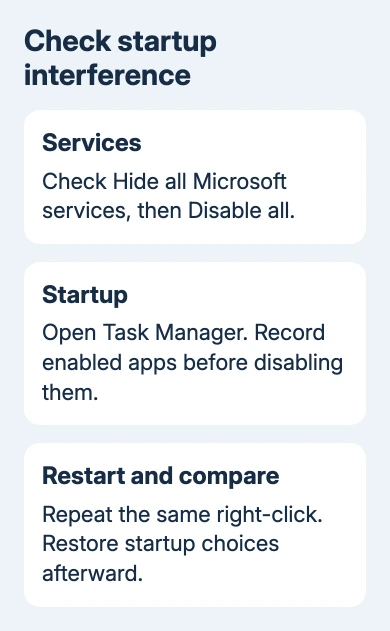
- On Services, check Hide all Microsoft services, then choose Disable all and Apply.
- On Startup, select Open Task Manager. Write down the enabled items before turning them off.
- Close Task Manager, select OK in System Configuration, and restart.
Keep the existing choices on the Boot tab, including its advanced settings. This check changes startup services and apps, not Windows' boot configuration.
Repeat the failing right-click after signing in. If it works, turn some of the disabled items back on, restart and try right-clicking again. When the crash returns, test the items in that group individually to find which one triggers it.
If Explorer still crashes, reducing startup activity hasn't fixed it. It doesn't rule out every installed menu extension. Restore your recorded startup choices when the check is finished.
5. Repair Windows files before considering a reinstall
Open Start, search for Command Prompt, and select its Run as administrator action. Accept the permission prompt. Run the following command first:
DISM.exe /Online /Cleanup-image /RestorehealthAfter it finishes successfully, run:
sfc /scannowDISM repairs the files Windows keeps for system repairs. SFC uses those files to replace damaged or missing Windows components. Let the scan finish and note the result. Restart, then try the right-click menu again.
Some owners reported that neither repair command stopped Explorer crashing. These tools repair Windows files; they don't automatically repair an installed app's menu code.
One owner fixed their 2023 crash by disabling the newer menu, while later replies reported partial improvement or no improvement. The registry command in that discussion also has an incorrect path, so don't copy it into your PC.
When right-click still closes Explorer
Open Feedback Hub from Start and describe the action that makes Explorer crash, your Windows build and whether Shift + F10 behaves differently. Include which file types fail and whether the desktop crashes too.
For a managed computer, send IT those details. Ask IT to check apps that add menu commands and review the crash record. If the whole window freezes instead of closing, the Explorer not responding guide covers that separate symptom.
The Short Version
Try Shift + F10, update Windows and check relevant menu apps. Continue with a clean boot and file repair if needed. The historical registry workaround had mixed results; choose repairs for your current Windows build.
Checked November 26, 2026.
 If you have any business, I can build it online