When Chrome starts crashing after a fake Blender installer runs, check Windows for malware first. Remove the unwanted program and scan Windows before repairing Chrome; reinstalling the browser alone can leave malicious software running.
In the original report, ordinary scans found nothing, but the owner said Chrome seemed fixed after guided malware removal. Their repair was tailored to their computer, so don't copy it to yours.
In this guide
1. Remove the suspicious installer and installed app
Close the fake download page and don't run its installer again. Keep a note of its filename, the download address and the time you ran it. Those details help a technician connect the symptoms to the download.
On Windows 11, open Settings > Apps > Installed apps. Find the unwanted application, open its menu and select Uninstall. On Windows 10, use Settings > Apps > Apps & features, select the application and choose Uninstall.
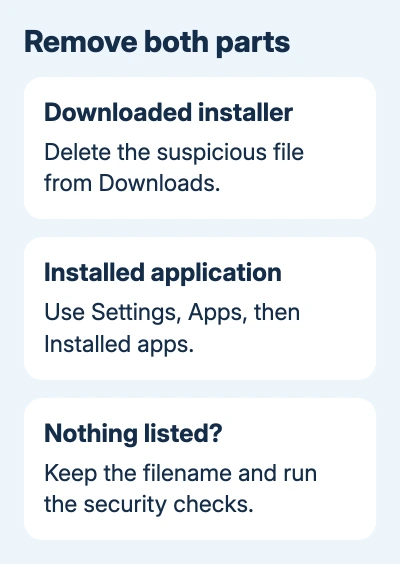
Delete the suspicious downloaded installer too. Deleting that file and uninstalling the application are separate actions: removing an installer from Downloads doesn't undo changes made when it ran.
If you can't identify an installed entry, don't remove unrelated programs by guesswork. Record what you downloaded and continue with the security scan. An installer that appeared to do nothing can still have changed the computer.
Google's unwanted software removal steps put checking the computer for unwanted applications ahead of a browser reset. Follow that order when the crashes started just after you ran an untrusted installer.
2. Bring protection up to date, then scan
Open Start, search for Windows Security, and open Virus & threat protection. Under the protection updates area, open Protection updates or Check for updates, then check for the latest threat-detection updates, called security intelligence.
Return to Virus & threat protection > Scan options, select Full scan, followed by Scan now. Leave it running until the result appears. A full scan can take longer than a quick scan because it checks more files.
In Protection history, follow any recommended action for a detected threat. Note its name and the action's result so a technician can check whether the same threat returns after restarting.
If another antivirus product manages protection, use its update and full-scan controls. Keep that antivirus active while you check the results. Missing Defender controls aren't a reason to install competing antivirus programs.
If the Windows Security window itself fails, our Virus and threat protection repair guide covers that separate problem. You'll need a working security app to run the next scan.
In the original case, the asker had already run scans without detections. If the same suspicious behavior continues after your scans, try the offline check or get specialist help.
3. Run Microsoft Defender Offline when symptoms persist
Check Settings > System > About > System type. Offline scanning supports x64 Windows 11 and 32-bit or 64-bit Windows 10 with Defender active, but not ARM PCs such as Snapdragon laptops. On ARM, use full scans and guided removal instead.
Save open documents before the restart. If your Windows drive uses BitLocker, follow the suspend protection steps first and keep its recovery key available. The offline restart can otherwise request that key.
Open Windows Security > Virus & threat protection > Scan options. Select Microsoft Defender Antivirus (offline scan), then choose Scan now and approve the restart when prompted.
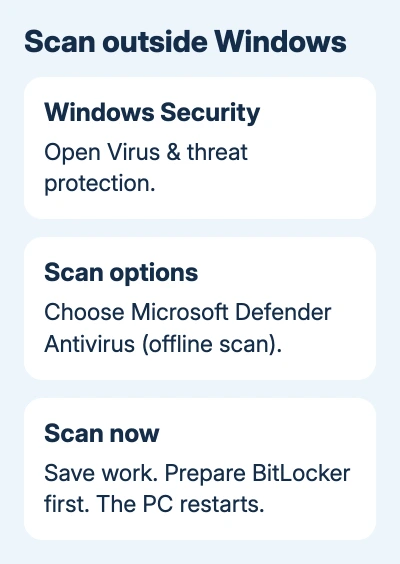
Allow the scan to finish. After returning to Windows, review any detections in Protection history and resume BitLocker protection if you suspended it. Give the technician any error the scan reports.
If the restart returns to Windows without scanning, ask the technician to check Windows Recovery Environment, the built-in recovery system. Offline scanning needs it enabled.
Microsoft's malware removal troubleshooting recommends offline scanning for recurring malware. Our Windows virus scan guide explains the scan choices in more detail.
If Chrome still closes afterward, move to its settings check, but tell the technician about the fake installer and scan results too. Getting Chrome to open again doesn't tell you whether your accounts are safe.
I'd get help with recurring detections before spending time rebuilding Chrome's profile. Otherwise, whatever is changing the browser can undo the work as soon as you reopen it.
4. Reset Chrome only after the Windows checks
If Chrome remains open, go through More > Settings > Reset settings. Choose Restore settings to their original defaults, then Reset settings. The reset disables extensions and restores browser preferences.
The reset keeps saved bookmarks and passwords. It doesn't remove malware installed elsewhere in Windows. If the crash prevents access to these controls, skip to the guided-removal section rather than trying to beat the crash each time.
After resetting, reopen Chrome and try a normal page. Leave extensions disabled at first. If the browser stays open, use More > Extensions > Manage extensions and enable only extensions you recognize and trust.
If crashing returns after enabling an extension, turn it off again and remove it if you don't need it. Record the extension name. Knowing which extension brings the crash back helps the person checking your computer.
If Chrome crashes with extensions disabled, give the technician that result and the scan results. The problem still needs checking beyond Chrome's preferences.
5. Get guided removal instead of copying a custom fix
An owner said Chrome seemed fixed after a guided Farbar Recovery Scan Tool repair. The discussion doesn't include their full repair, and it was written for their PC. The discussion offers no complete command list you can follow on your PC.
Ask a repair technician for malware removal, rather than just a Chrome reinstall. Explain that a fake Blender installer ran, Chrome then began closing after about a minute, and which scans and browser checks you've completed.
Have the technician request the logs they need from your PC and explain the repair before applying it. Don't reuse another person's Farbar fixlist or disable download protection just because an old reply tells a different owner to do so.
If you signed into important accounts on the affected PC, use another trusted device to review those accounts and change exposed passwords. Check recovery details and recent sign-ins as well, particularly for your main email account.
If the technician can't confirm Windows is safe after removal, ask about a clean Windows installation and restoring documents from a known clean backup. Keep the suspicious installer and other downloaded executables out of that restore.
The Short Version
Treat the fake installer as the starting problem. Remove the unwanted app, update protection, run full and offline scans, then reset Chrome. Persistent symptoms need guided malware removal, not someone else's custom repair script.
Checked November 26, 2026.
 If you have any business, I can build it online