
A fake Windows update screen in your browser may offer an installer or command. Close the page and check Windows Update in Settings. If you ran its file or command, scan the PC and protect your accounts.
What you do next depends on whether you only saw the page, downloaded a file, or ran what it offered. A page can copy the Windows logo, a progress animation, or an update number and still be fake.
1. Close a browser page pretending to update Windows
If the screen appeared when you opened a website, close it with the browser's own controls. If you can't reach them, Alt+F4 closes the window you're using on Windows.
Use controls in the browser window or Windows, outside the page itself. The site controls its own buttons, including ones labeled Cancel or Close, so those aren't a safe way to leave it.
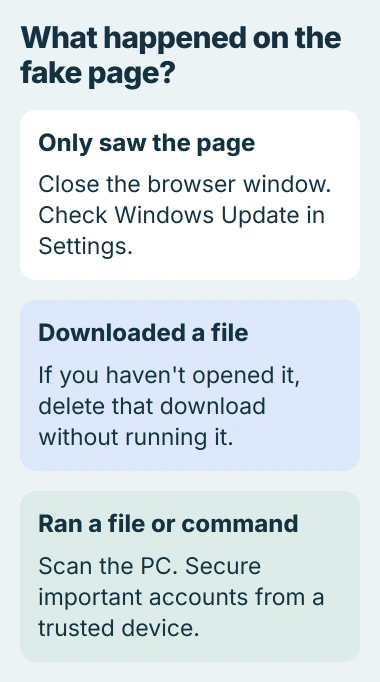
Microsoft's online scam guidance recommends closing the browser when a malicious page fills the screen with warnings.
Reopen the browser without restoring that tab. If the page returns, note the site that opens it and leave that site alone while you check your PC.
This advice is for a page you opened in your browser. A real update running during a Windows restart needs to finish, even if it also shows a percentage or a dark background.
2. Check for updates through Windows itself
For Windows 11, go to Start > Settings > Windows Update. Read its status and select Check for updates if needed. This lets you check what Windows needs without relying on the website's claims.
For Windows 10, go through Update & Security > Windows Update in Settings. Use the support and update options available for your copy of Windows, rather than downloading what the suspicious page offers.
A fake page can use Microsoft's name and copy a real update number. Researchers found a Windows update impersonation campaign that stole account information through an installer that looked ordinary.
Check where the update came from. A filename, icon, or description can be copied, so a file claiming to be from Microsoft still needs to come from a source you trust.
If Windows reports an update error in Settings, use the Windows update error guide. That error needs its own checks; it isn't a reason to install the website's repair tool.
3. Remove an unopened download without running it
If you downloaded the file but haven't opened it, you can delete it without running it. Cancel the download if it's still going, then find and delete the saved copy.
In Chrome, open the three-dot menu and choose Downloads. Use the entry's folder control to find the actual file. Removing an entry from the browser's download history alone doesn't remove the file from your computer.
Check the download time and filename so you're removing the item that came from the page. Don't open it to see what it does. If you're unsure whether it ran, follow the scanning step rather than assuming it stayed unopened.
If the page asked you to paste a command into Run, PowerShell, or Windows Terminal, cancel that dialog if you haven't run it yet.
This trick is called ClickFix: the attacker invents a problem and talks you into running a supposed fix. The security research explaining ClickFix shows how those keyboard instructions get you to run it.
I'd stop when a page asks me to run a command, even if it calls this a quick verification. Visiting a website shouldn't require you to run its code in Windows tools.
4. Scan after running the file or command
If your employer or school supplied the computer, tell IT what you ran right away, along with the page address and rough time. They may need to keep evidence of what happened or disconnect your PC as part of their recovery steps.
On your own PC, open Windows Security > Virus & threat protection. Update its security intelligence, the information it uses to spot threats. Choose Scan options > Full scan > Scan now and follow the advice for anything it finds.
The ClickFix threat guidance recommends up-to-date antivirus data and a full scan to deal with files and changes left by an infection.
If you use another antivirus app, open the copy already installed on your PC, update it, and run its full scan. Use that app for the cleanup, not a download from the suspicious site.
Open Protection history in Windows Security to see what it found and what it did about each threat. Note the threat name if you need help. The Windows scan options guide explains how to run an offline scan for another check.
If the scanner won't open, threats return, or your PC still acts strangely, contact the security app's support team or a trusted repair service. Leave unfamiliar Windows files alone rather than deleting them based on their names.
5. Protect accounts that the installed software could reach
Removing the infection won't take back a password it has already stolen from your browser. If you ran the fake update, secure your important accounts from another device you trust while your PC is being checked.
Start with your main email account, where other services send password-reset messages. Change exposed or reused passwords, enable two-step verification, and use the account controls to end sign-ins you don't recognize.
For a compromised Microsoft account, follow its account recovery procedure. If using the affected PC for recovery, clear the infection before typing a new password on it.
Check your recovery details and email-forwarding settings too. If the attacker changed them, they may still receive your information after you change the password.
If you gave payment details to the page or its supposed support agent, contact the payment provider through its official app or a known number. Explain what was shared and follow its instructions for securing the account.
6. Keep browser protection enabled afterward
In Chrome, go to Settings > Privacy and security > Security. Under Safe Browsing, keep Standard protection enabled or choose Enhanced protection after reading its data-sharing explanation.
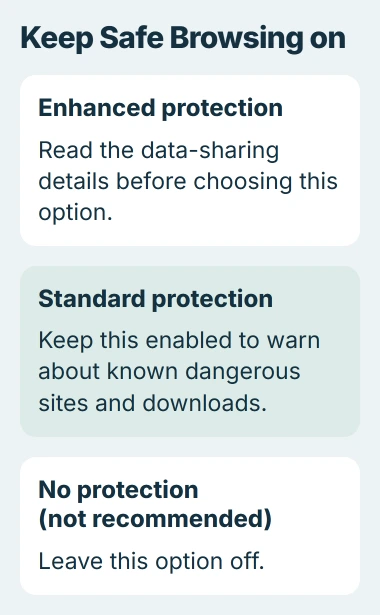
Safe Browsing warns you about dangerous sites and downloads on future visits. Changing this setting won't remove software that's already installed on your PC.
Keep the browser and your security app updated. If a site tells you to disable protection before its update can run, close it and use the app's own update controls.
The Short Version
Close the page and check Windows Update in Settings. Delete the fake installer if you haven't opened it. If you ran it or a command, scan your PC and secure any accounts it could reach. Get help if threats keep returning.
Checked November 4, 2026.

Isaac Smith is the founder and editor of PC Glance, a website that covers computers, laptops, and technology. He is a tech enthusiast and a computer geek who loves to share his insights and help his readers make smart choices when buying tech gadgets or laptops. He is always curious and updated about the latest tech trends.