A custom sound scheme can cause file system error -1073741819 at the Windows permission prompt. Choose Windows Default and retry the installer. Try this first if everyday apps open but programs that need administrator permission won't.
The code doesn't identify a sound fault by itself. If the scheme change does nothing, continue with Windows repair. A single app crashing needs different checks from permission prompts failing across unrelated programs.
In this guide
1. Restore the standard sound scheme
Press Windows+R, enter mmsys.cpl and press Enter. In the Sound window, select the Sounds tab. Note the current Sound Scheme, choose Windows Default, then select Apply and OK.
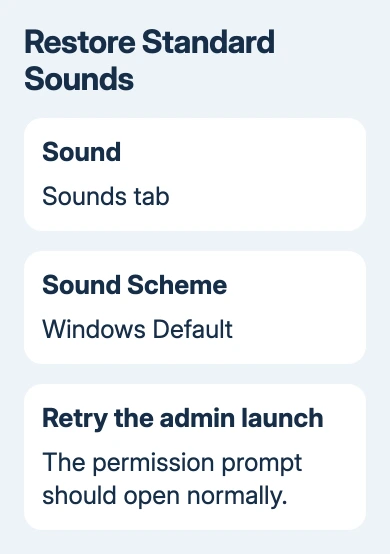
Now reopen the installer or right-click Command Prompt in Start and choose Run as administrator. If the change worked, you'll see the normal permission prompt and the program will open without the file system error.
One owner who couldn't update or uninstall Adobe applications restored them by changing back to Windows Default. Their follow-up confirms the sound change worked.
This quick check changes Windows event sounds without reinstalling apps or removing documents. If it makes no difference, put the previous scheme back. Don't replace a drive just because this message appeared.
If Windows Default doesn't help, try No Sounds from the same list and repeat the launch. Leave User Account Control enabled. You can compare sound schemes without turning off those permission checks, which help protect Windows.
If either scheme restores admin launches, leave it selected while checking your PC or audio-interface maker for driver updates. I'd finish an important installation before bringing custom event sounds back.
2. Compare a normal app with admin tools
Open a normal app, such as Notepad, then compare it with an installer and Command Prompt opened as administrator. Write down which ones fail and whether the error arrives before or after the permission prompt.
For just one failing installer, get another copy directly from its maker and check the supported Windows versions. If admin prompts work for other programs, ask that publisher about its installer before repairing Windows.
When unrelated installers, Task Manager and admin tools all fail, treat it as a Windows problem. Reinstalling each app is unlikely to help when the failure happens before any of them can start.
An error that specifically says Bad Image and names a file has another useful detail. Keep that file name with the program name and use the Bad Image repair checks to distinguish an app file from a Windows component.
Don't shorten the number when recording it. Similar negative file-system errors aren't interchangeable, and an application exit code appearing in a development tool isn't the same screen as this Windows launch message.
3. Repair Windows files if an admin window opens
On Windows 11 or 10, search Start for Command Prompt, right-click it and select Run as administrator. If that opens successfully, run these commands separately, letting DISM finish completely before entering the SFC command:
DISM.exe /Online /Cleanup-Image /RestoreHealth
sfc /scannow
DISM fixes the files that Windows draws on during repairs. SFC then uses them to check and replace damaged protected system files. Microsoft's system file repair instructions explain this order and the results.
If SFC reports successful repairs, it replaced damaged files. Restart Windows and repeat the failed admin launch. The launch must work too; a completed scan doesn't confirm that the original fault has gone.
A clean SFC result leaves no protected-file damage to fix through that scan. Continue instead of scanning again. If SFC can't finish the repair, save its final message for the recovery step.
If the permission prompt itself fails with -1073741819, skip these commands for now. Repeating Run as administrator won't create a working repair window. Continue to System Restore, which you can open without that desktop prompt.
4. Use a restore point when the problem began recently
Copy important documents to a backup before recovery. System Restore reverses changes to system settings, drivers and installed software using a saved point. You'll still need a separate backup of your documents.
If the desktop still works, hold Shift while selecting Restart from the power menu. In the recovery screen, select Troubleshoot > Advanced options > System Restore. An encrypted PC can request a BitLocker recovery key, so get yours ready.
Select a saved point dated earlier than the first launch failure. Review the affected programs and confirm the restore. A program or driver installed after that date may need reinstalling afterward, so check the list before committing.
Without a saved point from before the failure, System Restore can't undo that change. The SFC repair checks explain what to do with a scan that leaves damaged files.
After restoration, retry the failing installer before adding back recently changed utilities or audio software. If a particular installation brings back the error, give that sequence to its publisher or your PC maker.
When admin tools still won't open
Ask your PC maker about reinstalling Windows while preserving apps and personal files. Provide the complete error, Windows version and failed programs. Include the results from standard sounds and System Restore.
For a work computer, give IT that information instead of changing its security policy. If an older Windows installation can't be repaired with available media, discuss file recovery and a supported Windows replacement with a repair shop.
The Short Version
Set the sound scheme to Windows Default and retry the admin launch. If the error remains across unrelated programs, repair Windows files or use a suitable restore point. Keep permission checks enabled throughout the sound comparison.
Checked November 26, 2026.
 If you have any business, I can build it online