
HyperScribe needs to receive your keyboard's notes and a signal to start recording. In Finale for Windows, check MIDI/Audio > Device Setup > MIDI Setup, then start recording without waiting for a pedal or external clock.
MIDI sends information about the keys you play, not recorded sound. Your keyboard can make sound through its own speakers even when Finale isn't receiving those messages.
1. Select the keyboard as Finale's MIDI input
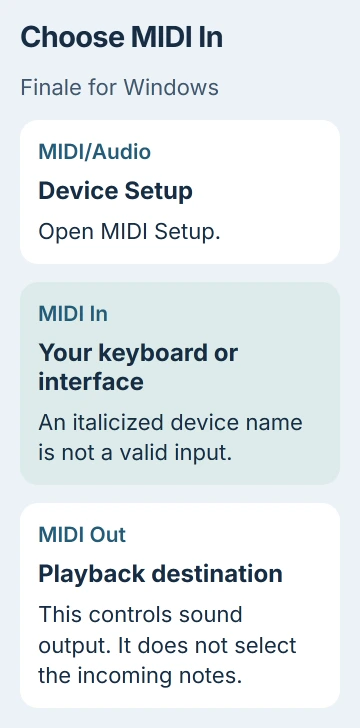
Connect and power on the keyboard or MIDI interface. Open Finale, then choose MIDI/Audio > Device Setup > MIDI Setup. Look at MIDI In, which selects the device sending notes into the program.
MakeMusic's input troubleshooting instructions say a device name in italics isn't a valid input. A saved name can stay in the list even when that connection isn't available.
If the wrong device is selected, clear Auto-detect Input Devices and choose your connected keyboard or interface in the Device list. Click OK, then try a short recording in a spare document.
An interface may appear under its own name rather than your piano's name. For traditional MIDI cables, the keyboard's MIDI OUT connects to the interface's MIDI IN so the notes travel toward the computer.
If there is no valid device to choose, check the keyboard manufacturer's USB or interface setup instructions. The USB recognition checks apply when Windows itself can't recognize the connected hardware.
Changing where sound plays won't fix a missing MIDI input. Once you have a valid input, check the recording controls next. If you still can't select one, use section 5 to check whether notes reach Windows outside Finale.
2. Remove the start-signal wait for one recording
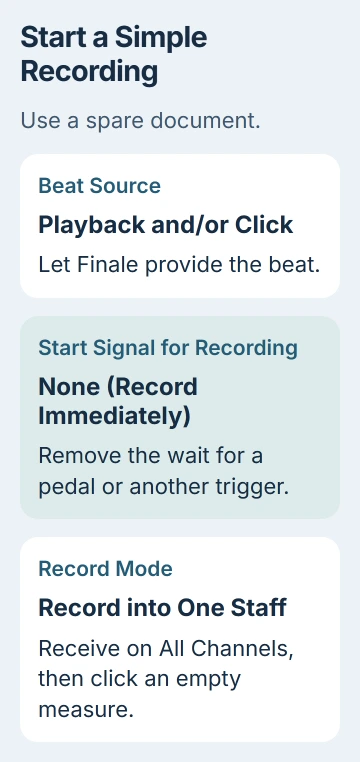
Open a new document or a copy of your score, then select the HyperScribe tool. Choose HyperScribe > Beat Source > Playback and/or Click. Finale will supply the beat instead of waiting for timing messages from another device.
Set Start Signal for Recording to None (Record Immediately). This lets recording start without a trigger, such as pressing a sustain pedal. Notes can reach Finale even when that trigger doesn't.
Choose a comfortable recording tempo and confirm the dialog. Click an empty measure to begin. Wait for any countoff you've set, play a few separate notes, then click outside the staff to stop.
Look for written notes in the measure you clicked. Any MIDI Data is another start option, but removing the trigger makes it easier to check why recording won't start.
Use External MIDI Sync only when another device supplies the timing. For an ordinary keyboard performance, it can leave Finale waiting for timing messages your keyboard isn't sending.
I'd keep this first recording simple. A few slow notes will show whether Finale receives them. A difficult passage can make timing or notation problems look like missing input.
3. Accept the keyboard's channel and record one staff
With HyperScribe selected, open HyperScribe > HyperScribe Options. Under Receive On, choose All Channels for this check. MIDI sends notes on numbered channels; Finale can ignore notes if it's listening to a different channel.
Choose HyperScribe > Record Mode > Record into One Staff. Record into an empty measure again. Save the two-staff split and recording on multiple tracks for later, once this simple setup produces notes.
If All Channels works, check which channel your keyboard sends on before choosing a single receive channel again. Match the two numbers when you need a specific channel, instead of changing instruments at random.
For multitrack recording, check the ScoreManager's recording assignments too. A wrong channel or a staff that isn't enabled for recording can put notes somewhere you didn't expect. Try one staff again before rebuilding that setup.
Record in a copy because HyperScribe can replace notes already in the selected passage. Recording goes into the measure you click, even when Playback Controls shows a different starting measure.
4. Separate missing notes from missing sound or late notes
If notes appear but you hear nothing, MIDI input is working. Check the playback side next. MIDI/Audio > Play Finale Through MIDI uses the MIDI output chosen in MIDI Setup.
The built-in SmartMusic SoftSynth can play instrument sounds through your computer. For a controller without speakers, the tutorial also turns on MIDI/Audio > Device Setup > MIDI Thru so you can hear the notes you play.
Check the Windows output and app volume if the computer remains silent. The per-app sound controls affect playback separately from MIDI In.
If notes appear consistently late, the manual's HyperScribe tutorial describes adjusting MIDI-In Latency in MIDI Setup's advanced controls.
Latency is the delay between playing a note and the program handling it. Adjust this after notes reach Finale. It won't make a missing input device appear or start recording while Finale waits for an external clock.
For incorrect note lengths, check MIDI/Audio > Quantization Settings. Quantization rounds your timing into written rhythms. Choose the smallest note value that fits your passage, then check a short recording before changing the whole score.
5. Compare the signal outside Finale before changing more settings
If your device is listed but notes never arrive, try MIDI-OX, the Windows tool in the official troubleshooting guide. Exit Finale first, download it through that guide's link and follow the installation instructions.
Open Options > MIDI Devices in MIDI-OX, select your keyboard under MIDI Inputs, then play and release one key. Its monitor should show Note On when pressed and Note Off when released.
If the device is missing or no notes appear, check your keyboard, cable, interface and driver next. Tell the hardware maker what happened. HyperScribe's rhythm settings can't fix a signal that never reaches Windows.
If note events appear, close MIDI-OX and reopen Finale. Select the valid MIDI In device and try the simple recording setup again. Tell an experienced Finale user or technician what worked if you need more help.
Finale's technical support has ended, as the current contact page confirms. Keep copies of your scores and use the archived help. Don't count on a new Finale update to fix compatibility problems.
The Short Version
Choose a valid MIDI In device, remove the start trigger and record one staff with All Channels. If notes appear but you hear nothing, check sound output. If recording stays empty, check Note On and Note Off events outside Finale.
Checked November 5, 2026.

Isaac Smith is the founder and editor of PC Glance, a website that covers computers, laptops, and technology. He is a tech enthusiast and a computer geek who loves to share his insights and help his readers make smart choices when buying tech gadgets or laptops. He is always curious and updated about the latest tech trends.