The MIDISPORT Uno supports Windows 11 with the current M-Audio driver. Install that driver first. Then check whether Windows sees it, whether your music app lists it, and whether notes reach the app.
If Windows can't see the USB device, check its connection. If it sees the MIDI port, check the app's settings and whether notes reach it. The Windows MIDI Services rollout can also leave a visible device unable to send messages to the app.
In this guide
1. Get the driver for Uno, not another MIDI interface
M-Audio's Windows 11 compatibility list lists MIDISport Uno as supported and marks it as requiring the most recent driver. Don't assume general advice about driver-free MIDI devices applies to this model.
Open the official downloads page, find Uno under the audio and MIDI interfaces, and expand that entry. At the time of this check, it lists MIDISPORT Windows Driver v6.1.3, with Windows 11 included in its supported systems.
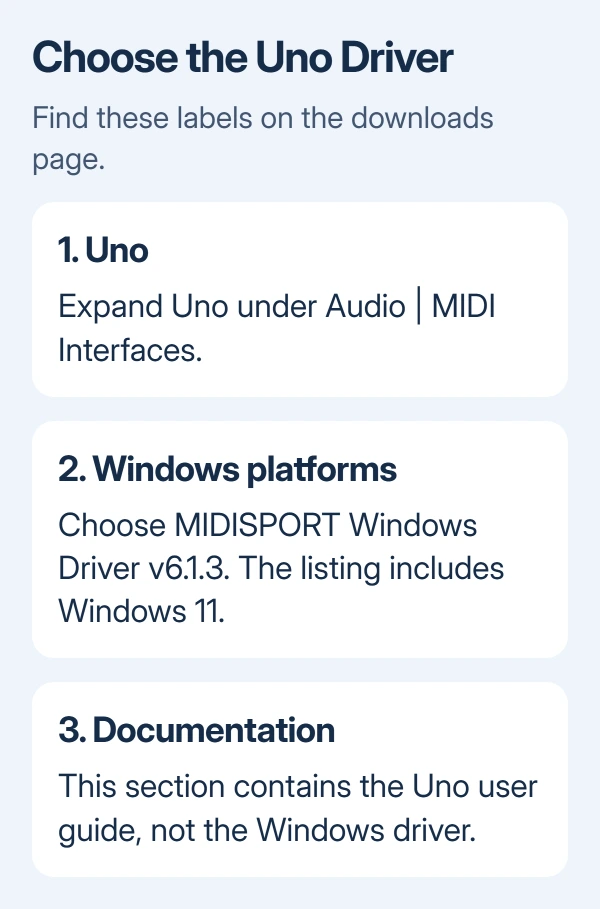
Choose Windows platforms for the driver; Documentation contains the manual. Follow the installer's connection prompts and restart if requested. Close music software before installing, then reopen it to let it detect the device again.
On an Arm-based PC, check Settings > System > About > System type. Windows 11 support alone doesn't confirm an Arm64 driver. Ask support which driver works with your exact hardware and processor before trying the package.
After installation, connect the Uno and open Device Manager. If the interface appears without a warning, move on to the music app. If it remains missing or has a warning symbol, check the USB side next.
2. Watch what changes in Device Manager
Right-click Start > Device Manager. Expand Sound, video and game controllers and check for the interface. Also look at Other devices and USB-related entries if Windows hasn't identified it correctly.
Disconnect the Uno, watch the list, then reconnect it. The entry that disappears and returns is the useful one to inspect, even if it isn't labeled Uno.
Right-click that entry, choose Properties, and read Device status on the General tab. Write down the error code or message. A yellow warning needs attention even when Windows has given the interface a name.
Use a USB socket directly on the PC, leaving out a hub, monitor, extension cable, or dock. Disconnect other USB devices you don't need while you try this. If possible, try another computer with the correct supported driver.
If nothing changes in Device Manager on either computer, check the interface, its attached cable, and the USB connection. Reinstalling a music app won't fix hardware that Windows can't detect.
For a broader USB error, the USB device not recognized checks cover Windows detection. Microsoft's driver update and reinstall steps explain the Device Manager controls if a driver needs reinstalling.
3. Enable the MIDI port inside the music app
Connect the Uno before opening your recording or music-production app, often called a DAW. Quit and reopen an app that was already running when you attached it, then open its MIDI input and output settings.
Choose Uno's input for keyboard notes and its output for messages sent to an external instrument. Menu names vary, but you need the app's MIDI-device settings, not the Windows speaker selector.
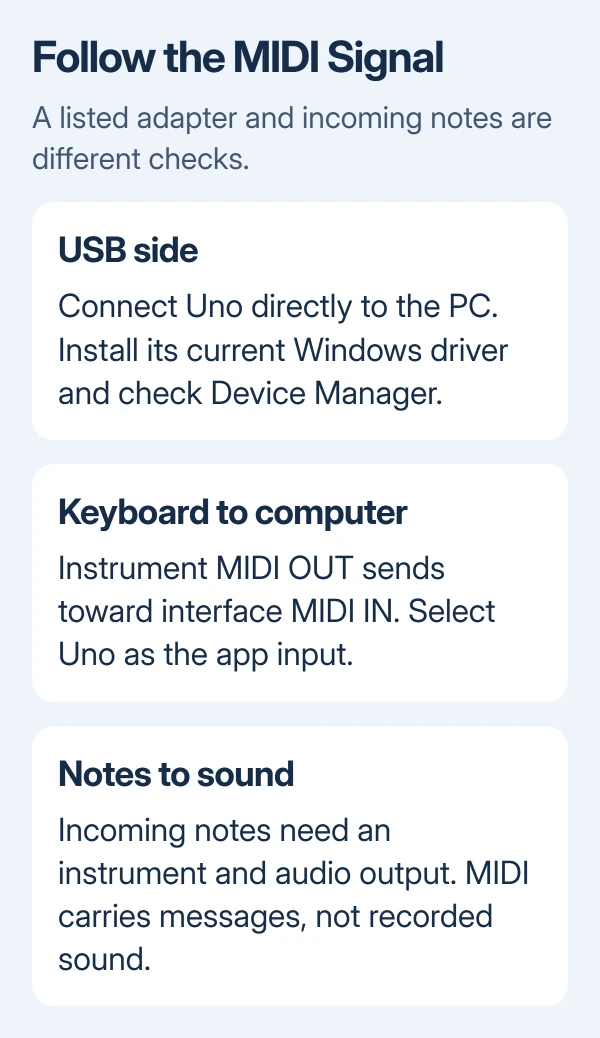
MIDI carries note and control messages, not recorded audio. If notes register but playback is silent, check the software instrument, track monitoring (listening to the input) and audio output. Silence doesn't mean USB detection failed.
In Finale, use the HyperScribe input and recording checks. A recording function waiting for its start signal can look unresponsive even with a working MIDI connection.
Check the MIDI cable direction too. The instrument's MIDI OUT sends notes toward the interface's MIDI IN; the interface's MIDI OUT sends toward the instrument's MIDI IN. Read any destination wording on the cable before connecting it.
I'd confirm that the app's incoming-note indicator reacts before troubleshooting sound. A visible incoming note tells you something much more useful than the fact that the adapter's power light is on.
4. Check the Windows MIDI update issue for a detected port
For a listed device that stopped passing notes after a Windows update, note the recent KB numbers in Settings > Windows Update > Update history. A listed port that won't pass notes needs different checks from a missing USB device.
The Windows MIDI Services known-issues page covers retail Windows 11 24H2, 25H2, and 26H1. It lists a fix for inMusic drivers locking up the MIDI service, which started rolling out on April 30, 2026.
Install current Windows updates and restart first. The maker recommends removing affected updates; the Windows issue page records a fix starting April 30. Check that fix before deciding whether to remove an update.
Another maker workaround uses Windows' built-in driver for class-compliant devices, which work without a separate driver. Don't assume this applies to Uno: its Windows 11 listing requires a driver. Ask support which steps fit your model.
If this continues on an updated system, report its build, driver version and whether the MIDI port appears. Confirm which device and update are affected before rolling back an update. Don't guess which security fixes to remove.
5. Compare incoming notes before requesting repair
Use a MIDI monitor if your music app still doesn't react. The MIDI monitoring instructions describe selecting the device's input and watching for incoming data when you play notes.
If notes appear in the monitor, the interface is sending them to software. Return to the DAW's chosen input, MIDI channel and recording controls. With a listed port but no messages, check the keyboard's output and physical MIDI connections.
If it fails with suitable ports and on another computer, open a New Support Ticket on the M-Audio support site. Include the Uno model, Windows build, driver version, Device Manager status, and whether a MIDI monitor receives anything.
The Short Version
Get the current Uno driver, confirm detection in Device Manager, then choose Uno in the music app. Separate missing notes from silent playback. Check current Windows MIDI fixes for a visible port that failed after updating.
Checked November 13, 2026.