

Print your Epson printer's network status sheet to see its current IP address. Pick the entry matching your computer's connection, because home Wi-Fi and Wi-Fi Direct can have different addresses.
An Epson connected only by USB doesn't need an IP address for USB printing. For a network printer, start at its own control panel so an old computer entry doesn't send you to a previously assigned address.
In this guide
Print the address from an Epson with a screen
Load ordinary paper and turn the printer on. Clear any paper or ink error that prevents printing. Check its printed model label, since the controls differ between EcoTank, Expression, and WorkForce models.
On an ET-2850, press Home if needed. Open Settings > Network Settings > Print Status Sheet, then press Start. The printer produces a sheet containing its current network settings.
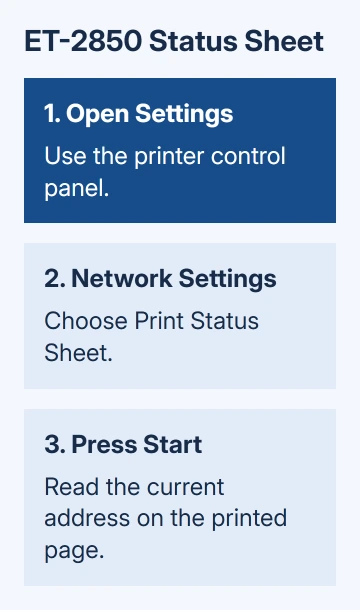
Look for the IP address in the section for the active network connection. Copy the complete number, including its dots. Keep the sheet handy during setup so a mistyped digit doesn't look like a connection failure.
The ET-2850 also has Settings > Network Settings > Connection Check. That prints a report to help you work out why the printer can't join the network. Choose Print Status Sheet to read its current network settings.
On other Epson models, look in their network settings for Network Status or a status-sheet command. Use the online user's guide for your exact model when the labels differ. Don't follow the ET-2850 steps on a different control panel.
A status sheet printed by the printer itself works even when the computer can't find it. That's useful when you're trying to add a missing printer rather than repair an already installed driver.
Use the right button on a model without a screen
A printer with no display can still print network information. Its buttons are model-specific, so look up Printing a Network Status Sheet in that model's user's guide before holding any button down.
For the ET-2700, load paper, then hold its network status button for at least 10 seconds and release it. Epson says in its ET-2700 status-sheet instructions to use that timing.
Use the symbol in the manual to identify the network status button. Don't hold the power button instead. The timing isn't a universal rule for every Epson with a Wi-Fi button.
If a short press produces a different report, return to the model's instructions rather than trying several button combinations. Network-reset combinations can erase a working wireless setup and turn a lookup into a new setup job.
Once the sheet prints, find the active connection's address on the page. You don't need a computer utility or a paid discovery tool just because the printer has no touchscreen.
Separate the network address from Wi-Fi Direct details
A network status sheet can list several different numbers. The IP address is different from the MAC address, which identifies network hardware. A printer serial number and Wi-Fi password aren't addresses to enter in an add-printer box.
Use the ordinary wireless or Ethernet section when the printer and computer connect through your router. Use Wi-Fi Direct details only when the computer or phone is using the wireless network broadcast by the printer itself.
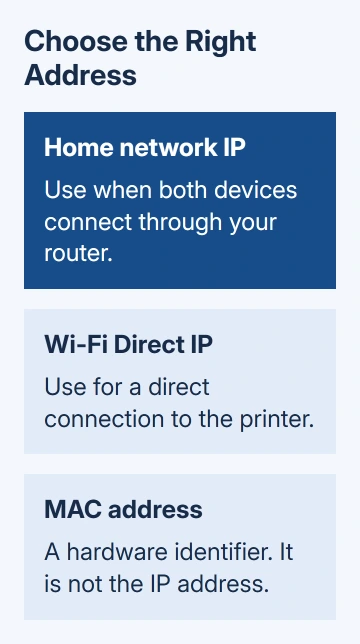
A direct printer connection and your home Wi-Fi are different networks. Copying the Wi-Fi Direct address while the laptop stays on the home network can leave the browser or printer installer unable to reach it.
Match the network name on the report to your computer's network. A guest network can prevent your computer and printer from communicating even when internet access works. Knowing the printer's address won't get around that restriction.
If the printer has no usable network address or its report shows a connection failure, work through the Epson Wi-Fi report checks first. Joining the network comes before adding its address on the computer.
I'd keep the sheet until the first successful print. It records which connection you checked, and saves another trip through the printer's menus if the computer asks for the address again.
Confirm the address with the printer's Web Config page
Put the computer or phone on the Epson's network. Open a browser and type the printer's current IP address into the address bar, then press Enter. Type directly in that bar, without searching for the number.
The ET-2850's Web Config instructions use the address from the network status sheet. If the connection works, the printer's settings page opens so you can check which printer you've reached.
Look for your Epson model on the page to confirm you've reached the right printer. Reading Web Config doesn't require a settings change. Leave its administrator controls alone when you're only checking an address.
If the page doesn't open, compare the typed address with the sheet and compare the two devices' network names. Reprint the sheet if the printer has reconnected since you first recorded its address.
The Epson Smart Panel app can also open Web Config through the product-information area on supported products. Select your model in the app before opening its information, especially if you have several Epson printers.
Use the current address when adding the printer
In Windows 11, open Settings > Bluetooth & devices > Printers & scanners and select Add device. If the search misses your model, use the manual-add choice and select the option to add by IP address or hostname.
Windows 10 places the printer list at Settings > Devices > Printers & scanners. Its add-printer flow also has a manual route when its search fails. Microsoft's printer-installation steps cover these routes.
Enter the address you just read, then follow the driver and printer prompts. Our manual IP printer setup explains the connection and driver choices when automatic setup can't finish.
Print a short document after setup. A browser page loading successfully confirms network access, but a completed print job also checks that Windows has a working printer entry and driver.
Windows can keep an old printer address after your router assigns a new one. Compare it against a fresh status sheet before resetting anything. Use the printer's current report as your reference.
If your model's panel or button steps won't print a sheet, contact Epson with the model and any error on the panel. Ask how to print its network settings. The router's public internet address isn't the printer address you need.
The Short Version
The Epson network status sheet lists its connection addresses. ET-2850 uses Settings > Network Settings > Print Status Sheet; ET-2700 uses a timed button press. Confirm that address before computer setup.
Checked November 16, 2026.
 If you have any business, I can build it online






