

A game installer's CRC failed message means its data didn't pass an integrity check. Replace the affected download from its original source. For an already installed game, run its launcher's file verification instead.
The same error can appear while unpacking a download or while loading an installed game's PAK file. Check which stage failed first, because repairing installed files can't fix an installer that never finished unpacking.
In this guide
1. Match the error to the file being checked
Read the complete message and record the named file. A path ending in .pak can identify game content inside a larger installer or archive. A filename can't tell you whether the failure came from the download or your hardware.
CRC is a check used to catch changed or damaged data. A mismatch means the checked data doesn't agree with the expected result. It isn't a missing Windows graphics setting, and lowering the game's visual quality won't repair that file.
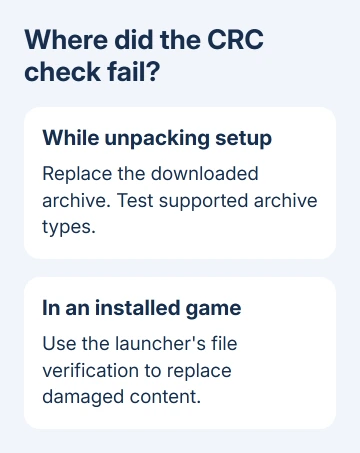
If the error appeared in an extractor or setup window, use the download and archive checks next. If the game installed successfully and now fails when opening content, use the launcher verification section.
Keep the full filename and error, even if the window also contains a general installation-failed message. The publisher needs the specific failed package to distinguish a broken download from a later game-startup fault.
An unrelated startup code needs its own checks. For example, 0xc000007b when starting an app means Windows couldn't load parts of the app, rather than an installer failing a CRC check.
2. Replace the failed download and check all its parts
Return to the store or publisher that supplied the installer. Download a fresh copy of the failed archive, using the original download option. Save it to a different folder to keep it separate from the download that failed.
If the download consists of several numbered parts, check that every required part is present and fully downloaded. Keep the matching parts together. Don't combine pieces from different releases of the installer.
Check the publisher's listed size or checksum if one is provided. A checksum is a value you can compare to check whether your downloaded file matches the original. Compare against the value for that exact release and filename.
Open or run the fresh installer only after the download completes. If setup gets past that package and finishes, replacing the download fixed the installation failure.
If the replacement fails on the same file again, don't repeatedly extract the original damaged copy. Continue with the archive test if applicable, then ask the publisher whether it can supply a replacement package.
I'd replace the download before reinstalling Windows. It directly addresses the data named in the error and leaves your other applications alone. A single failed game package doesn't justify rebuilding the whole computer.
3. Test an archive before running setup again
For a supported ZIP, 7z or RAR installer archive, open it in 7-Zip File Manager, select it and use Test. This checks the archive's contents for errors before you install the game.
The 7-Zip recovery instructions distinguish an archive that opens but produces Data Error or CRC Error during testing from one that can't be opened as an archive. Fix either error before running setup.
A visible file list isn't enough. An archive can display its filenames yet fail when their contents are read. Use the test result rather than assuming that browsing the folder means the download is intact.
Don't treat an installed game's PAK as a general-purpose ZIP archive. The PAK extension is used by different games and tools. A standard extractor refusing to open it doesn't automatically mean the game file is damaged.
If a fresh archive passes its test but setup still fails, save that result for the publisher. It helps distinguish the downloaded archive from the installer's later unpacking or writing stage.
4. Verify a game that is already in your launcher
In Steam, open Library, right-click the game and select Properties. Open Installed Files, then choose Verify integrity of game files. Let the process finish and allow any replacement download to finish before opening the game.
Verification checks whether your installed content matches the launcher's copy. It can replace damaged or missing files without guessing which PAK to delete. The launcher supports this way of repairing missing game content.
In the legacy Epic Games Launcher, open Library, find the game and select its three-dot menu. Choose Manage, then Verify. Wait for validation to complete before trying the game again.
The Epic Games Launcher Preview has a different route. Select Library in the top bar, open the game, then use the three dots beside Play. Select Manage > Verify and wait for the notification that verification has finished.
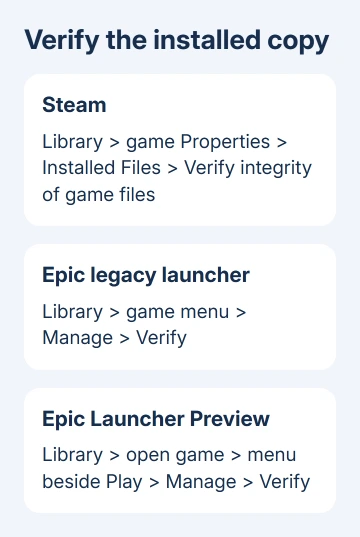
Use the launcher that installed that copy. A game stored through another service isn't repaired by an unrelated launcher's verification button. If no installed entry exists because setup failed early, return to the installer-download route.
Once verification finishes, try the same action that triggered the error. Reaching the main menu isn't the full check if the failure happened while loading a particular level or content pack.
5. Check the destination when replacement files fail again
Confirm that the destination drive has room for the download and installation work. Setup may need working space in addition to the final game's size. Use the installer's own stated requirement rather than assuming a fixed extra amount.
Open Settings > System > Storage to review space. Microsoft says its Windows storage-cleanup controls can help reclaim space without randomly deleting folders from the game's installation.
If ordinary files also fail to copy or the drive reports read errors, protect important files with a backup before another installation. Errors with other files call for storage checks, rather than replacing just one failed archive.
Use the Windows hardware-check options for the next checks on a Windows 11 PC. Repeated corruption across unrelated downloads is different from one publisher package consistently failing.
Windows 10 can also use these routes where the launcher supports it. Its settings screens differ from Windows 11. Use the instructions matching your installed app and operating system.
Give the publisher the package and failure stage
Open the game's official support page if the CRC failure survives a fresh download or verification. Send the game build, launcher, Windows version and PAK path. Say whether extraction, installation or loading failed.
Include the archive-test result and any files replaced by verification. Ask for a clean installer or help with the named package. Avoid unofficial DLL downloads and loose replacement PAK files.
The Short Version
Replace the failed installer archive before repeating setup. Verify installed games through their own launcher. If fresh data also fails, review storage and give the publisher the package name and failure stage.
Checked November 15, 2026.
 If you have any business, I can build it online






