

Gmail can't send a document it can't access or hasn't finished uploading. Try adding it again through Compose > Attach > Files. A security block, full account or Drive link the recipient can't open needs a different fix.
A PDF that won't attach is also different from a message waiting in Outbox. Check whether the filename appears in the draft and whether Gmail reports an upload error before changing the phone's settings.
In this guide
1. Attach the document from its actual location
Open Gmail and tap Compose, then the attachment icon. Choose Files for a document stored on your phone. Select the document from the Android file picker and wait for its name to appear in the draft before sending.
The attachment menu can show Photos, Camera, Files and Drive. A Word document or PDF belongs under Files or Drive; a photo-only picker won't show every document. Google's Android attachment instructions describe these choices.
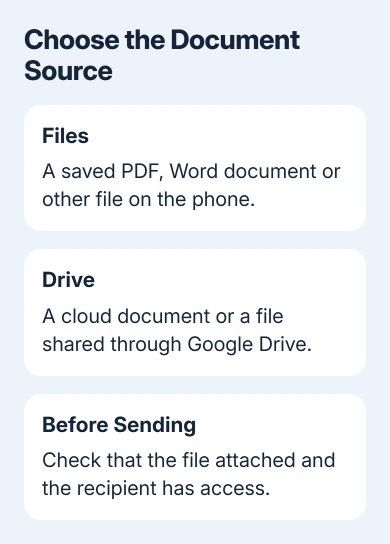
If the file is missing from the picker, check it inside its original app. Check whether it is a saved document, a link to a cloud document or an unfinished download. A filename shown in a recent-items list isn't always a local copy.
For a cloud document, use the Drive route in the next section. For a download, finish saving it first and select that saved copy. That tells you whether Gmail can reach the file without changing all its permissions or deleting your draft.
Try a small, nonprivate document if the original won't attach. If it attaches, check the original document, its storage location and its size. If neither file attaches, continue with the upload and connection checks.
2. Use Drive for cloud documents and large files
To attach something already in Drive, compose the message, tap the attachment icon and choose Drive or Insert from Drive, depending on the menu shown. Select the file, confirm the selection and then send the message.
Gmail checks recipients' access to a Drive file and can prompt you to adjust sharing. Choose the people you want to give access to. A Drive link sends access to the original document, rather than a separate copy.
If the recipient requests access, check the address you sent to. Giving access to one Google Account doesn't let them open the file through another address they use. Your organization can restrict sharing outside its domain too.
Personal Gmail accounts allow 25 MB of attachments in total. Work and school limits can be set by an administrator. If your files exceed your account's limit, Gmail can replace the attachments with a Drive link.
Add the sizes of all the files, rather than checking only the largest one. If you meant to send a copy instead of a link, reduce the file size or split the documents across messages within the account's limit.
Gmail Go lacks the Drive-attachment control. Open the document in Drive, set sharing and paste its link into the message. The file owner still needs to give the recipient access.
3. Finish the upload or add the file again
An upload warning means Gmail hasn't finished uploading a file so it can send it. If the draft refers to files uploading from another device, let that upload finish there. Remove those attachments to send without them.
For Couldn't send message after a failed Drive upload, remove and re-add the attachment. Causes include limited storage and slow internet. Keep your message text while replacing the file.
Compare Wi-Fi with a cellular connection using the small file. If only the cellular connection works, focus on the Wi-Fi network. Check your data allowance before retrying a large document.
Attachments might be unavailable can mean the network blocks mail-attachment.googleusercontent.com. Send that address and error to your network manager or internet provider. Reinstalling Gmail won't remove a network block.
If files attach but the wrong account is open, check the Android Google sign-in problem before trying to send again. Restore the account first, then retry attaching files.
4. Check the account's shared storage
Gmail, Drive and Google Photos share account storage. When it fills, sending and receiving attachments can stop. Free space on the phone doesn't mean this Google Account has room.
Open Drive or Google One for that address and review storage. Delete unneeded files or messages, then empty the relevant trash when ready for permanent deletion. Copy important items somewhere safe first.
For an Outlook address used inside Gmail, check the Outlook account setup separately. The shared Google storage allowance applies to Google accounts, not an external provider's mailbox.
After making room, retry an attachment in a fresh draft. If a second Google Account sends that file but this account can't, tell support. Ask them to check that account's storage and any organization rules that limit attachments.
5. Match a security block to the file's contents
A security warning doesn't ask for Android permissions. Gmail blocks some executable files, even inside archives, and documents with malicious macros. Putting blocked content in a ZIP file doesn't make it acceptable.
Inspect what you're sending. A folder of documents can also contain a script, shortcut or installer. If the recipient needs only a report, export and send that report as a normal document instead of attaching the whole working folder.
Don't rename a suspicious file to bypass a block. For a file you know is safe, the supported alternative is to upload it to Drive and share it with the intended recipient. Organization rules can still prevent that file from being shared.
If attachments still fail, send feedback through Gmail's menu with the error, file type, size and whether cellular worked instead of Wi-Fi. Work or school users should ask their administrator about attachment and Drive-sharing restrictions.
The Short Version
Use Files for phone documents and Drive for cloud files. Finish uploads, check shared storage and set recipient access. Network warnings and security blocks need their own remedies rather than repeated upload attempts.
Checked November 13, 2026.
 If you have any business, I can build it online






