
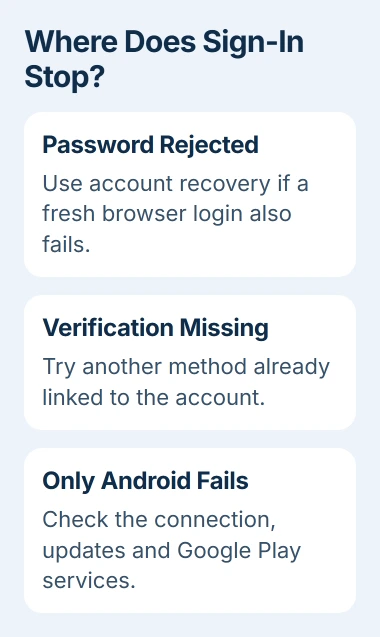
When Android won't accept your Google account, try signing in through a browser before resetting the phone. If the browser rejects your password too, use account recovery; if it works, check the phone's connection or Google services.
Keep the exact error visible as you work through the checks. A missing verification code, a stuck loading screen and a request for a previously synced account need different fixes, even though all three stop you signing in.
1. Separate the account problem from the phone problem
Open a website in your phone's browser to check the connection. Then try signing in at accounts.google.com with your full email address. You can also try a second device you regularly use to see whether it accepts the account.
If the page rejects the same password there, continue with account recovery. If it accepts the account but the phone's Add account screen fails, go to the phone-specific checks in step 4.
An inbox that's already open doesn't check your current password. Keep it open, but try a fresh sign-in to check whether the email address and password you're entering on Android work.
Google's sign-in troubleshooter has separate choices for password trouble, verification, work or school accounts, and device errors. Choose the one that matches your message instead of trying the same failed login again.
If a normal website won't load either, fix the connection first or try another trusted network. Account recovery can't finish while the phone can't reach the sign-in service.
2. Recover an address or password that is rejected
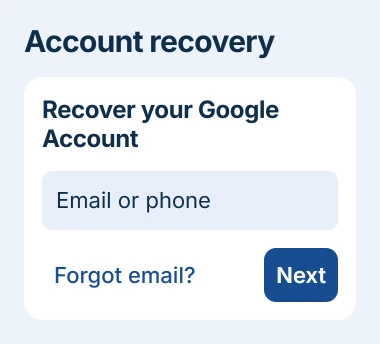
Open the account recovery page, enter your account address, and answer the questions. If you can't remember the address, choose Forgot email? and enter the recovery information it asks for.
To find your username, you'll need a recovery phone number or email address and the full name on the account. Check the addresses it finds before choosing one, since a similar-looking address can belong to another account.
Use a familiar device, browser and location when possible. If asked for an earlier password, enter the most recent one you remember. Give your best answer to each question, even when you aren't certain.
The recovery tips explain why a familiar setup helps. If you still can't recover the account, try again with better information or your usual device. A fresh account can't restore the mailbox you lost access to.
Only enter recovery passwords and codes on accounts.google.com. Keep any account session that still works open while you follow the prompts, since you may need it to read a message or approve the sign-in.
3. Use another verification method when the code is missing
If your password works but the next screen asks for verification, you've reached the second sign-in step. Select Try another way if it's offered, then choose a method you set up earlier.
Your choices may include another signed-in phone, a saved backup code, a security key or a passkey on another device. A passkey uses that device's screen lock to confirm it's you, so you don't have to type the account password.
Check the other phone for a Google prompt before requesting more text messages. The account may be waiting for that approval rather than an SMS. If you've requested several text codes, use the newest one.
The verification recovery instructions also cover a lost phone or security key. If none of your saved methods is available, go back to account recovery instead of turning off other security settings.
Recovery can take longer if extra checks are needed. Follow the wait or retry instructions shown for your account. Someone else's waiting time may not apply to you.
4. Repair sign-in on a phone whose account works elsewhere
Restart the phone and open Settings to check for Android updates. On many phones, this is under System > Software update; Samsung uses a separate Software update section. Install an offered update and retry account setup.
Update the affected Google app too. The Android app-update steps explain how to check an individual app when other apps still work normally.
Next check Google Play services, the part of Android that apps use for things like Google sign-in. It's separate from the Play Store, so updating the store alone won't update Play services.
Open Settings and your Google profile, then All services > System services > Google Play services, as shown in the Play services instructions. Choose Update or Install if either is available.
If you can't find that route, look for Google Play services in Settings > Apps, using See all apps if needed. Open its storage controls and select Clear cache to remove temporary files, then try signing in again.
Leave Clear storage or Clear all data until support asks you to try it. It erases information stored by Play services, and you may need to verify your payment cards and accounts again.
5. Check whether the account is signed in but not syncing
If your account appears in Settings with a sync warning, you're signed in but some data isn't updating. Open the account's sync screen to see whether Contacts, Gmail or another service is failing.
Choose Sync now if it's available, then check whether that item updates. The account sync procedure has you check the connection, sign-in and Android updates before you remove an account.
Removing the account takes its email, contacts and settings off this phone, but doesn't delete the Google account itself. I'd finish those checks and test your login before removing the account.
Review your Android backup details first, including anything that hasn't synced. Check that your important contacts and files are saved somewhere other than this phone.
To reconnect the account, open your phone's Accounts controls. The name varies by model: look for Passwords & accounts, Manage accounts or a similar label. Choose Add account > Google to add it again.
6. Handle a previously synced account request after a reset
A phone that asks for a previously used account after a reset is checking that it belongs to you. Enter a Google account that was added and synced before the reset, or use the screen-lock option if setup offers it.
The device-protection rules require a previously synced account. Creating a replacement account won't satisfy that check, even if you factory-reset the phone again.
Recover your own account on another device. If you bought the phone secondhand, contact the seller to finish transferring ownership. If they can't, ask to return it rather than paying someone who promises to bypass the check.
When sign-in still fails
For work or school accounts, give the administrator the exact message and phone model. A child's account may need a parent's account controls. Recovery for these accounts differs from personal accounts.
For a personal account, continue with account recovery. Google says it doesn't offer phone help to override sign-in. If the account works elsewhere, tell your phone's maker its Android version and what happened in the browser test.
The Short Version
Choose the fix from the point where sign-in stops: recover a rejected password, try another verification method, or repair the phone's Google services. After a reset, use an account that passes the phone's ownership check.
Checked November 4, 2026.

Isaac Smith is the founder and editor of PC Glance, a website that covers computers, laptops, and technology. He is a tech enthusiast and a computer geek who loves to share his insights and help his readers make smart choices when buying tech gadgets or laptops. He is always curious and updated about the latest tech trends.