Missing Google Chrome icons often come from hidden toolbar buttons, unpinned extensions, or disabled New Tab shortcuts. Use Customize Chrome for buttons, Extensions for add-ons, and Show shortcuts for the website tiles.
A missing Chrome app shortcut on the Windows desktop needs a different fix. Start by checking whether the missing item belongs inside the browser window or is the shortcut you use to launch Chrome.
In this guide
1. Restore Chrome's own toolbar buttons
For a missing built-in button, open More > More tools > Customize Chrome. In the side panel, select Toolbar, then turn on the buttons you want. This changes the controls around the address bar.
Another route is More > Settings > Appearance > Customize your toolbar. Google says its toolbar instructions describe both routes. Look for the control's name; its position may differ from an older screenshot.
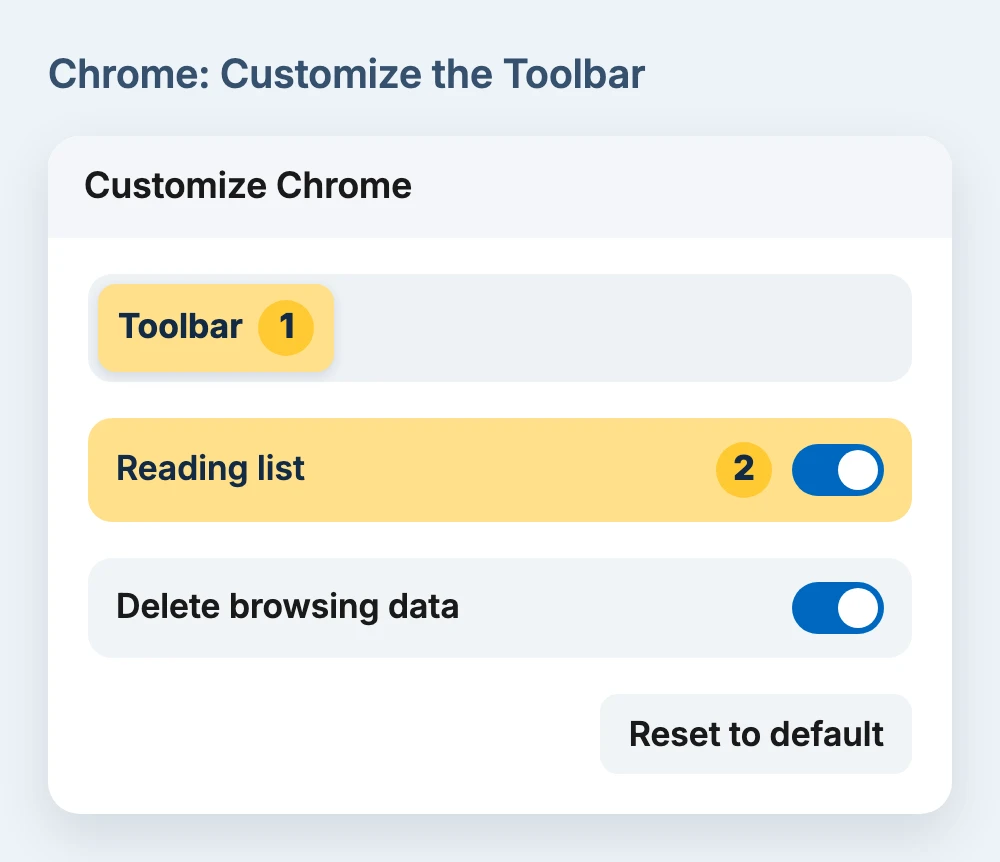
A previously pinned button can also open this panel: right-click it and select Customize toolbar. If nearly everything is missing, use the More menu instead of looking for a button that isn't there.
Select only the controls you use. The first button selected appears first, and you can drag pinned buttons to change their order. A disabled button can't be reordered, so turn on the wanted control before trying to position it.
To undo toolbar customization, choose Reset to default on Windows or Chromebook, or Reset to Default on Mac. Use the reset in the toolbar panel. The browser-wide reset changes other settings too.
If your missing icon came from an extension rather than Chrome itself, it won't be restored by this list. Continue with the Extensions menu while keeping the toolbar changes you actually wanted.
2. Pin an extension that is still installed
Select Extensions, the puzzle-piece button near the address bar. Find the missing extension and select Pin. Its icon should return to the toolbar if that extension has a Pin option.
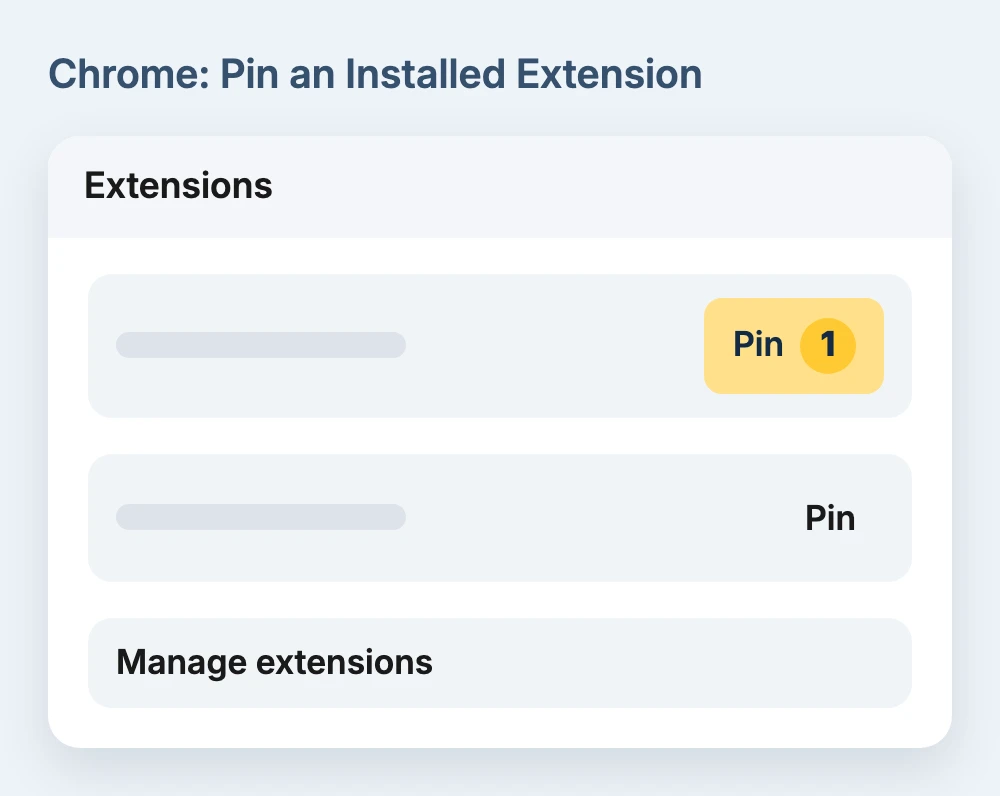
Some extensions don't have the Pin option. Others work through a page or context menu rather than a permanent toolbar button. Keep a working extension installed even if it has no pin control.
If it isn't listed, open More > Extensions > Manage extensions. Check whether it's installed and enabled in this profile. Use the profile button to compare accounts if you recently changed browser windows.
A disabled, damaged, or unsupported extension needs more than a visibility change. Use the extension switch checks for the message on its card. Pinning won't remove an administrator's block or make an unsupported extension work.
When the icon returns, open it on a relevant page and check that it works. An extension that appears in the toolbar but can't read a particular website may need permission to read that site rather than a display setting change.
3. Bring back the website tiles on a New Tab page
Open a new tab and select Customize Chrome near the bottom-right corner. Under Shortcuts, turn on Show shortcuts. Choose My shortcuts for your selected sites or Most visited sites for the automatically chosen list.
These tiles aren't browser extensions or the bookmarks bar. If the missing item was a site tile under the search box, changing toolbar switches won't bring it back. Start with Show shortcuts and the selected shortcut type.
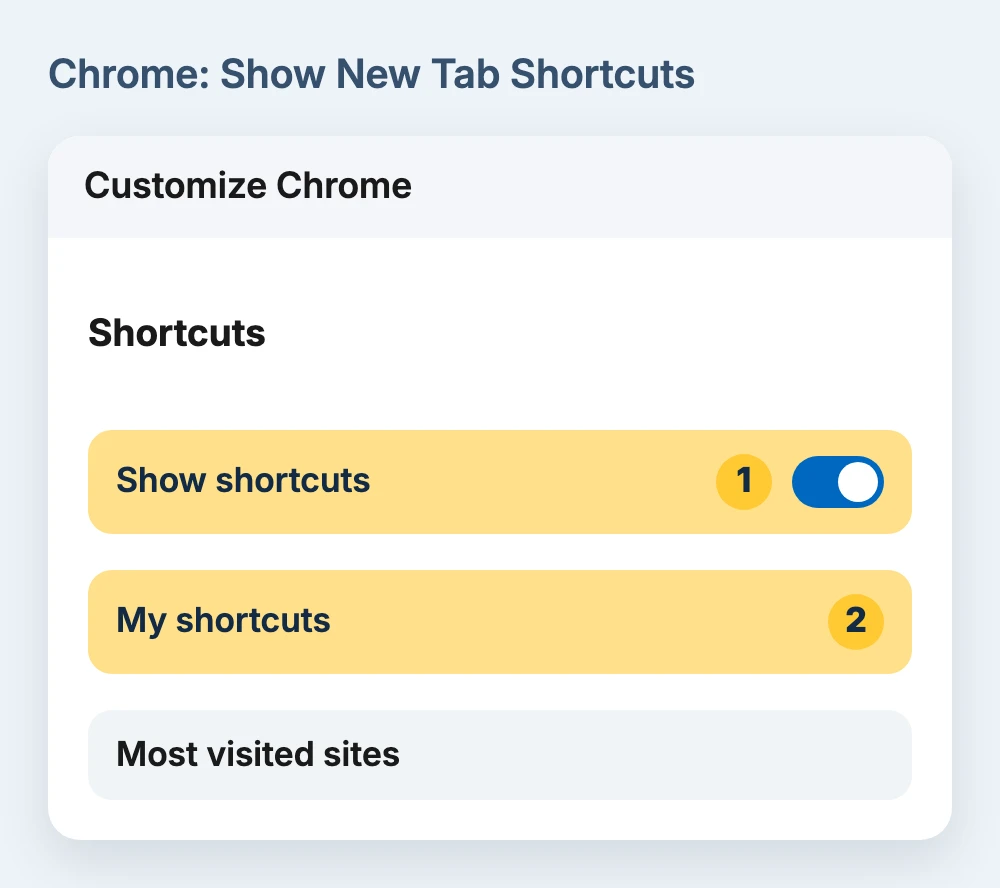
The current customization instructions require signing into a Google Account and choosing Google for default searches. If this panel isn't available, check those conditions before deciding that Chrome has lost its controls.
Changing from Most visited sites to My shortcuts changes which list you see. It doesn't turn every previously visited site into a saved shortcut. Check which list you've selected before recreating a tile that belongs to the other one.
A New Tab extension may replace the standard controls. Look for it in Manage extensions. Review its settings or disable it temporarily to compare the result, then open another tab to check whether the built-in controls return.
For background changes on the same page, the Chrome background guide covers that separate control. Changing the theme or wallpaper won't turn on Show shortcuts.
4. Handle missing desktop shortcuts and blank site symbols
For a missing Windows desktop shortcut, run shell:AppsFolder from Windows+R. In the app folder that opens, right-click Google Chrome. Select Create shortcut, then accept placing it on the desktop.
This works through the app folder on Windows 10 and 11. If all desktop icons vanished together, open the desktop's right-click menu and enable View > Show desktop icons instead. A new shortcut stays hidden while that setting is off.
For a missing taskbar icon, launch Chrome so its running button appears. Its right-click menu offers Pin to taskbar. On a Mac, open Chrome from Applications. In the Dock, Control-click Chrome and select Options > Keep in Dock.
A missing app shortcut differs from a blank icon on a website tab. If the page still loads and its title appears, the missing image is a site symbol, often called a favicon. The website supplies it; it isn't an extension button you can pin.
Reload and compare another site. If only one website has a blank symbol, don't reset Chrome to replace that site's image. If unrelated sites show blank symbols too, restart the browser and check for a Chrome update.
Open More > Help > About Google Chrome to check the installed version and let an available update complete. Select Relaunch if offered. Save anything important in web forms before restarting the browser.
These desktop toolbar and extension steps apply to Chrome on computers. Chrome on Android, iPhone, and iPad uses different controls and doesn't offer the same desktop extension-pin menu. Don't look for it on a phone.
5. Get help with the exact missing item
If the right control still won't stay visible, open Chrome's More > Help > Report an issue. Describe the missing item, the operating system, and whether it disappears when you restart Chrome or open a different profile.
For a work or school browser, have its administrator check the setting before changing profiles or removing tools. Include the management or disabled-extension message so they know which restriction to check.
The Short Version
Restore buttons in Customize Chrome, add-ons with Extensions > Pin, and tiles with Show shortcuts. Check the profile and extension warning before reinstalling. Windows app shortcuts and blank website symbols need separate checks.
Checked November 27, 2026.
 If you have any business, I can build it online