

A crossed-out Google Meet microphone needs unmuting; a blocked mic needs browser and device permission. Start with the meeting's microphone button, then select the microphone you want to use in Meet's audio settings.
Companion mode joins without microphone or speaker audio. Leave it and rejoin normally for a conversation. Even when another app records your voice, Meet needs its own permission and input selection.
In this guide
1. Unmute the meeting or leave Companion mode
Look at the microphone button along the bottom of the meeting. Select Turn on microphone if it is off. Check your headset's or laptop's hardware mute as well; the meeting button can't undo a hardware mute.
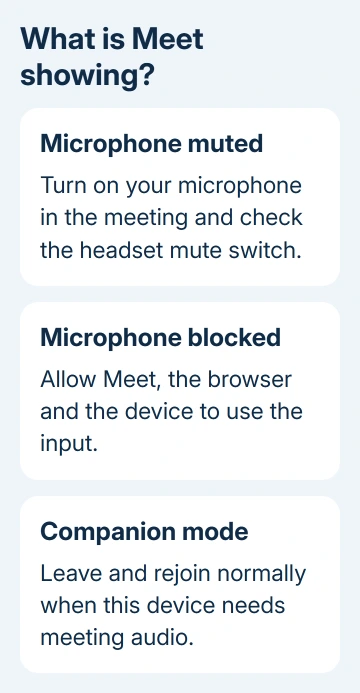
Other people can mute your microphone, but they can't unmute it for you. If a host muted the meeting, turn your own microphone back on when you're ready to speak. A managed meeting can also restrict participants' ability to use audio.
Check whether you joined using Companion mode, which supports participating alongside another meeting device. It doesn't carry microphone or speaker audio. Leave it and rejoin normally to speak through this computer.
Once unmuted, speak and watch your tile for audio activity. If Meet responds but one person can't hear you, ask whether others can. That person's speaker or output selection may need attention.
2. Choose the microphone inside Meet
In the meeting, open More options > Settings > Audio. Under Microphone, choose the built-in microphone, headset or USB microphone you intend to use. Speak while watching the microphone activity indicator.
Meet can retain a webcam mic, dock input or disconnected headset selection. A listed name doesn't mean that microphone is near your mouth. Pick the device yourself rather than relying on the default after a connection change.
For Bluetooth equipment, confirm the headset is connected to this computer. Reconnect a USB microphone directly if it has disappeared from the list. Then reopen Meet's audio settings and check whether the intended input is available.
If the indicator moves, ask another participant whether they can hear you. If it stays still for every input, continue with permissions. Changing the meeting's speaker setting won't repair a microphone that isn't receiving sound.
3. Give the meeting site microphone access
In Chrome, keep the meeting page open and select View site information beside its address. Turn on Microphone. Reload when Chrome asks, then rejoin the meeting and select the intended input again if necessary.
Google says Meet needs permission for the meeting, the browser and the device. All three permissions matter. Allowing Windows to use a microphone doesn't automatically allow a particular website to use it.
If the site control is missing or access stays blocked, enter chrome://settings/content/microphone in Chrome's address bar. Set Sites can ask to use your microphone and check whether the site is listed as blocked.
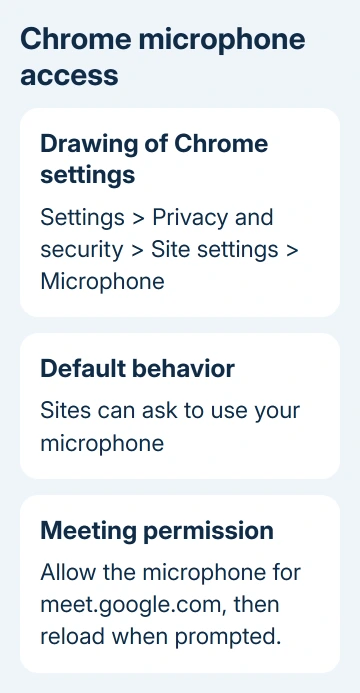
Allow the real meet.google.com site rather than an unrelated page offering to test or repair audio. Allowing microphone access in the browser lets that site use it; it doesn't change the operating system's separate privacy switch.
A locked control in a managed browser may be set by your work or school. Ask the administrator about Meet and browser microphone access. Reinstalling won't remove a policy that the organization applies again.
4. Enable recording at the system level
On Windows 11, open Settings > Privacy & security > Microphone. Turn on Microphone access, then Let apps access your microphone. For Chrome and other desktop browsers, also turn on Let desktop apps access your microphone.
Windows 10 puts these controls in Settings > Privacy > Microphone. Allow access for the device, apps and desktop apps. A browser might not have an individual switch among Store apps, which is why the desktop-app control matters.
Next, use Settings > System > Sound > Input and select the same microphone. On Windows 11, open its properties to run the input test. On Windows 10, speak and watch the input meter under Test your microphone.
On a Mac, open System Settings > Privacy & Security > Microphone and allow your browser. If macOS asks you to quit and reopen it, follow that prompt. For an older Mac, look in System Preferences > Security & Privacy > Privacy > Microphone.
Check System Settings > Sound > Input on the Mac and speak while watching Input level. If that meter is silent too, work through the computer microphone checks for a Windows PC, or the Mac input-level checks for a Mac.
5. Restart the browser when permission looks correct
Save unfinished work in other tabs first. Enter chrome://restart in the address bar to restart Chrome, then return to the meeting. Chrome reopens its tabs and windows, though that doesn't preserve every website's unsaved work.
This restart also resets apps or extensions that may be using the microphone. Closing a single meeting tab doesn't perform the same reset. I'd try the browser restart before removing extensions or clearing all browsing data.
Update the browser if an update is waiting, then finish its restart. If the microphone works in the system test but still fails only in Meet, record the exact blocked or unavailable message before asking your administrator for help.
6. Restore mobile app access
In the Meet mobile app, tap the meeting's microphone control to unmute. If an external headset is connected, check its mute switch and connection. Disconnect it briefly to compare the phone's own microphone.
For iPhone and iPad, go to Settings > Privacy & Security > Microphone and allow Meet, or Gmail if you're using it for the meeting. Return to the app and try the meeting again.
On Android, hold the app icon and open App info > Permissions > Microphone. Allow recording while using the app. Also turn on the phone's main microphone control if your phone has one; names vary by maker.
When Meet still receives no voice
For work or school, tell the administrator your device model, browser version, microphone name and exact message. Say whether the system's recording test works. Ask them to check meeting audio restrictions and browser microphone policy.
For a personal account, send the details through the meeting's More options > Report a problem. If several apps also fail to record locally, ask the computer or headset maker about the input hardware.
The Short Version
Unmute, leave Companion mode if needed, and choose your microphone in Meet. Check site, browser and device access, then restart Chrome. A silent system recording needs device checks; a working recording points back to Meet or permissions.
Checked November 10, 2026.
 If you have any business, I can build it online






