HDMI flickering often comes from a loose cable, a damaged lead, or a connection that can't handle the selected display mode. Reseat both ends and try a direct cable between the PC and screen before changing drivers.
A screen that briefly goes black needs different checks from an image that shimmers while staying visible. If the monitor's own menu flickers too, check the display and its power supply rather than treating everything as a Windows fault.
In this guide
1. Reseat the cable and remove the adapter chain
Disconnect each end of the HDMI cable, check the connectors for damage, and reconnect them firmly. Make sure the monitor is using the HDMI input that matches the socket you've connected.
If the picture normally cuts out when you move the laptop, let the cable rest without pulling on the port. Don't keep bending a loose plug to hold the picture in place. A damaged socket needs repair.
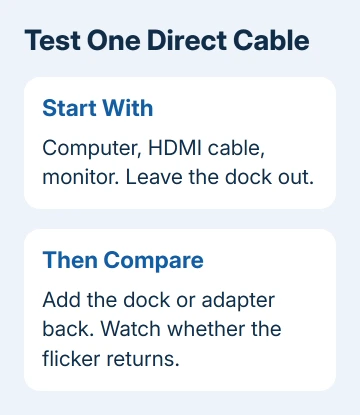
Remove the dock, HDMI switch, extension, or converter for this check. Use a single cable between the computer and display. That checks the connection without the extra parts getting in the way or changing your computer's settings.
If that connection stays steady, add accessories back individually. If adding one part brings the flickering back, check that part next. A dock can have its own display limits even when the laptop and monitor support a faster mode.
I'd borrow a known-working cable before buying a new monitor. If the picture stays steady with the borrowed cable, you've learned more than you would by reinstalling drivers with the old cable still attached.
2. Try a supported, slower display mode
Open the display settings and select the external screen first. Changing the laptop panel's refresh rate won't test the HDMI connection. A screen's refresh rate measures its updates per second.
On Windows 11, open Settings > System > Display > Advanced display. Select the external monitor, then use Choose a refresh rate to select a lower supported rate. Try 60 Hz if the display offers it.
On Windows 10, open Settings > System > Display > Advanced display settings. Choose the external screen and change Refresh rate. The name of the page differs, so don't search for a separate HDMI settings panel.
If the list marks a rate with an asterisk, that choice changes the resolution too. Check both values afterward. The Windows HDMI settings guide explains where resolution, refresh rate, and sound controls live.
On a Mac, open Apple menu > System Settings > Displays, select the external display, and choose a supported Refresh Rate if that control is available. The options depend on the screen and connection.
A steady picture at the slower rate points toward the mode or the connection carrying it. Check the port, adapter, cable, and monitor specifications before returning to the faster setting. A new cable can't add modes to a limited port.
The Fortis x360 G5 display steps use ChromeOS controls, including mirroring, for HP's school Chromebook.
3. Compare another cable, port, and computer
Try a second HDMI cable with the same computer and monitor. Leave the display mode unchanged during the swap. That lets you judge the cable without a second change affecting the result.
If both devices have another compatible HDMI port, try it next. Select that input on the monitor. If the cable occupies HDMI 2, choose HDMI 2 as the input; the monitor won't display it through HDMI 1.
Then connect the monitor to another computer, or connect your computer to another display. These swaps help you see whether the problem follows your computer or the monitor. They don't require a new graphics card or a factory reset.
If the monitor works with another source, check the original computer and its connection. If your computer works with another screen, check the first monitor, its input, and the display mode used with it.
For a display that never produces a picture, use the HDMI port detection checks. Use the checks that match what your screen does: flickering isn't the same fault as a screen that never shows a picture.
4. Check the monitor's menu and power
Open the monitor's own on-screen menu using its physical button or joystick. Watch whether the menu itself flickers. That picture is produced by the monitor, so it helps separate a panel problem from the incoming computer image.
On supported Samsung models, a Picture Test is under Settings > Support > Self Diagnosis, sometimes through Device Care. Other models use different controls; check the manual for your exact display.
For a monitor without that test, disconnect the video cable and watch its no-signal message. Samsung says to check the menu or no-signal message when deciding whether the monitor needs service.
If the menu or no-signal message flickers, reconnect the monitor's power cable and try another suitable outlet. Keep high-current appliances off the same power arrangement. If the monitor's own image still flickers, request service.
If the menu stays clear while the computer image breaks up, return to the source, cable, and display mode. Use the cable and device swaps to check what reaches the monitor before replacing its panel.
5. Update the computer after the connection checks
For Windows, install available updates and the graphics driver supplied for your computer or graphics hardware. Microsoft's external monitor troubleshooting also covers a driver rollback when an update caused the trouble.
If a graphics update immediately brought on the flickering, open Device Manager > Display adapters, open the adapter's Properties, and check Driver > Roll Back Driver. A grayed-out button means the old driver isn't available there.
On Mac, check System Settings > General > Software Update. Keep the monitor directly connected while checking the result. Check whether the picture stays steady after the update before reconnecting the dock.
If the fault remains, give the computer or monitor maker the model names, selected resolution and refresh rate, cable comparison, and menu-test result. Ask for help with the HDMI output or display input that failed those comparisons.
The Short Version
Use a direct, firmly connected cable. Try a slower supported mode, compare another source and display, and watch the monitor menu. The results help you choose between a cable replacement, connection change, and hardware service.
Checked November 12, 2026.