
You open the Music app to play your own songs, and Apple Music is all over it. If you have no plan to subscribe, that gets annoying fast.
There is good news, though, because iOS 27 still has a switch for it. I read a MacRumors thread from this week where an owner pointed to it, then checked Apple's iPhone guide for everything around it.
The switch lives in Settings, not in Music
The owner who asked had searched the Music app itself. In their words: "I don't see any toggle anywhere to hide it from being all over the music app."
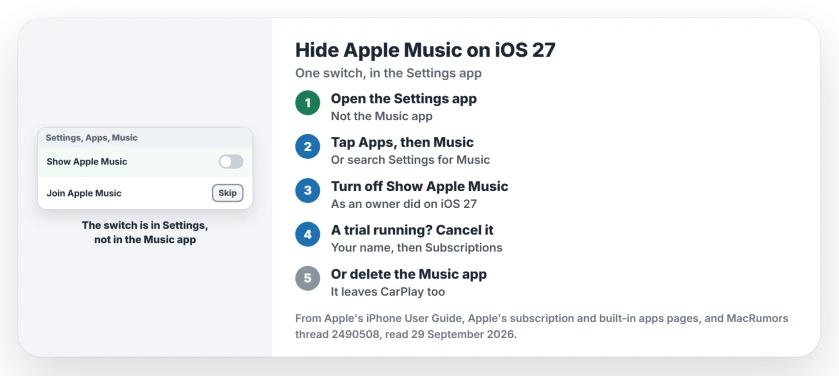
That is the catch. The switch sits in the Settings app, in the Music section. Apple's guide sends you down the same road for other Music options: "go to Settings > Apps > Music, then tap Join Apple Music".
Status: iOS 27, checked 29 September 2026. An owner posted the Show Apple Music route on 25 September, and the asker thanked them. Apple documents the trial and app removal steps.
1. Turn off Show Apple Music
The answer came within hours, in one line: "Settings-->Apps-->Music-->Show Apple Music". The person who asked came back on 28 September to say thanks.
- Open the Settings app.
- Tap Apps, then tap Music.
- Turn off Show Apple Music.
I have no iPhone here, so I could not see which tabs change on iOS 27. The asker's thanks is the only report so far.
2. Search Settings when the list is long
The Apps screen lists every app you have, so Music can take some scrolling to find. Apple says "you can search for iPhone settings you want to change", using the search field in Settings.
Type Music there, then tap the Music result to land on the right screen.
3. Cancel a trial you did not mean to start
Hiding Apple Music does not end a subscription. Apple says "New subscribers can start a trial and cancel at any time", so check that nothing is running before it renews.
On your iPhone, open Settings, tap your name, then Subscriptions, and tap Apple Music.
Apple's cancel page adds a useful tell: "If there is no Cancel button or you see an expiration message in red text, the subscription is already canceled."
Know the trade before you cancel. Apple says that if you end it, "you can no longer stream Apple Music songs or play Apple Music songs you downloaded."
4. Or remove the Music app completely
If another app plays your music, you can take Music off the phone. Apple lists it among the built-in apps you can delete, and it comes back from the App Store later.
To remove it, touch and hold the Music icon, tap Remove App, then Delete App. Apple's built-in apps page says deleting it on the iPhone "also deletes that app from your Apple Watch."
Check your car first. In Apple's words, deleted Music, Books, Maps or Podcasts apps "won't be available to use with CarPlay". Apple adds that some car stereos stop playing your library once Music is gone.
Other Music app problems on iOS 27
If Music closes the moment you open it, our Apple Music crash page covers that bug. A Home tab that stays empty has its own page.
Can I hide Apple Music without deleting the Music app?
Yes. An owner on iOS 27 turned off Show Apple Music in Settings, Apps, Music, and the Music app stays on your phone.
Where is the Show Apple Music switch on iOS 27?
In the Settings app, under Apps, then Music. It is not inside the Music app, which is where the asker in the thread first looked.
Will I lose downloaded songs if I cancel Apple Music?
Yes, the ones you downloaded from Apple Music. Apple says they stop playing once the subscription ends.
The Short Version
- The switch is in the Settings app, not in the Music app.
- Tap Apps, then Music.
- Turn off Show Apple Music.
- Search Settings for Music if the Apps list is too long to scroll.
- Hiding it does not cancel a trial.
- Cancel under your name, then Subscriptions.
- Or delete the Music app if another player has your songs, CarPlay aside.
Where to Next
Switch it off in Settings today. Then open Music and see what is left.
If your iPhone shows no Show Apple Music switch at all, leave a comment saying whether you subscribe, because that detail decides what I check next.

Isaac Smith is the founder and editor of PC Glance, a website that covers computers, laptops, and technology. He is a tech enthusiast and a computer geek who loves to share his insights and help his readers make smart choices when buying tech gadgets or laptops. He is always curious and updated about the latest tech trends.